1. Manual Entry of Each Charge
Users can manually enter individual Local Charges directly into the system.
This method is suitable when you need to add a few small or one-off charges quickly.
Steps:
Step 1: Go to Pricing → Local Charges
Step 2: Click + New Local Charge to create a new entry.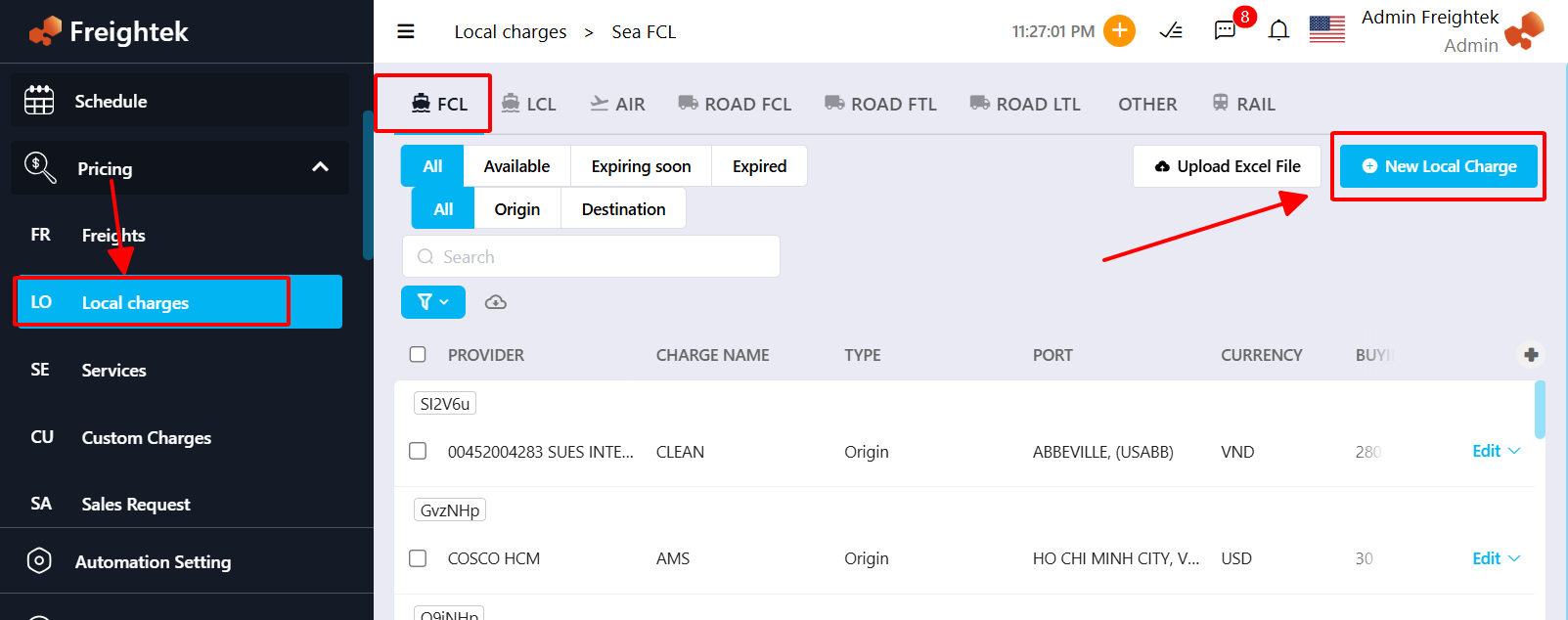
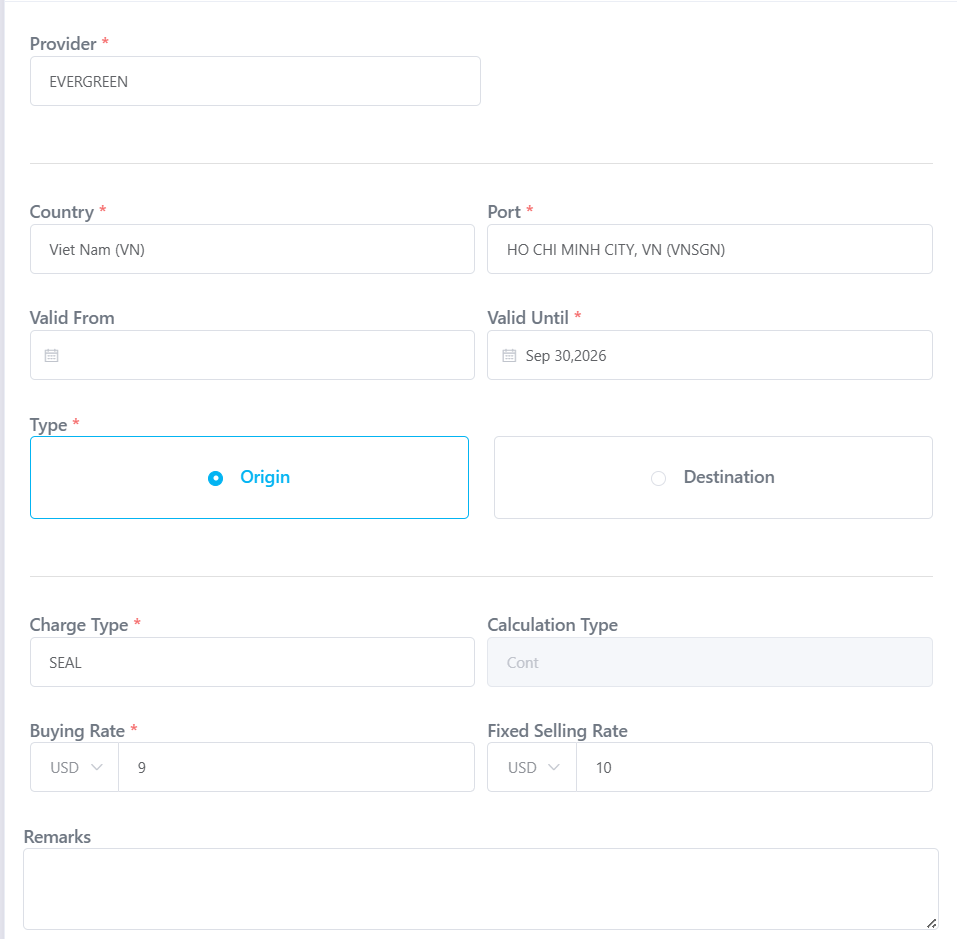
Step 3: Fill in all required information fields:
Description of Local Charge Fields:
PROVIDER: The service provider for the Local Charge (must match the Name already entered in the Partner module).
COUNTRY: The country where the charge applies; use the 2-letter country code.
Example: Vietnam = VN, Singapore = SG.PORT: Port code or port name where the charge applies.
Example: VNSGN or HO CHI MINH.CHARGE NAME: The name of the charge (must match the Charge Name previously created, e.g., THC, Handling, Documentation…).
TYPE: Whether the charge applies at Origin or Destination.
CURRENCY BUYING: Currency used for the buying rate.
BUYING RATE: Buying unit price.
CURRENCY SELLING: Currency used for the selling rate.
FIXED SELLING RATE: Fixed selling unit price.
REMARK: Additional notes (optional).
VALID FROM (YYYY-MM-DD): Effective start date.
VALID UNTIL (YYYY-MM-DD): Effective end date.
2. Import Local Charges Using Excel
This method is useful when entering large quantities of Local Charges at once.
Steps:
Step 1: Go to Pricing → Local Charges
Step 2: Click Upload Excel File to download the Local Charge Excel template.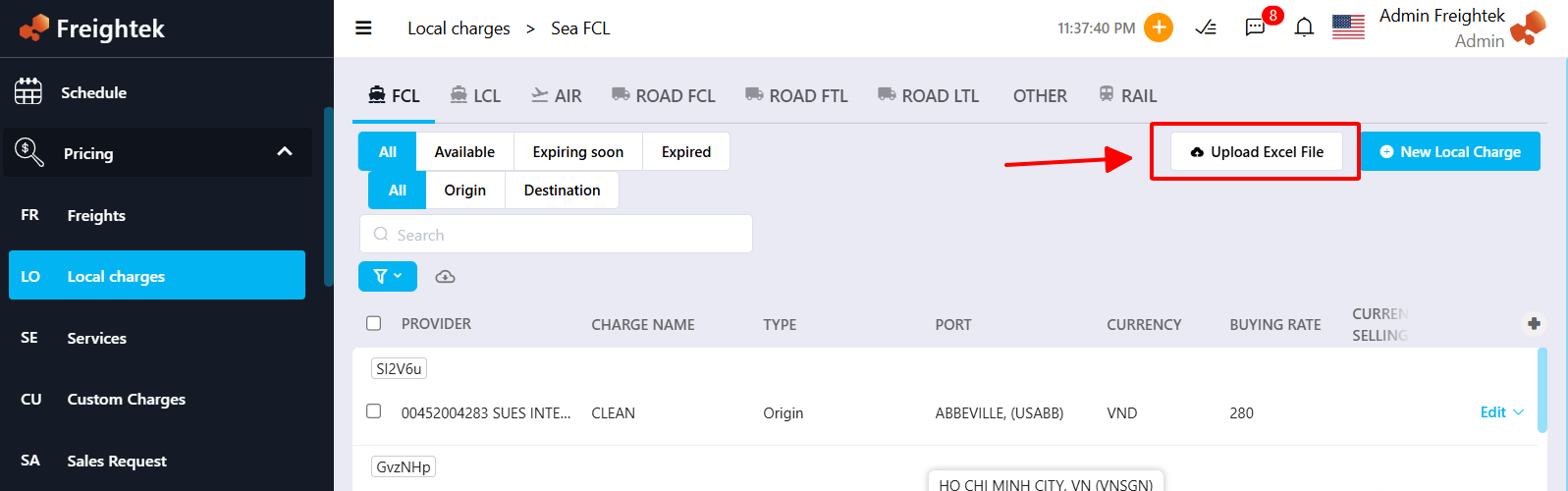
Step 3: Fill in all required fields in the Excel file
(using the same field definitions described in Method 1).
Step 4: Return to the system → click Upload File → select your completed Excel file.
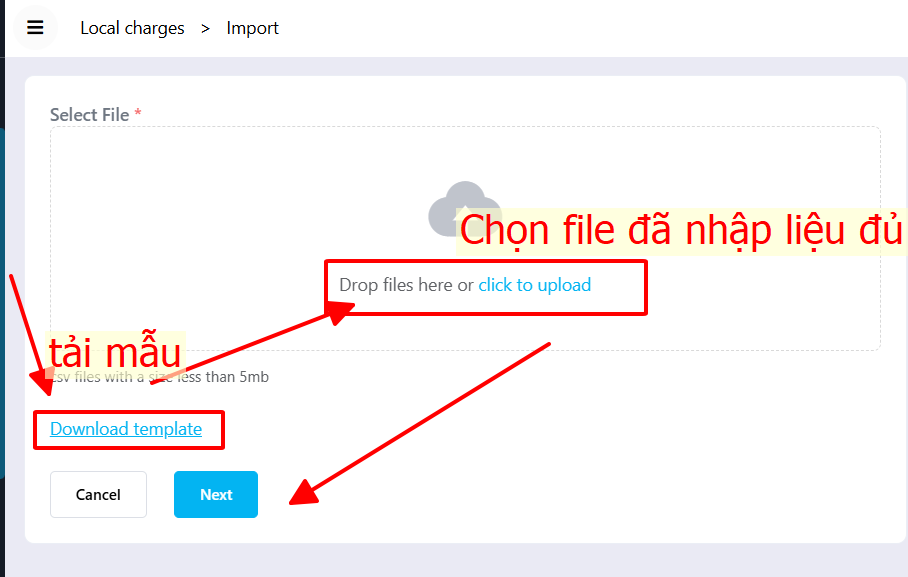
Step 5: Verify that all fields are correctly mapped → click Next.
The system will automatically import all Local Charge data from the file into the Local Charge list.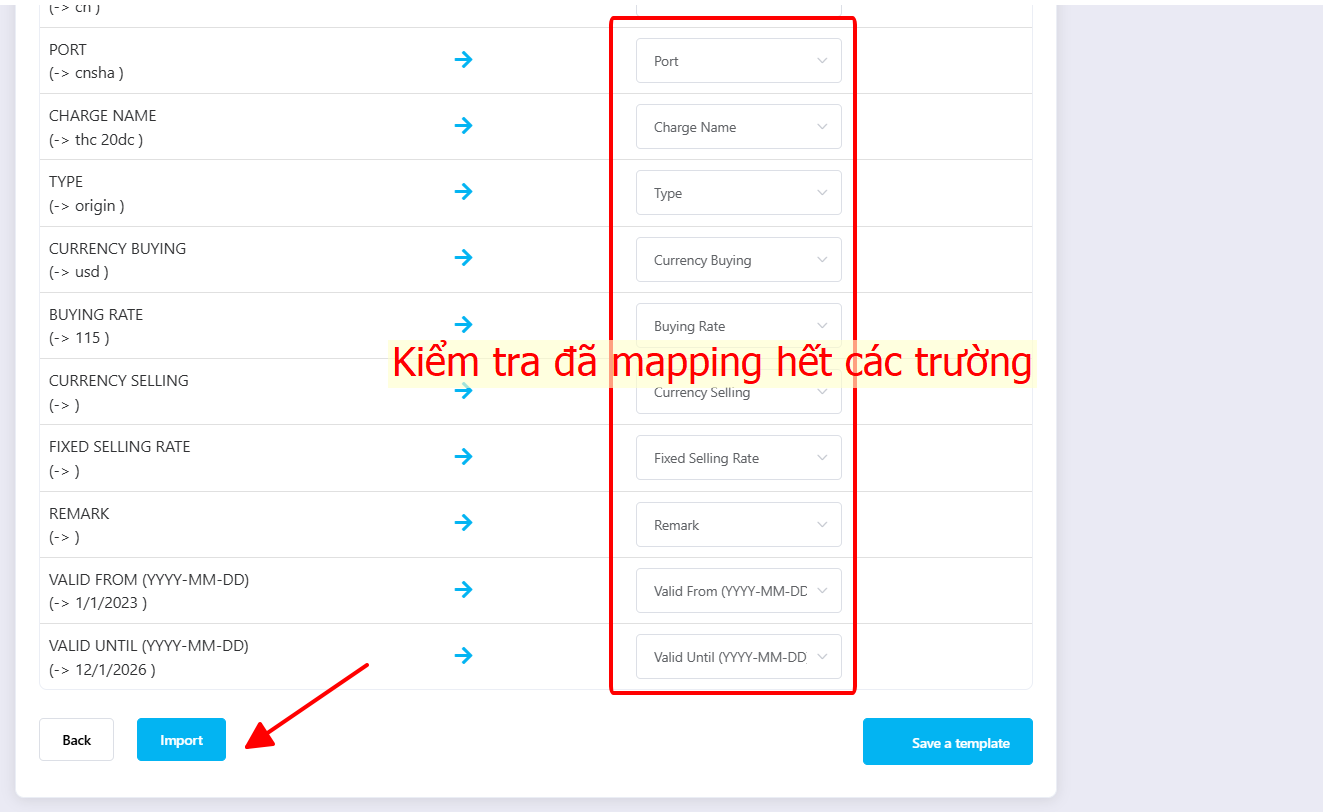
Was this article helpful?
That’s Great!
Thank you for your feedback
Sorry! We couldn't be helpful
Thank you for your feedback
Feedback sent
We appreciate your effort and will try to fix the article