How to create a Booking when space has been reserved in advance (Forecast):
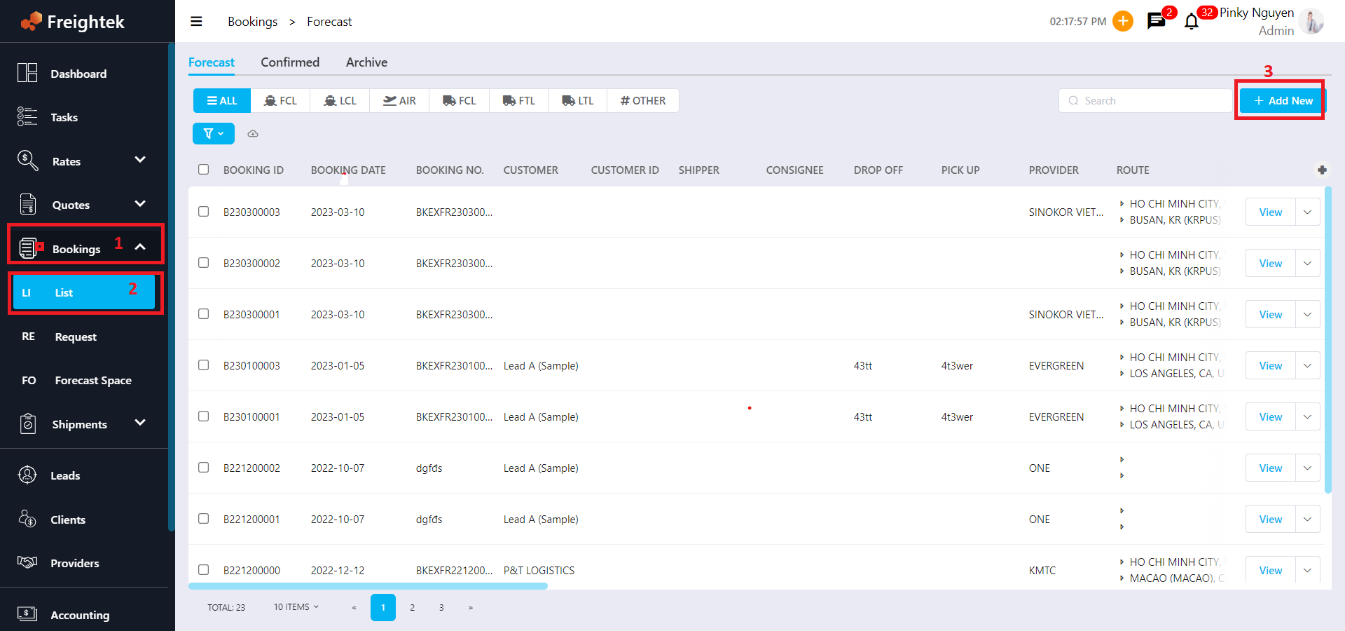
Step 1: Go to Booking → List → Forecast → Add New
Step 2: Enter Booking Information
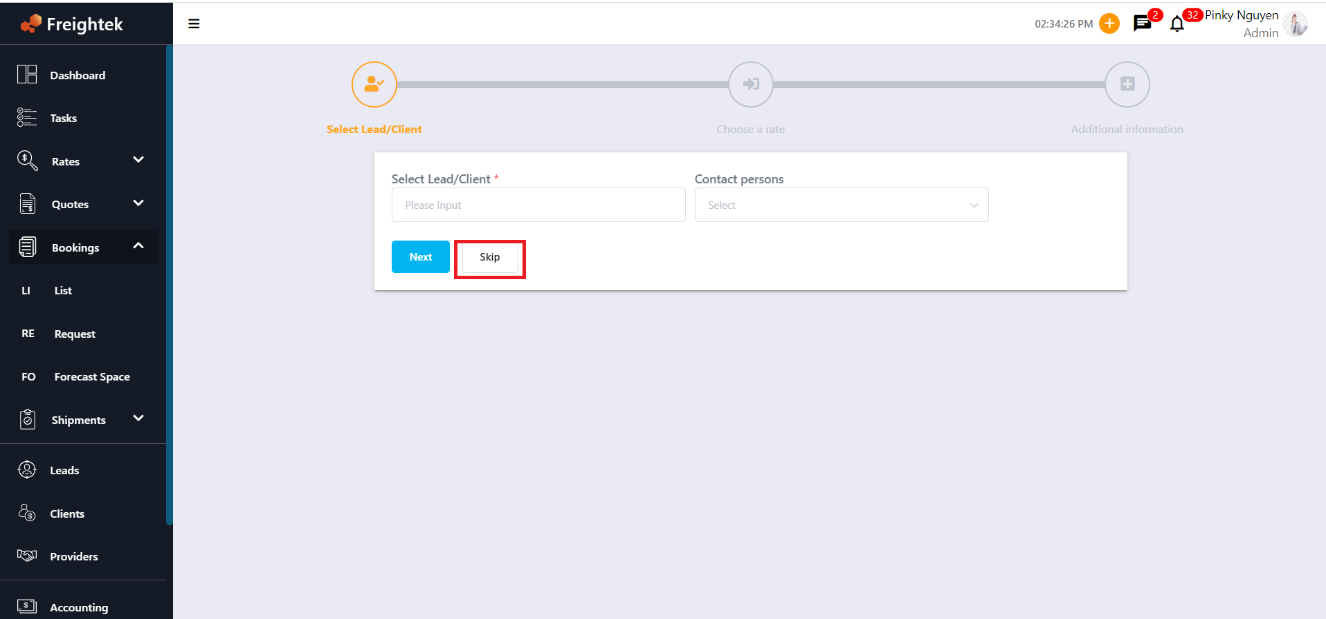
Click Skip to bypass the Select Lead/Client section.
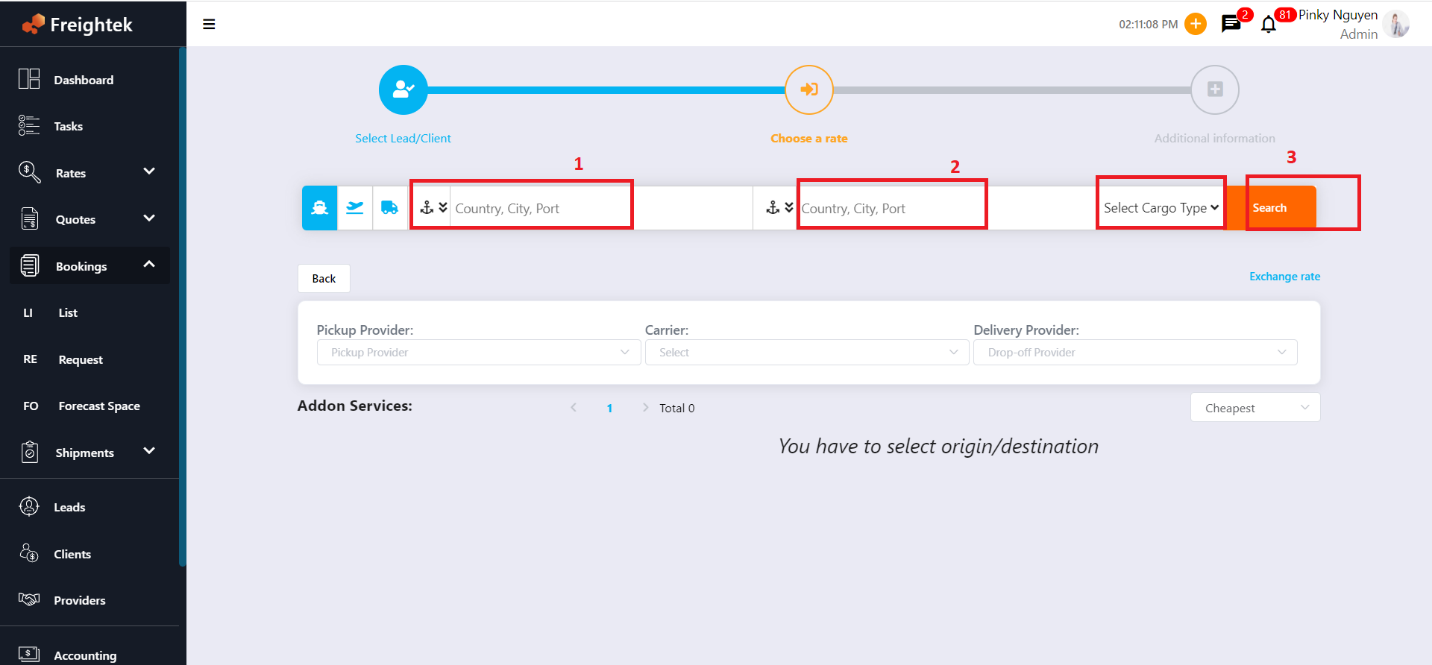
In the “Choose a Rate” section, enter the required routing and cargo details:
POL (Port of Loading)
POD (Port of Discharge)
Select Cargo Type and Volume/Quantity
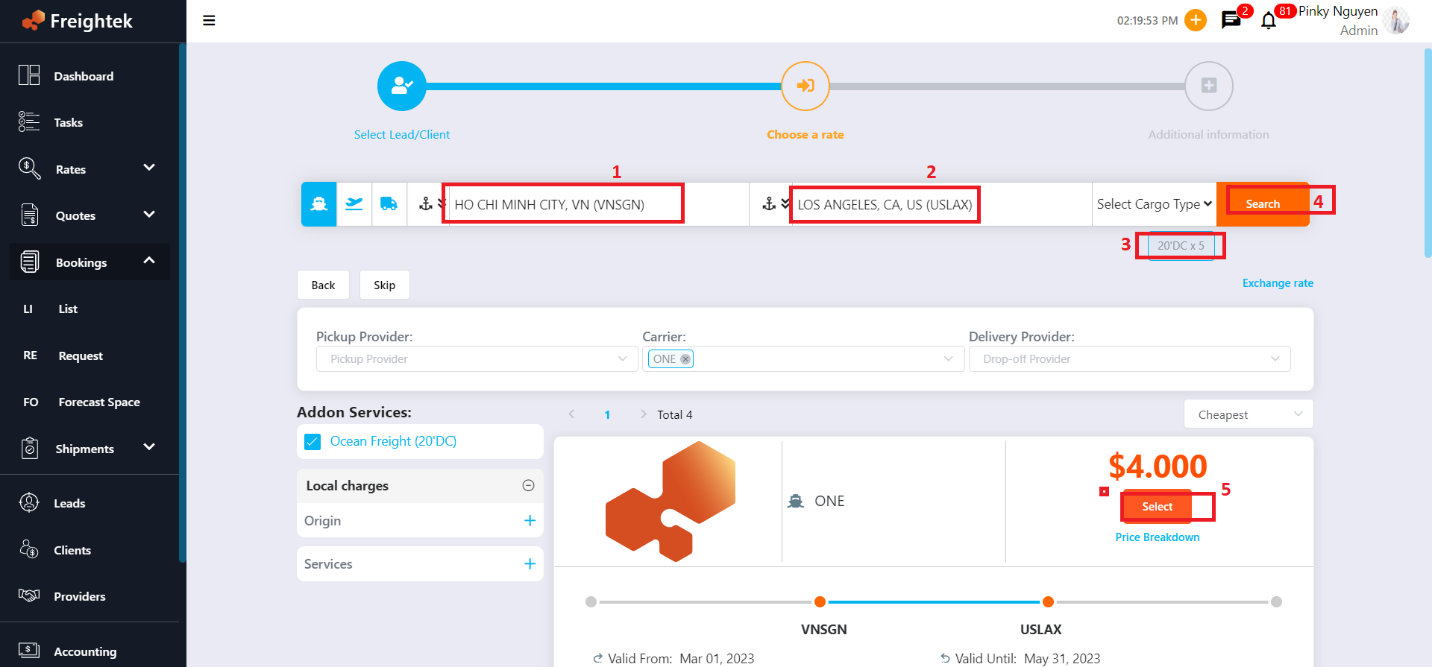
After entering all required information:
Click Search
Add any Local Charges by clicking the “+” button under Origin or Services
Click Select to choose the rate you want to use
Step 3: Complete the Booking
Continue filling in the remaining booking details, then click Booking to finalize.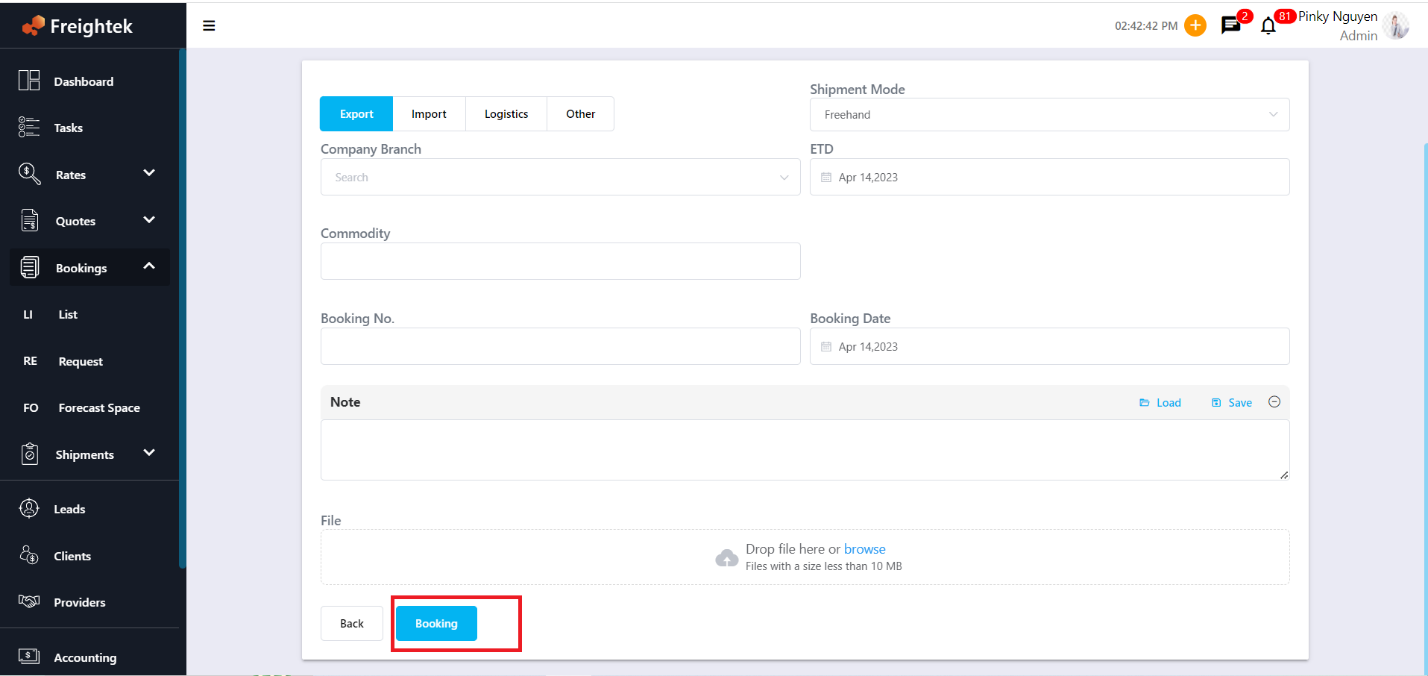 At this point, a Forecast Booking (pre-reserved space) has been successfully created and will appear in the Booking List and Space List for Sales to register against.
Was this article helpful?
That’s Great!
Thank you for your feedback
Sorry! We couldn't be helpful
Thank you for your feedback
Feedback sent
We appreciate your effort and will try to fix the article