Manage and create lists of charges such as Freight Charges, Local Charges, and Service Charges for your system so that Freightek can automatically calculate costs based on unit type and volume.
Step 1: Access the Charge Categories
Go to Automation Setting → Pricing in the menu.
Here you will see the charge category tabs:
Freight Charge
Local Charge
Service Charge
Custom Charge
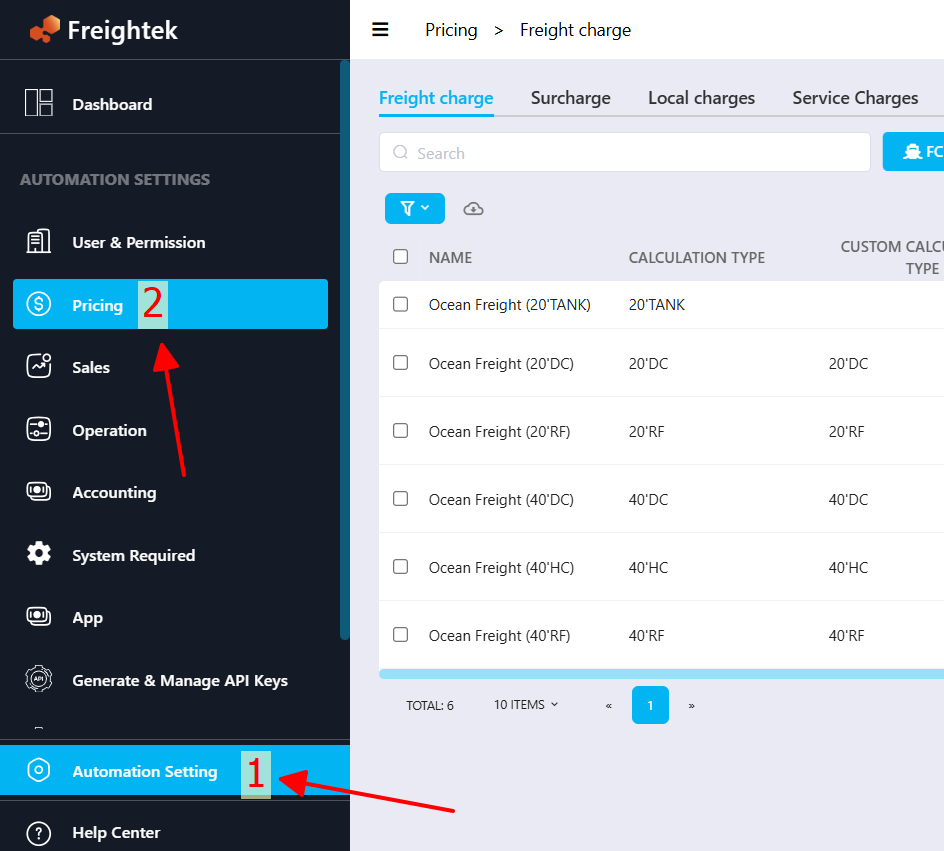
These charges are also categorized by transport mode: FCL, LCL, AIR, Truck FCL, FTL, LTL, RAIL

Step 2: Create a Freight, Local Charge, or Service Charge
1. Freight Charge
For new container-based freight types → contact Freightek support for setup.
For Air and FTL freight types → users can add a new Package Type manually.
To add a new Package Type: Go to Automation Setting → Pricing → Package Type
→ Select the transport mode (Air or FTL)
→ Click + Add New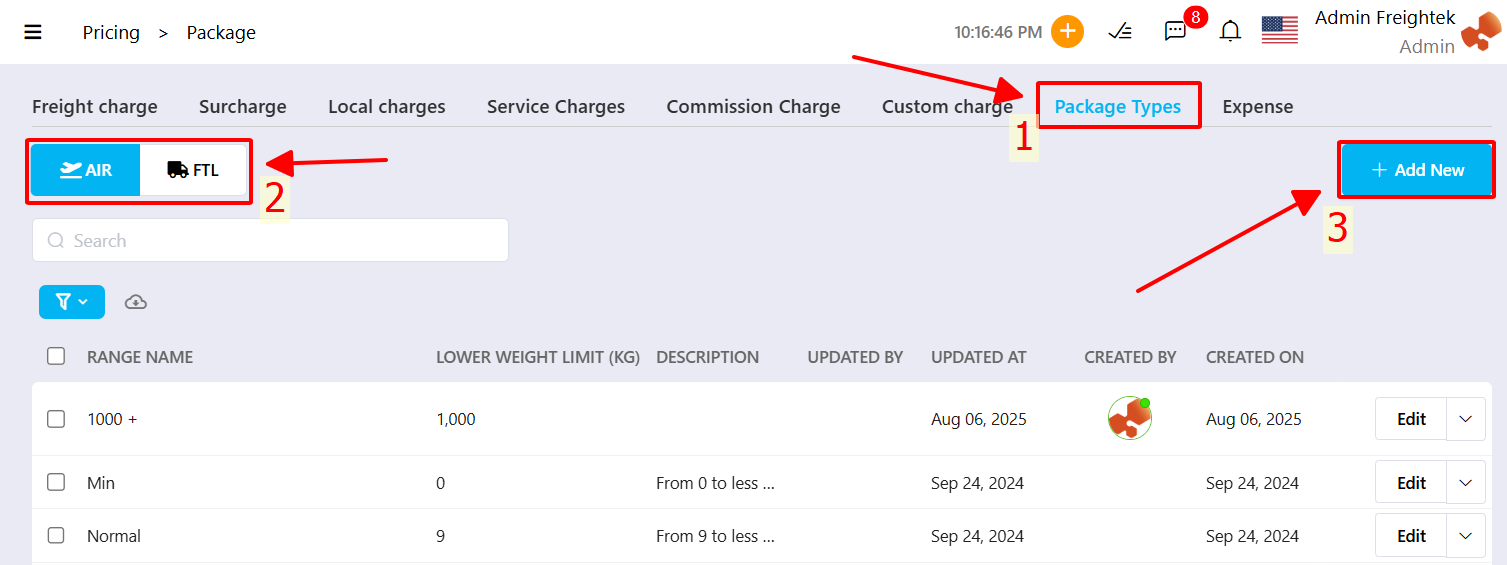
2. Local Charge / Service Charge
Go to Automation Setting → Pricing → Local Charge → Select the transport mode.
For Service Charges, transport mode is not required.
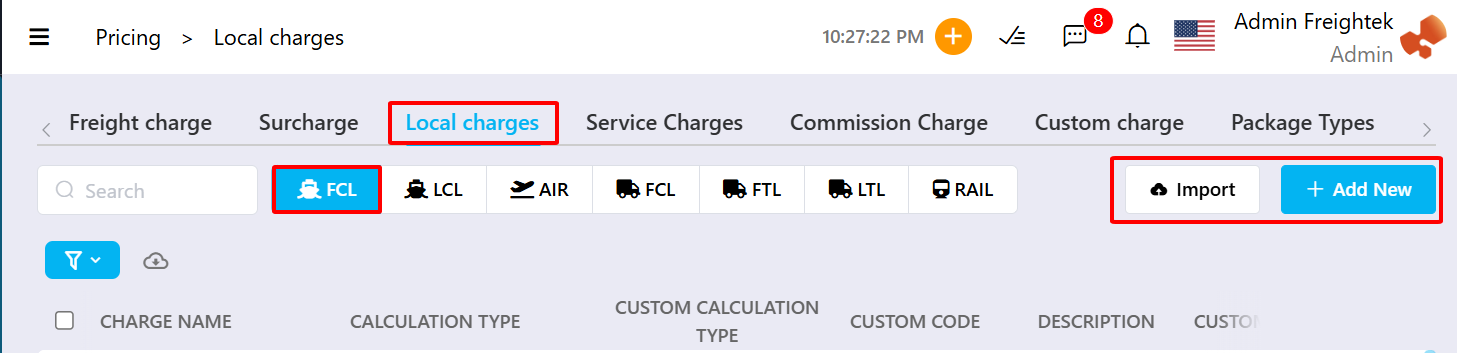
Method 1: Add charges individually
Click + Add New, then fill in the charge details and click Save.
General Information:
Charge Name: Name of the charge
Calculation Type: How the charge is calculated
Description: Detailed explanation of the charge
Debit Tax: VAT (%) applied on Debit Note (optional)
Credit Tax: VAT (%) applied on Credit Note (optional)
Integrated Accounting: (sync with EasyBooks)
Accounting Name: Local language charge description
Calculation Type: Local language description of calculation unit
Note: The Code field is system-generated, so users may leave it blank.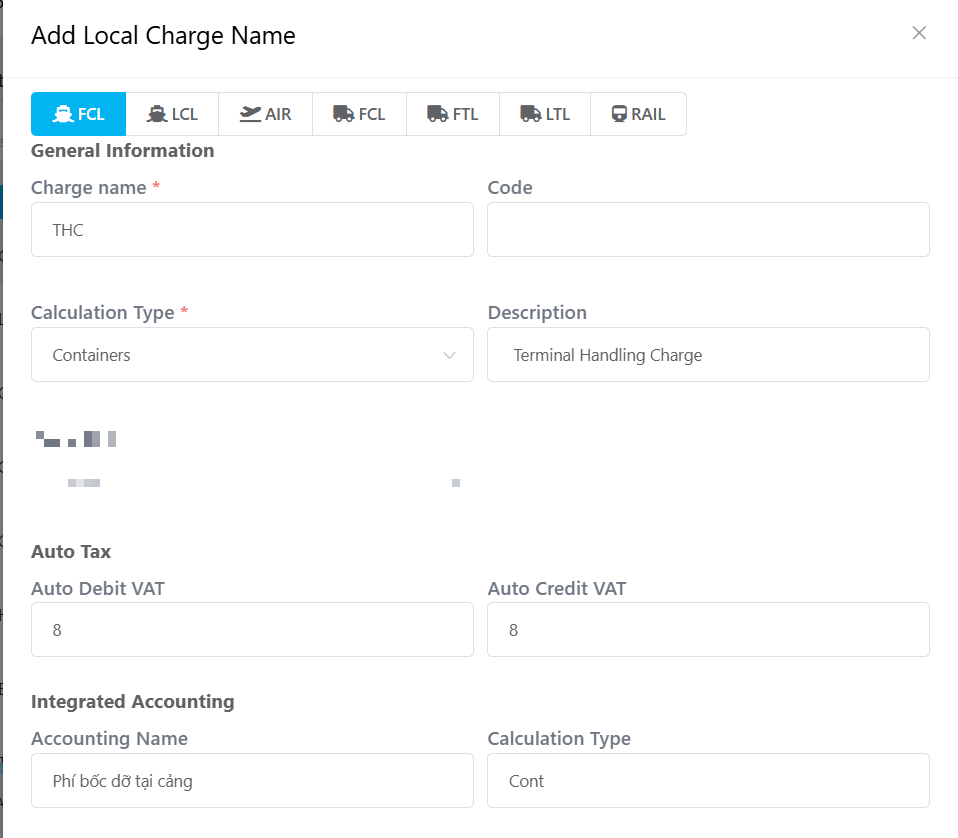
Method 2: Bulk Import Using File Upload
Step 1: Click Import → Download Template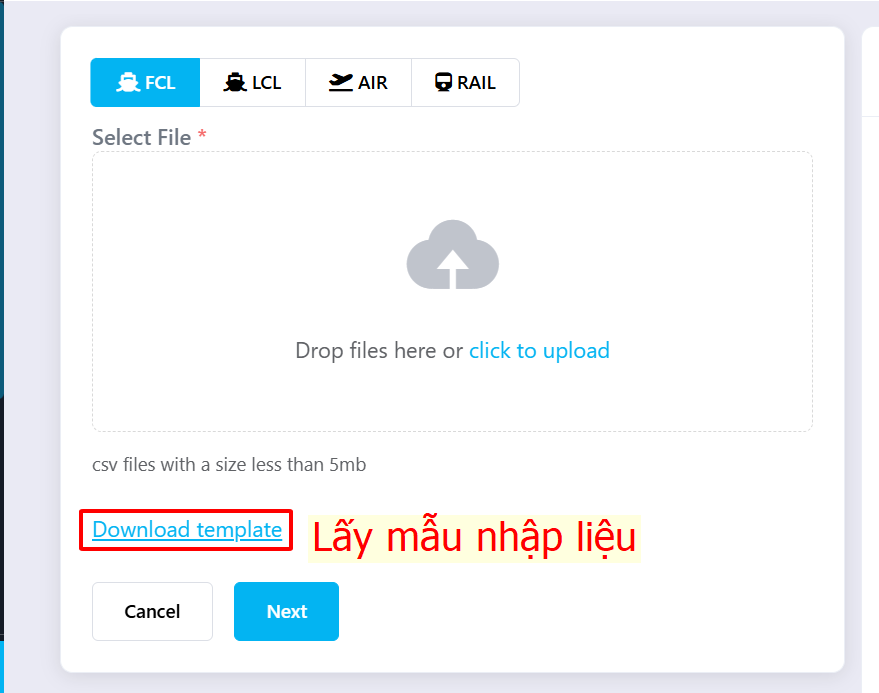
Step 2: Upload the completed import file → click Next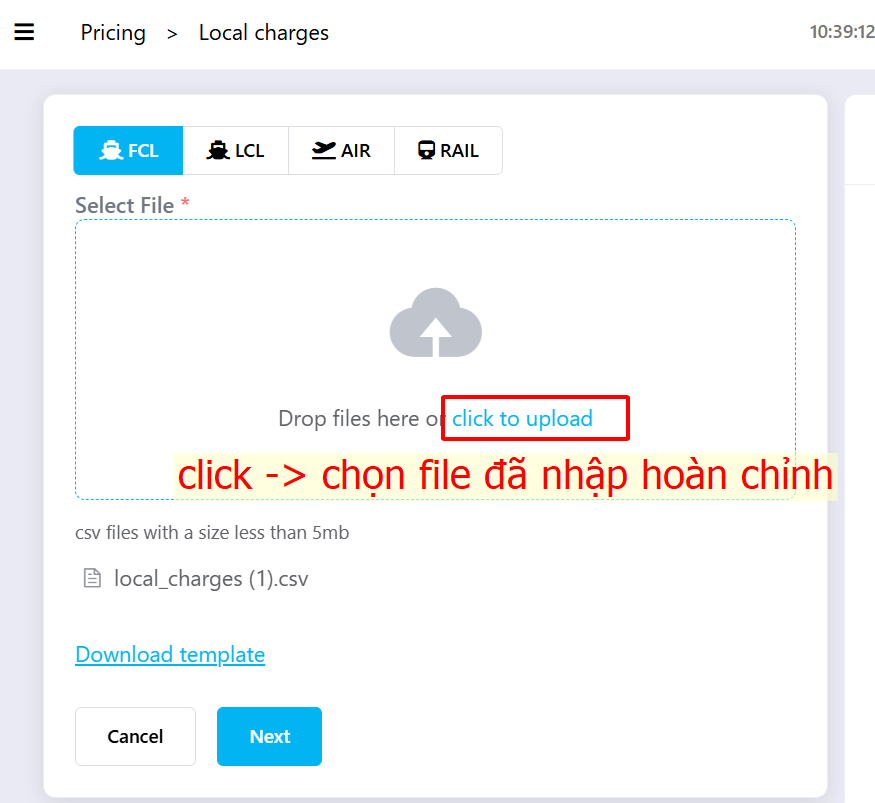
Step 3: Verify field Mapping → click Import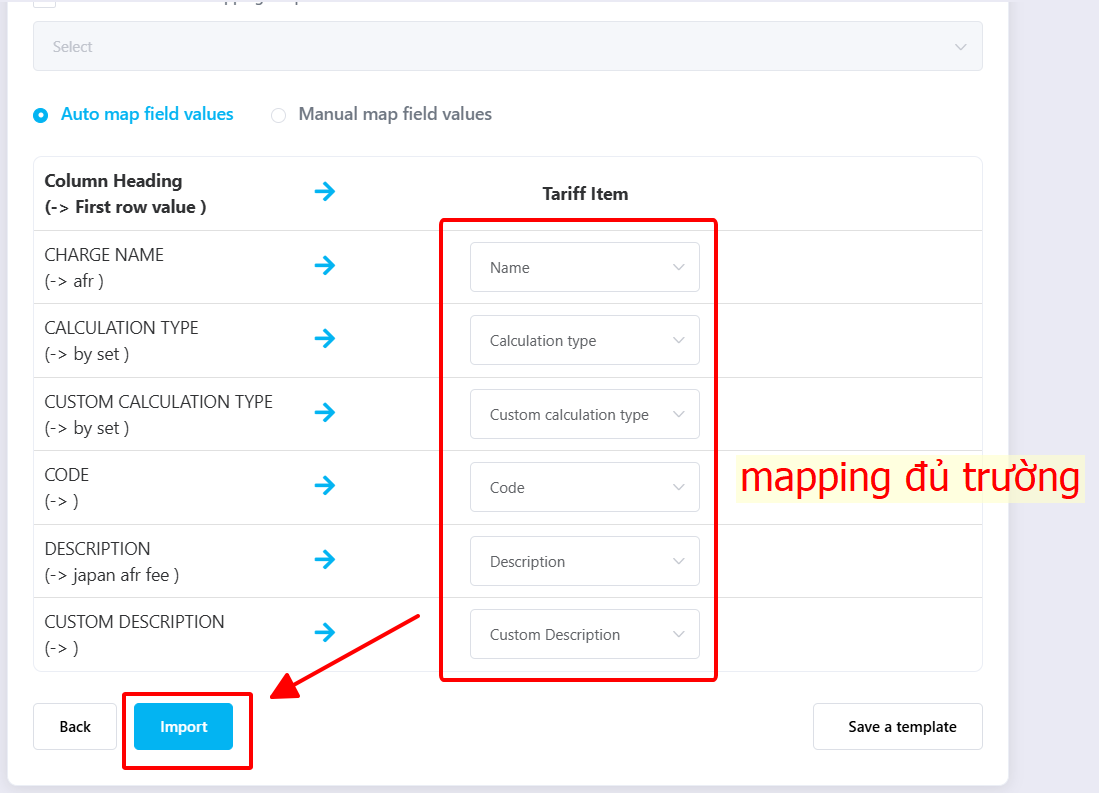
Was this article helpful?
That’s Great!
Thank you for your feedback
Sorry! We couldn't be helpful
Thank you for your feedback
Feedback sent
We appreciate your effort and will try to fix the article