I. Uploading a Customs Declaration within a Shipment
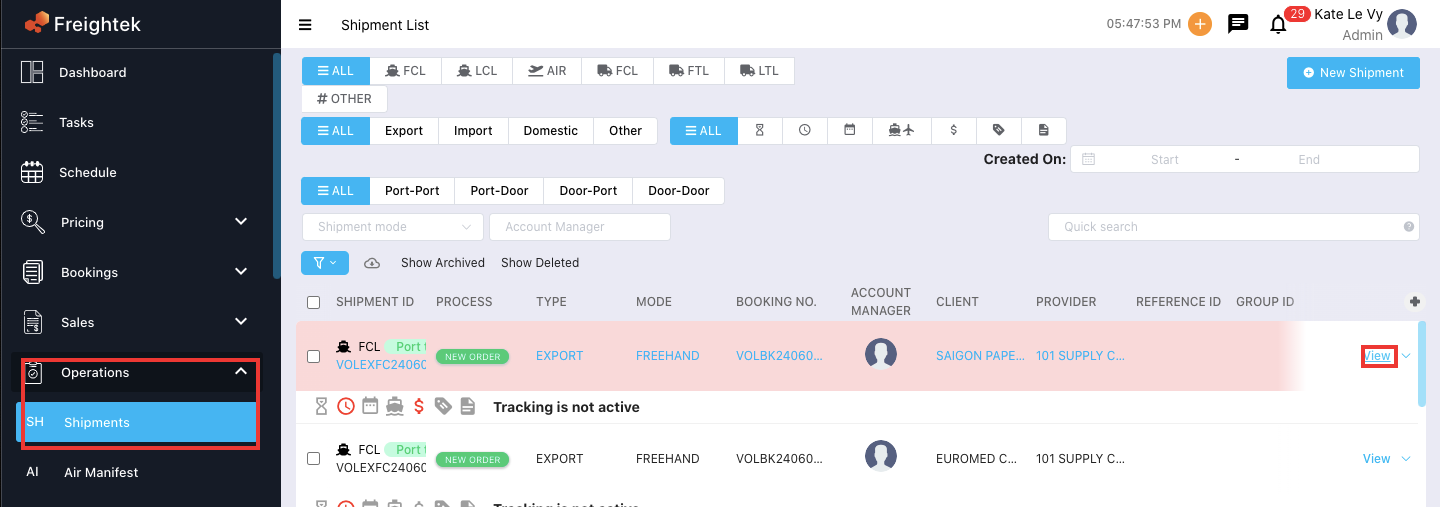
Step 1: Go to Operation → Shipment → View the shipment where you want to upload the customs declaration.
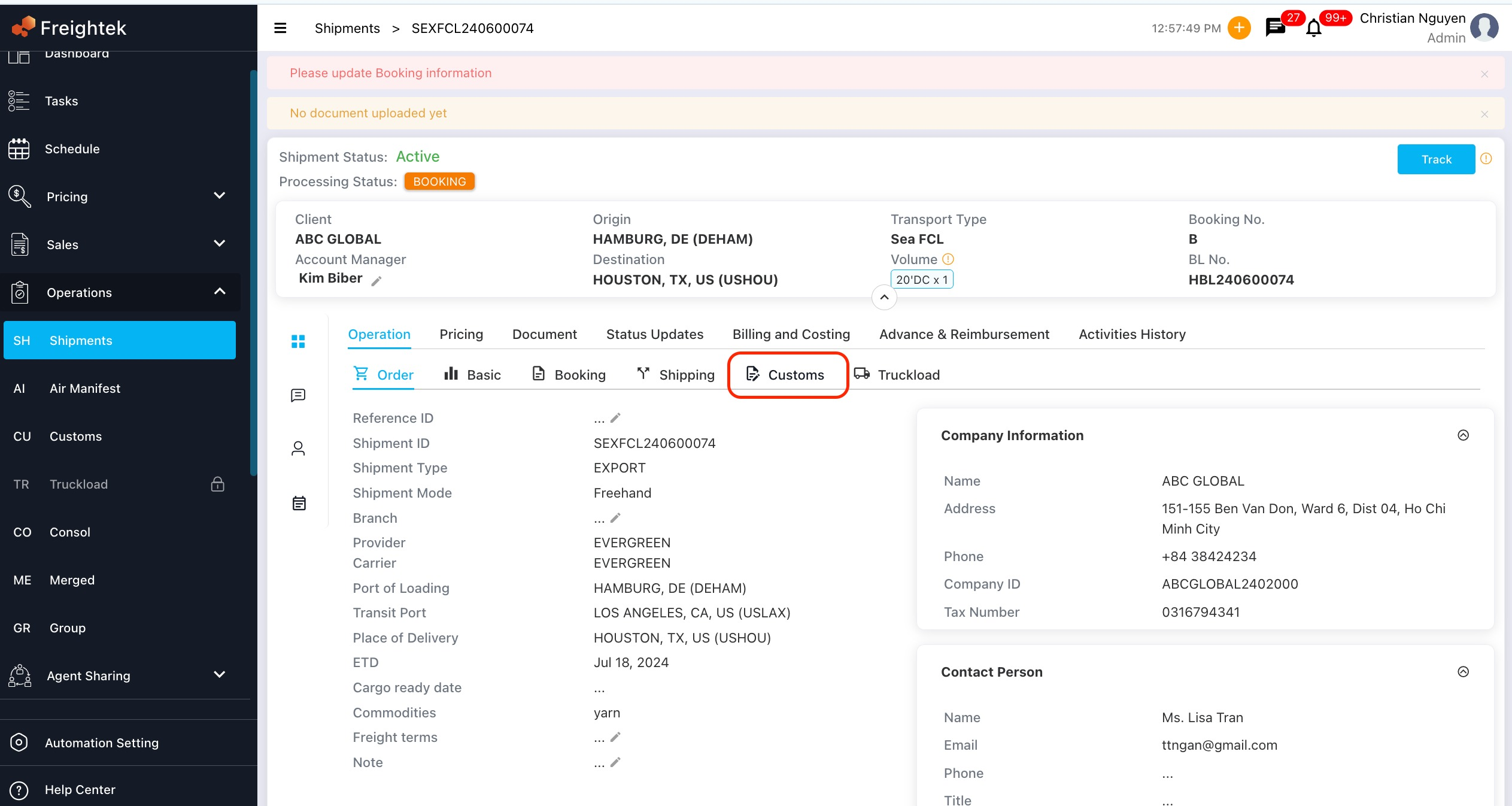
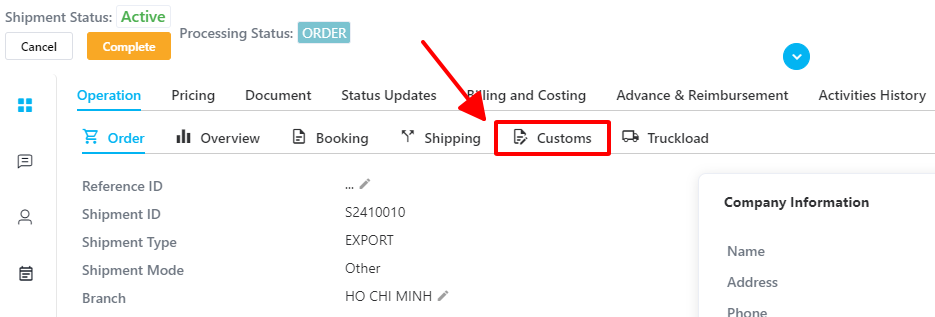
Step 2: In the Operation tab, select Customs.
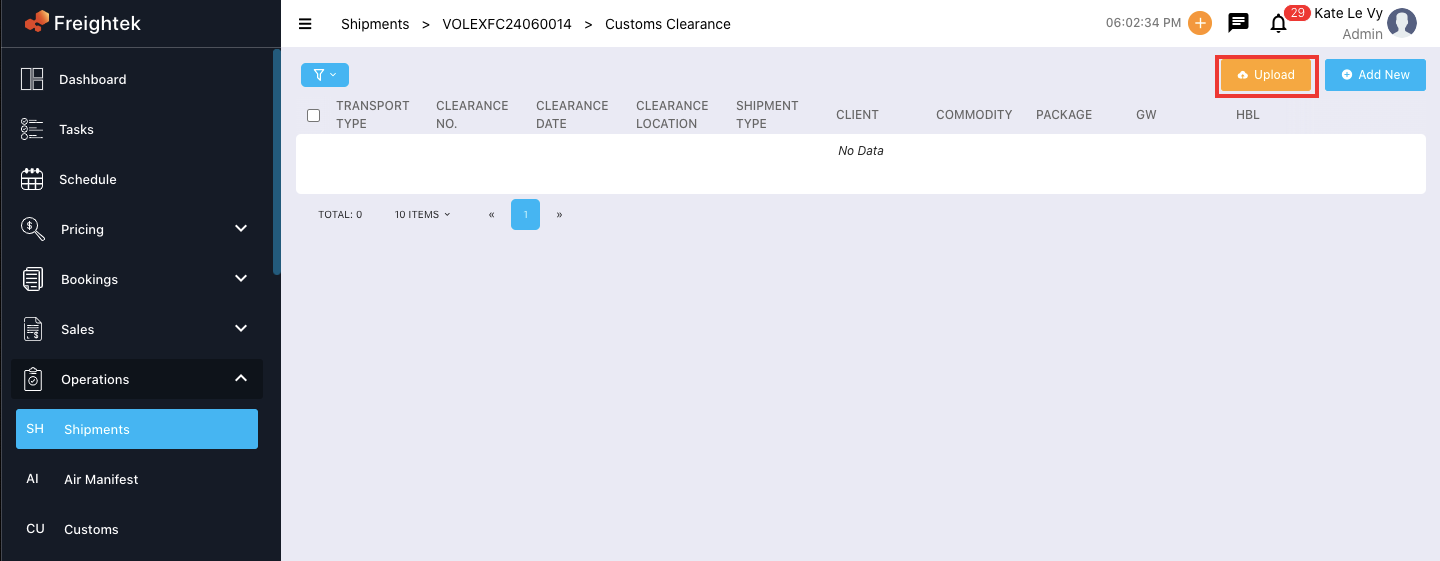
Step 3: Click Upload.
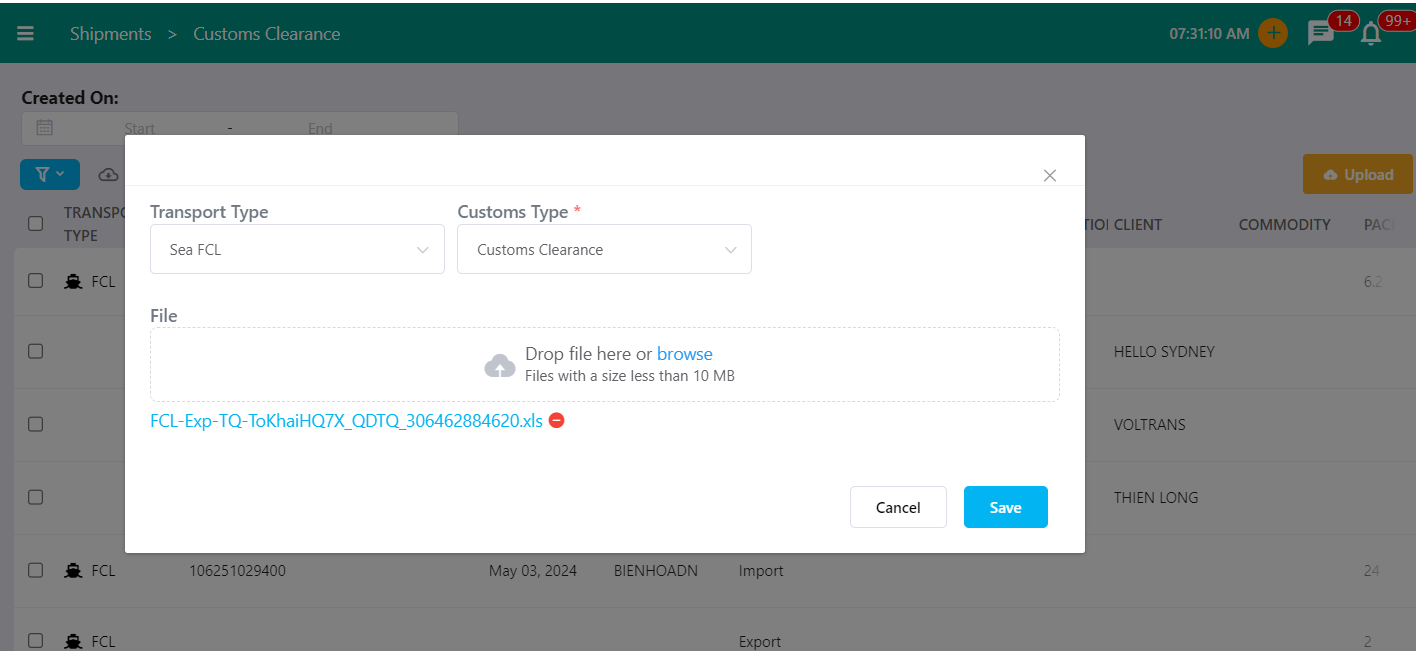
Step 4: Fill in the required fields and upload the file:
Transport type: Sea FCL / Sea LCL / Air / Truck FCL
Customs type:
Customs Clearance: Customs declaration for clearance
Notification of Lane Assignment Results: Lane assignment notice
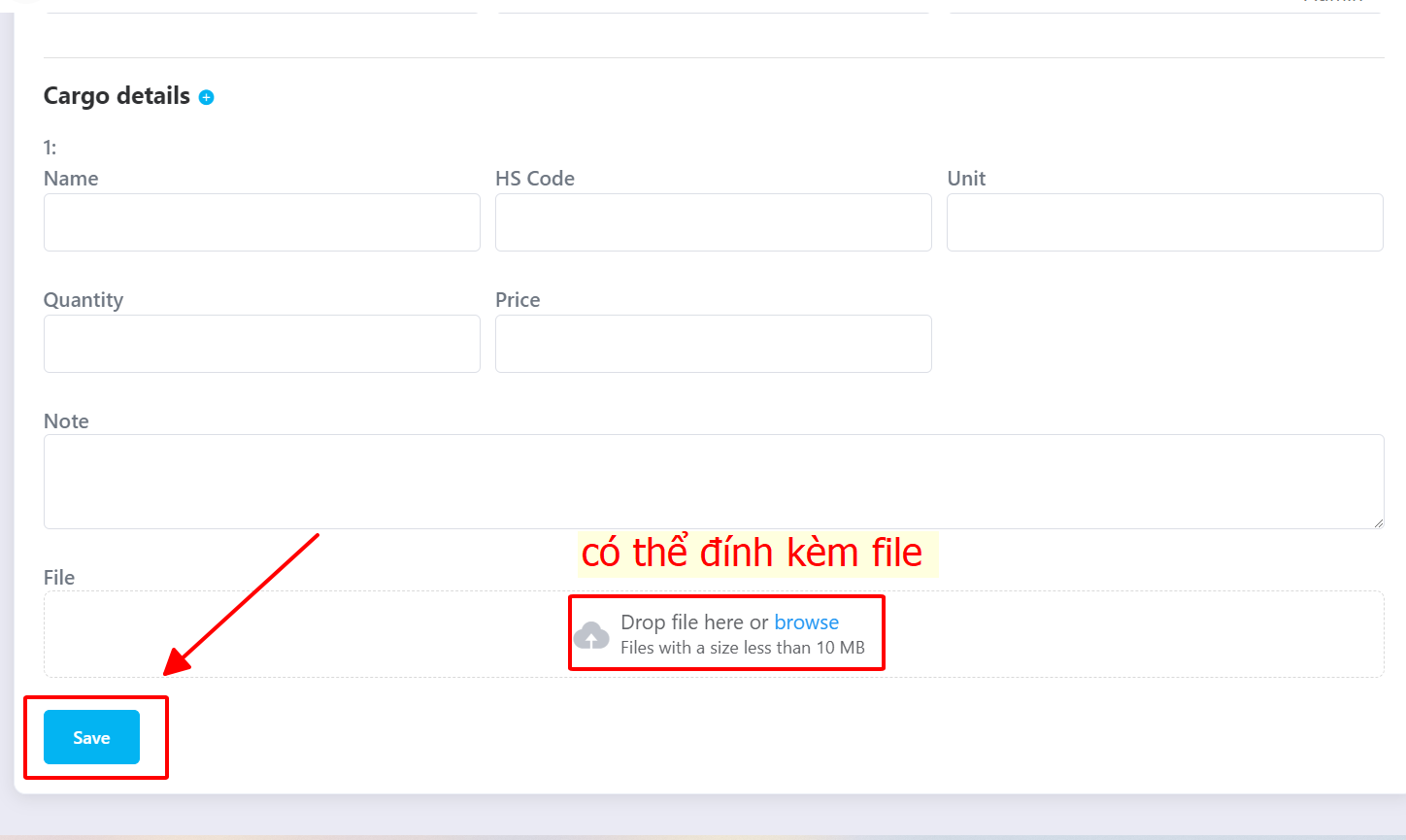
Select the file → Click Save to upload
 Note: To identify the correct Transport type, users should verify the declaration format based on the reference number shown on the customs document.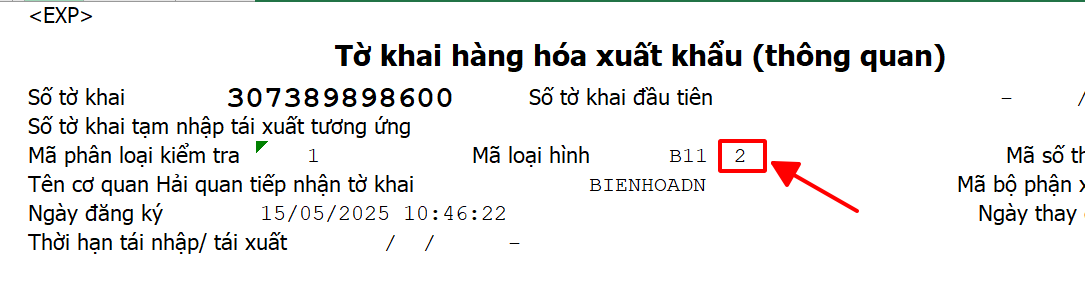
II. Uploading a Customs Declaration outside a Shipment
Step 1: Go to Operation → Customs and upload the declaration following the same steps as in Section I.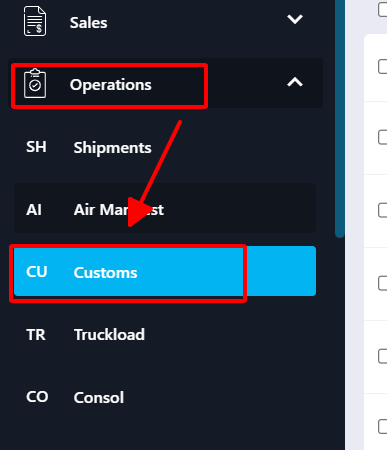
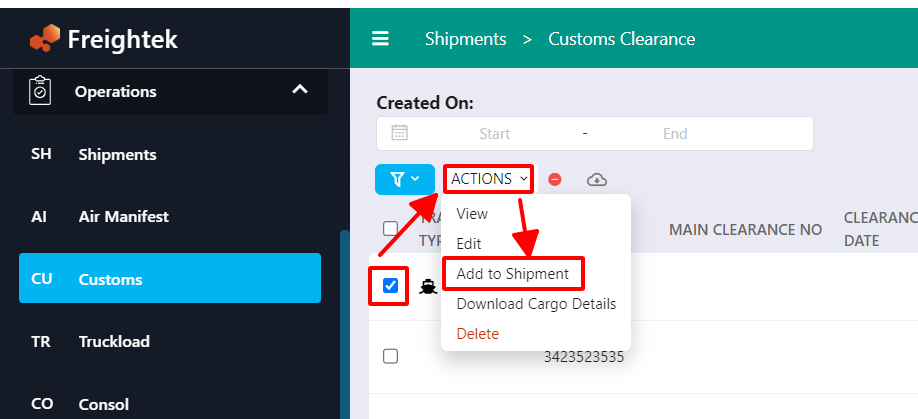
Step 2: Assign the declaration to a shipment
Tick the declaration you want to attach
Click Actions
Select Add to Shipment
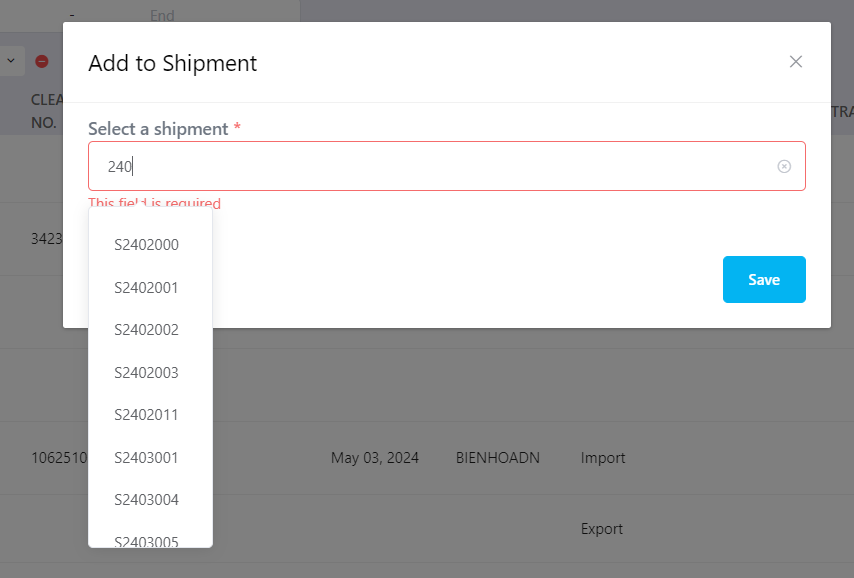
Choose the Shipment Number to attach
Click Save to link the declaration to the shipment
 III. Entering Customs Declaration Information Manually
Step 1: Go to Operation → Shipment → View → Customs
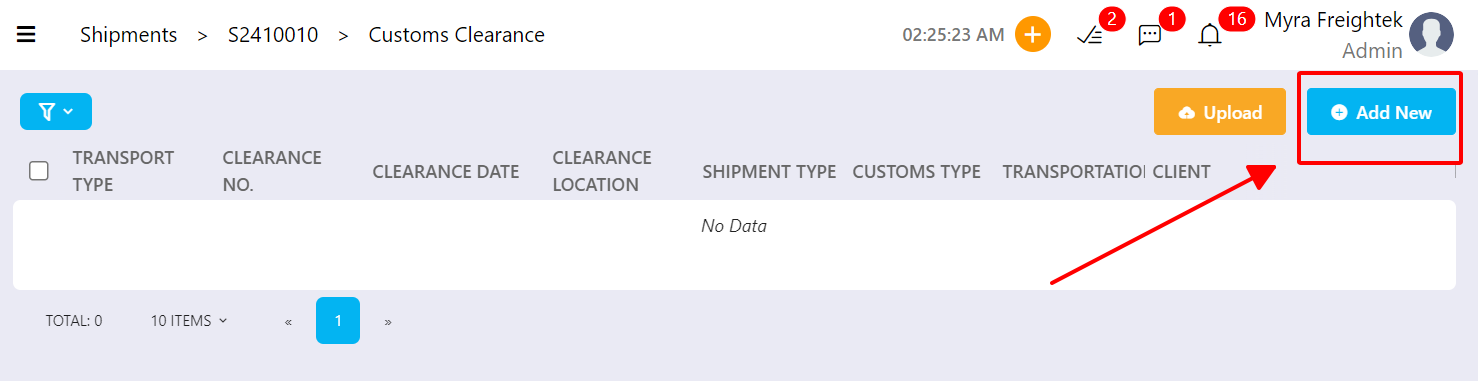
Step 2: Click Add New to open the manual entry form.
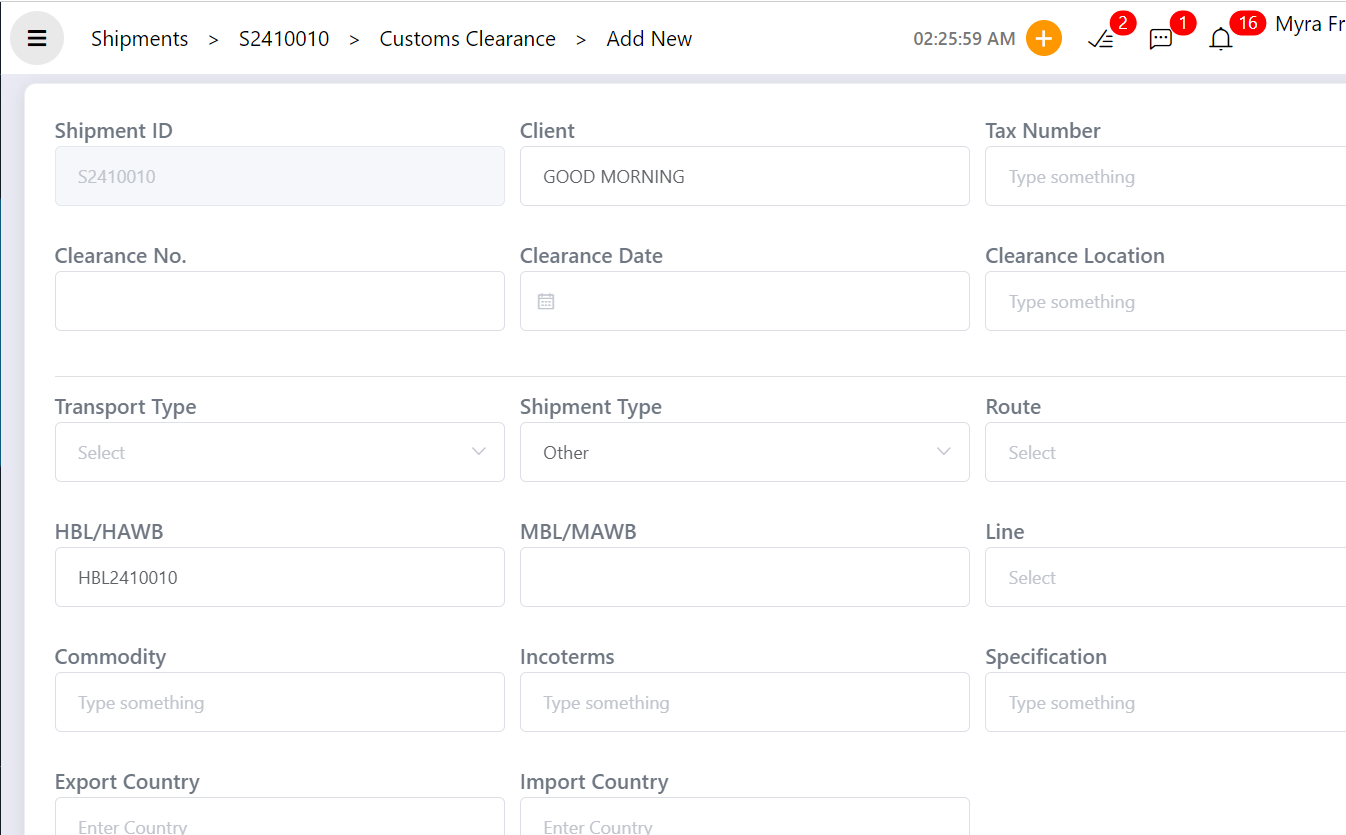
Step 3: Input all required customs details → Click Save
Was this article helpful?
That’s Great!
Thank you for your feedback
Sorry! We couldn't be helpful
Thank you for your feedback
Feedback sent
We appreciate your effort and will try to fix the article