I. ADVANCE
1. Advance for a Specific Shipment
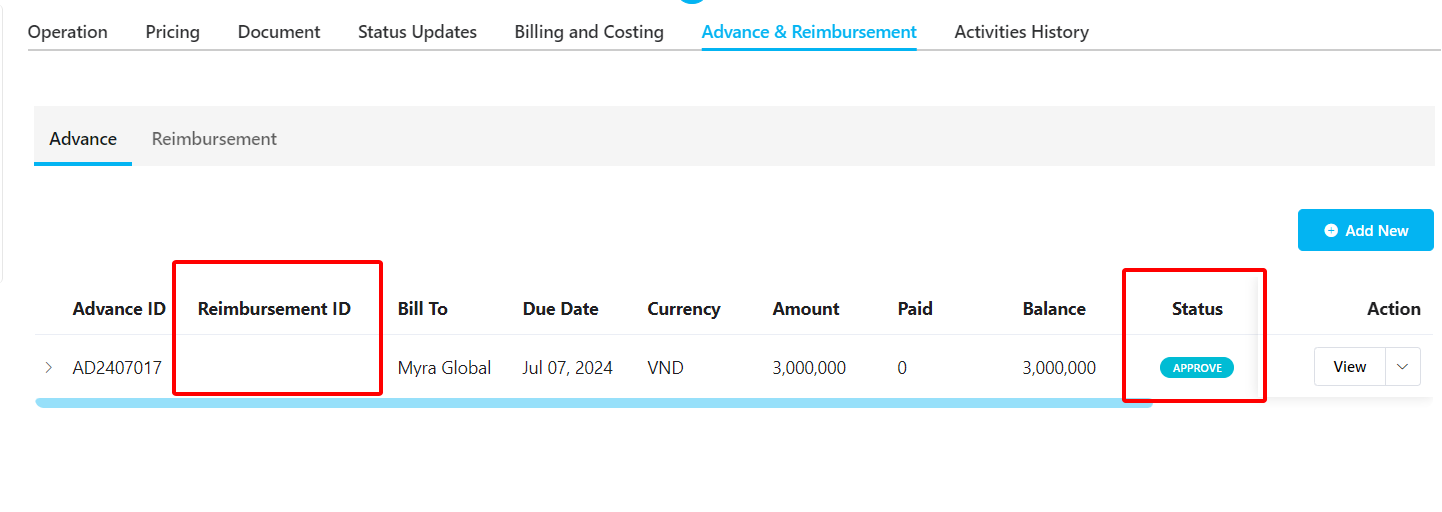
Step 1: Go to Operation → Shipment → Select the shipment → View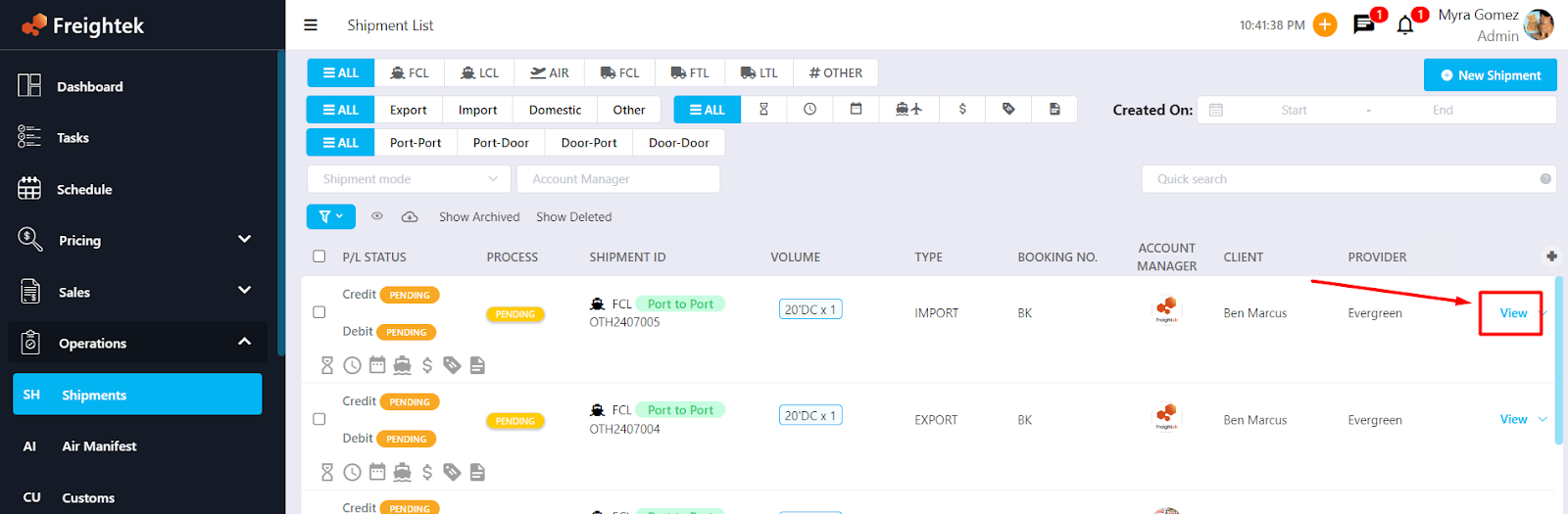
Step 2: Select Advance & Reimbursement → Advance tab → + Add New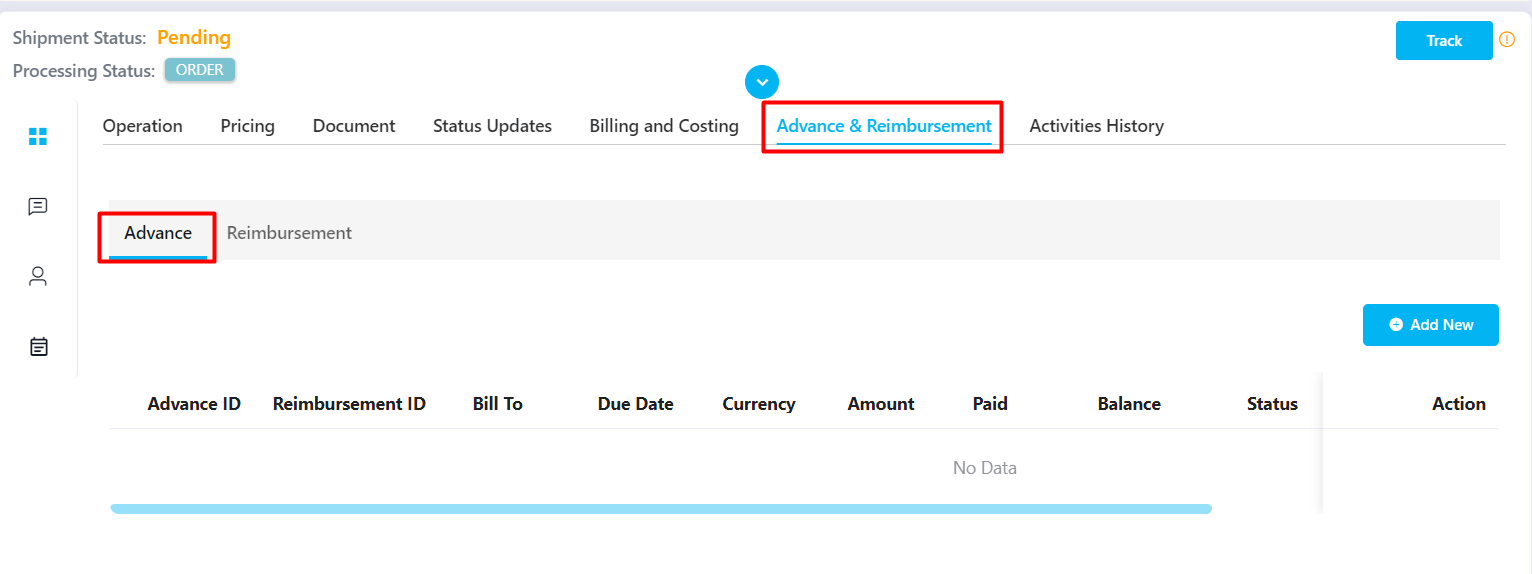
Step 3: Enter the required information
Recipient Type: System default is Staff
Select Staff: System auto-fills the creator’s name (you may select another staff)

Due Date: Deadline for settling the advance
Currency: Payment currency
Amount: Advance amount
Description: Reason for the advance
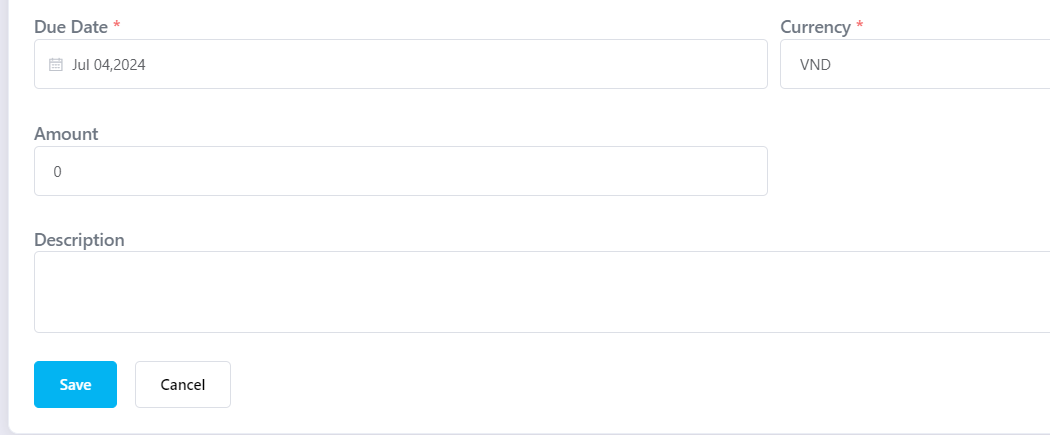
Step 4: Click Save to complete.
Note:
1. After an Advance is created, you may View, Confirm, Edit, or Delete the entry depending on your permission.
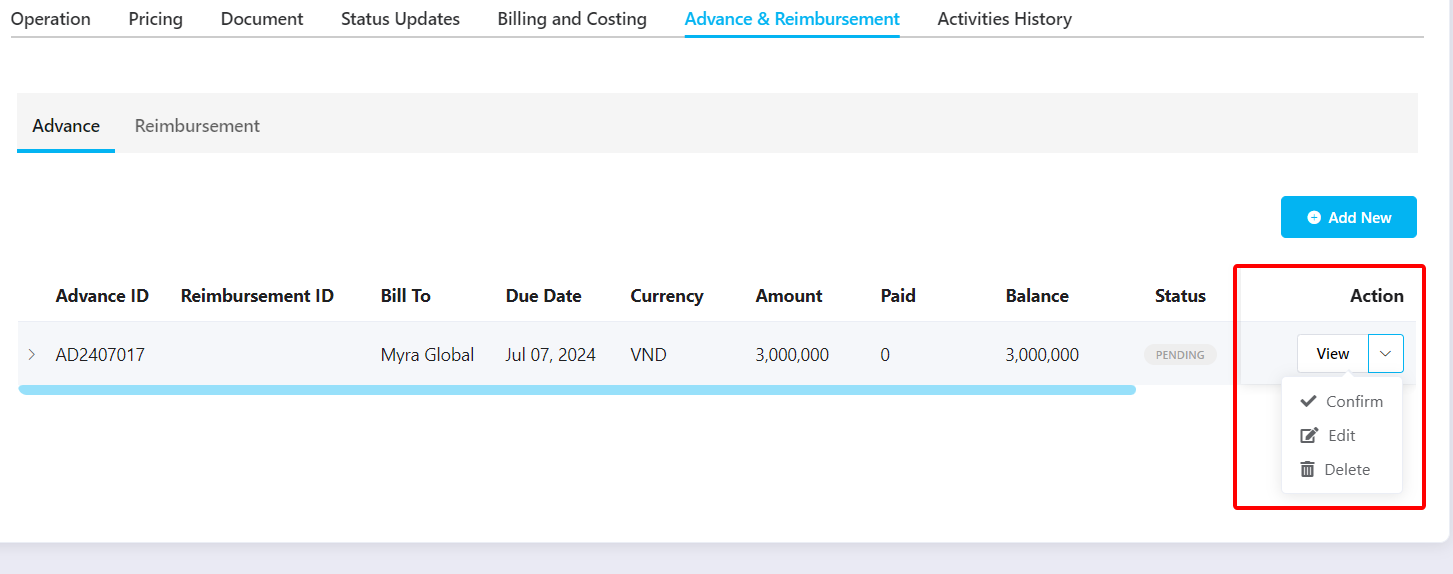
2. Status Explanation:
Pending: Newly created advance; can still be edited or deleted if permitted
Approve: After being Confirmed; cannot be edited
Paid: After Accounting records the payment (Record).
To delete a Paid Advance, you must first delete the Record entry.
3. Each Advance will display its related Reimbursement ID after reimbursement is created.
2. Advance Not Linked to a Specific Shipment/Advance for Multiple Shipments
Step 1: Go to Accounting → Revenue & Cost → Advance → Add New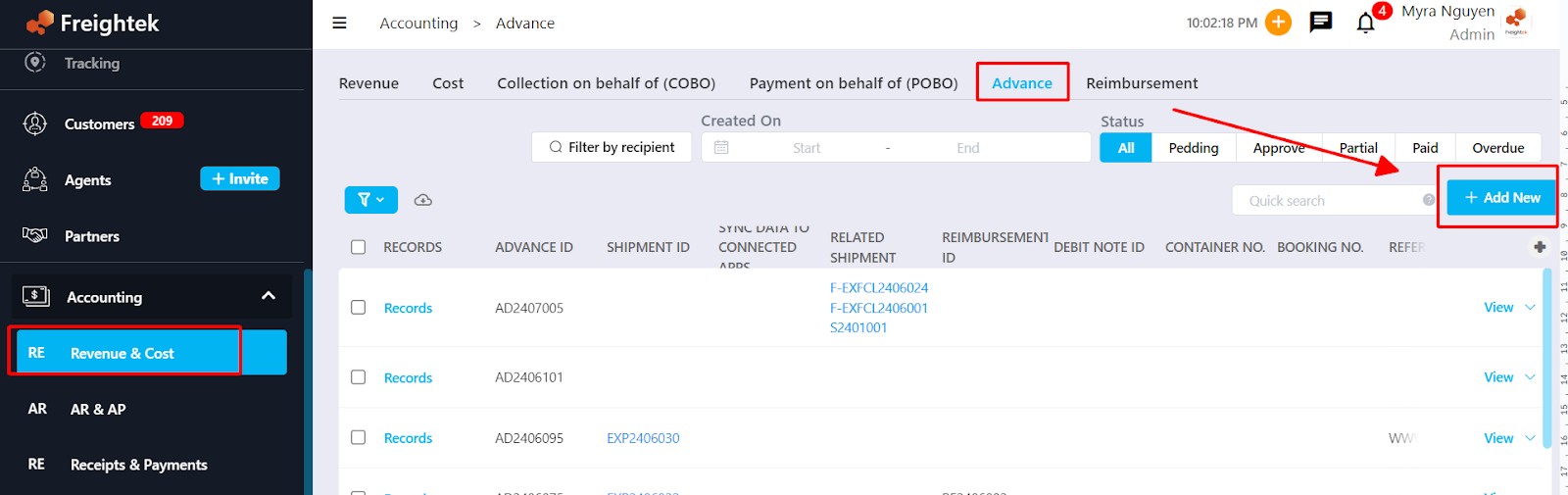
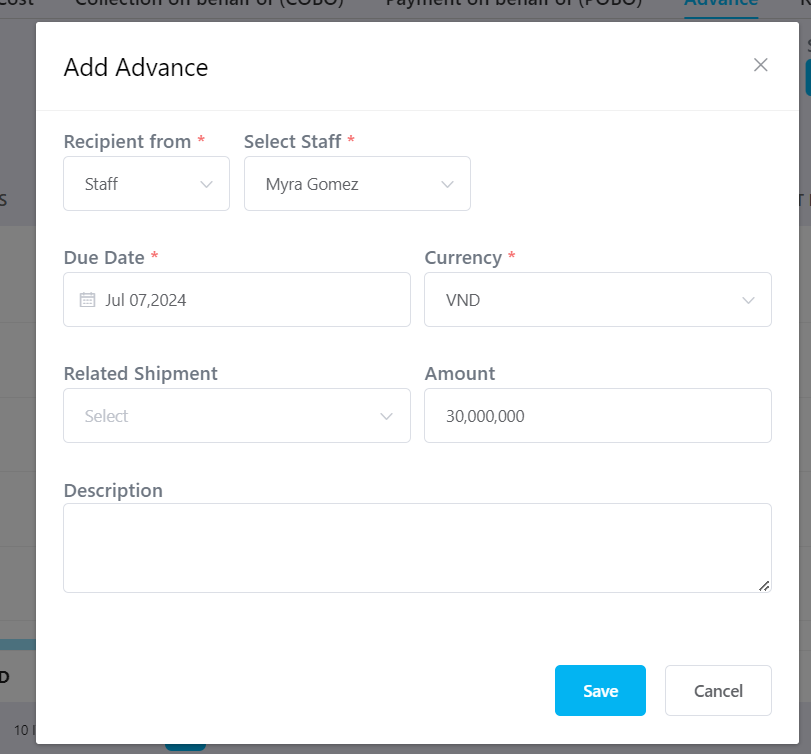
Step 2: Enter required information
Recipient Type: System default is Staff
Select Staff: Auto-fills creator’s name (can be changed)
Due Date
Currency
Amount
Description
Related Shipment: Select the shipments related to this advance. → Can be left blank if no shipment is confirmed yet.
 Step 3: Click Save
Step 4: To update or add related shipments later → click the arrow next to View → Edit → add shipments.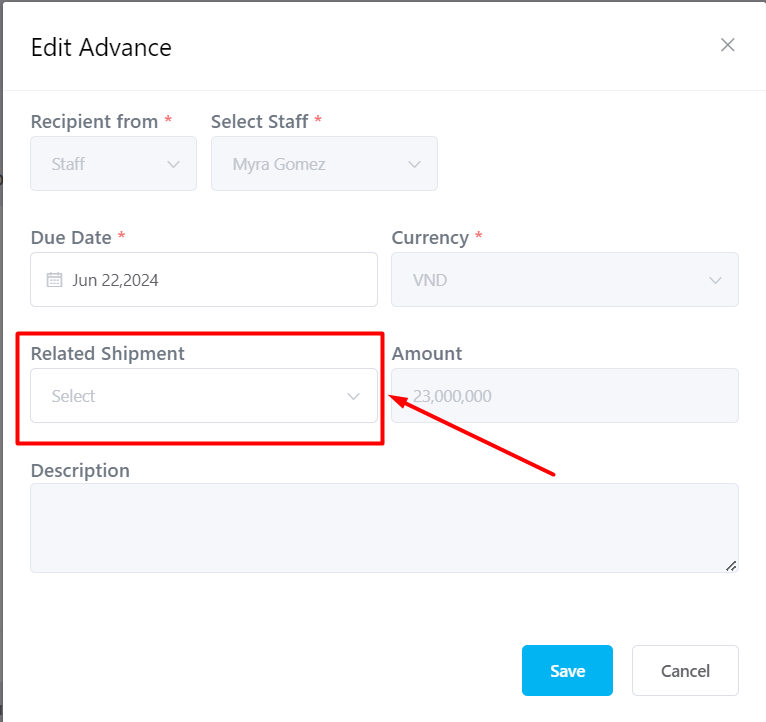
II. REIMBURSEMENT
1. Enter Actual Costs into the Shipment
Step 1: Go to Operation → Shipment → Select shipment → View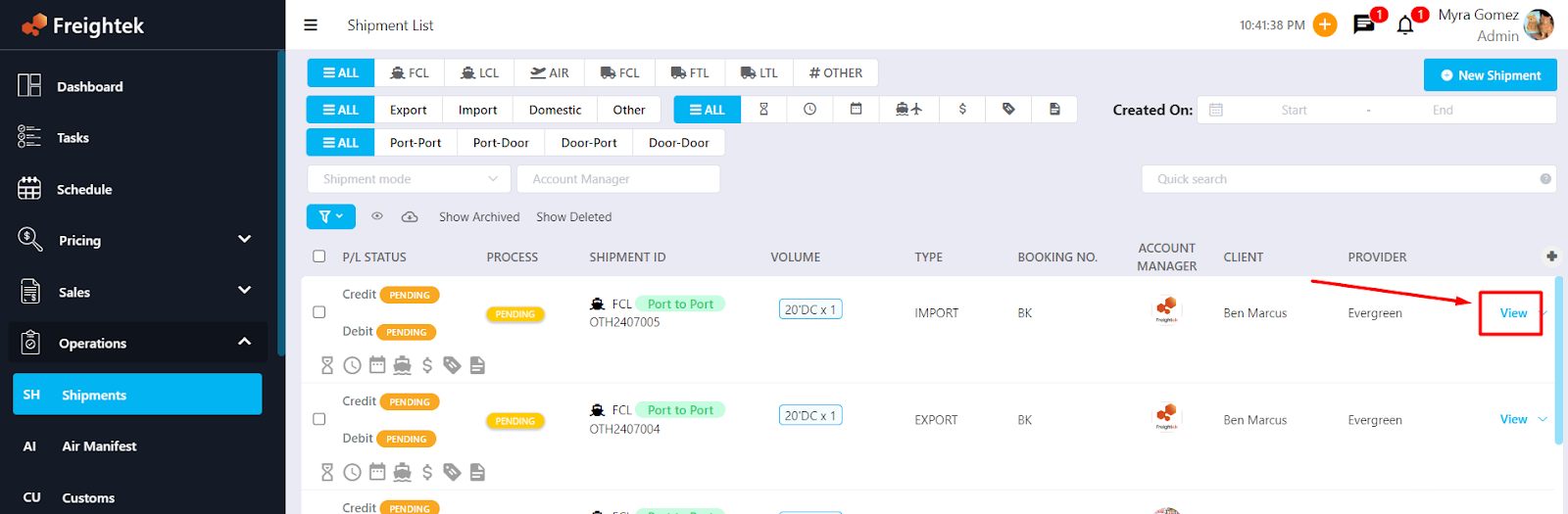
Step 2: Go to Billing & Costing → Cost tab → + Add New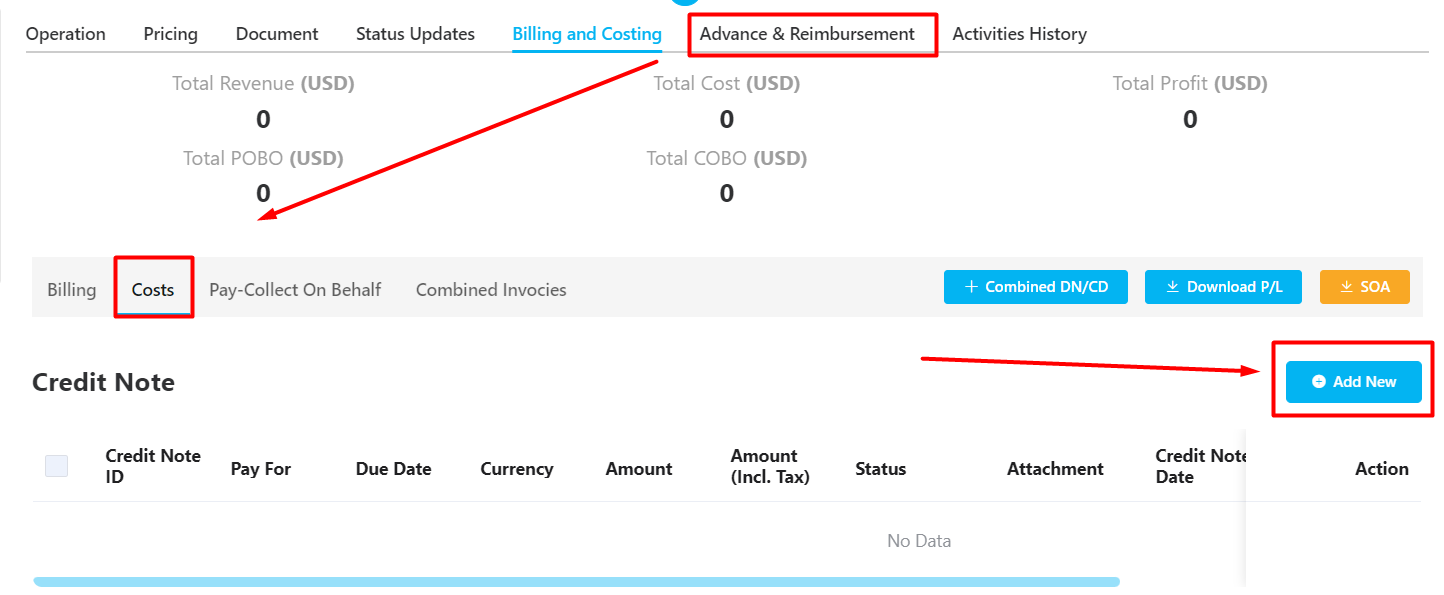
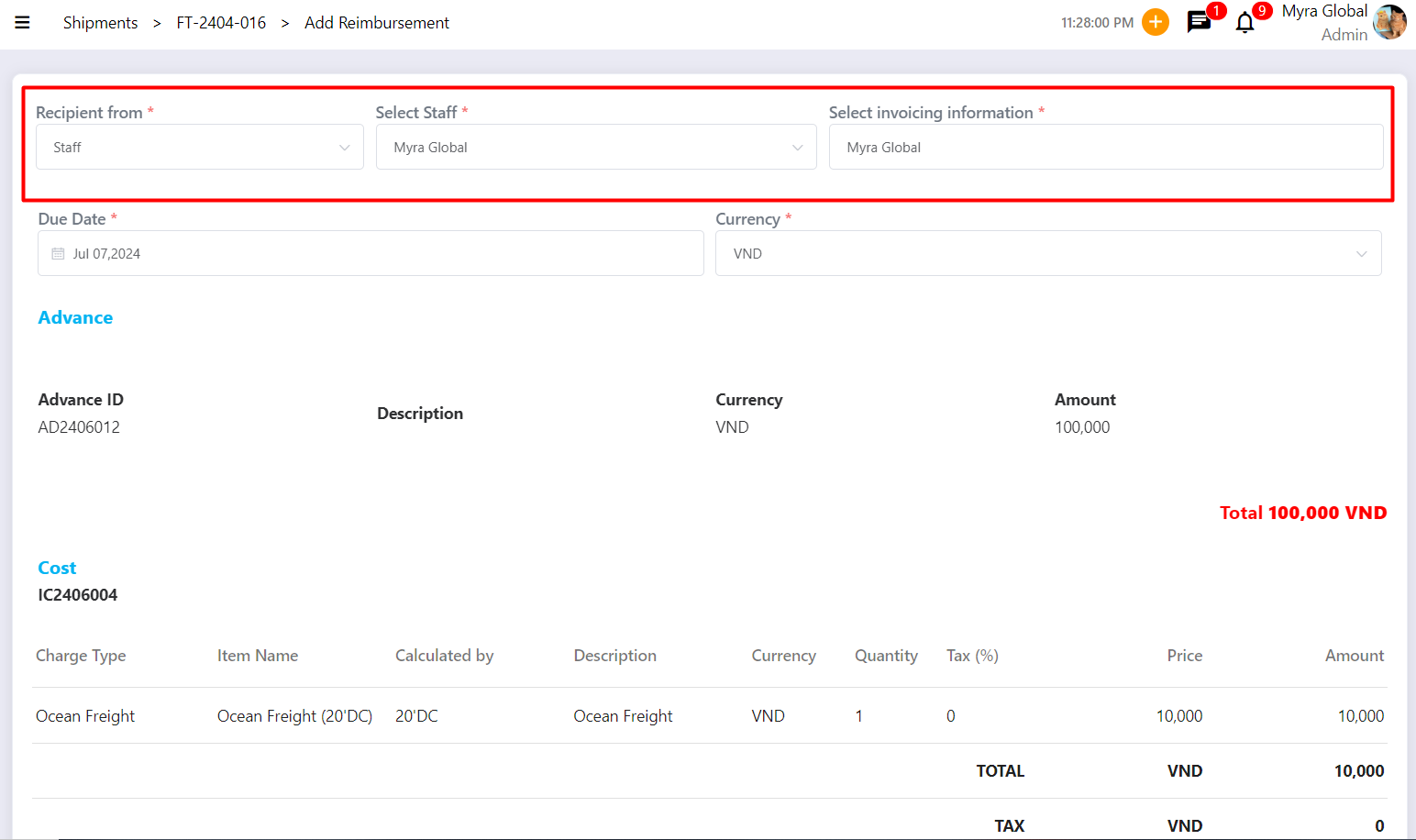
Step 3: Enter the required information
Recipient Type: Select Staff
Select Staff: Staff who is requesting reimbursement
Select Invoicing Information:
If the staff is the final payee → skip
If the staff is only an intermediary → select the actual provider/payee
Received Invoice #: Invoice number issued by the Provider
Currency
Created Date
Due Date
Payment Method
Enter charge details:
Case 1: Price already exists in Price tab: Click +Charge to load the predefined charges
Case 2: Price not available: Click Custom to manually enter charges
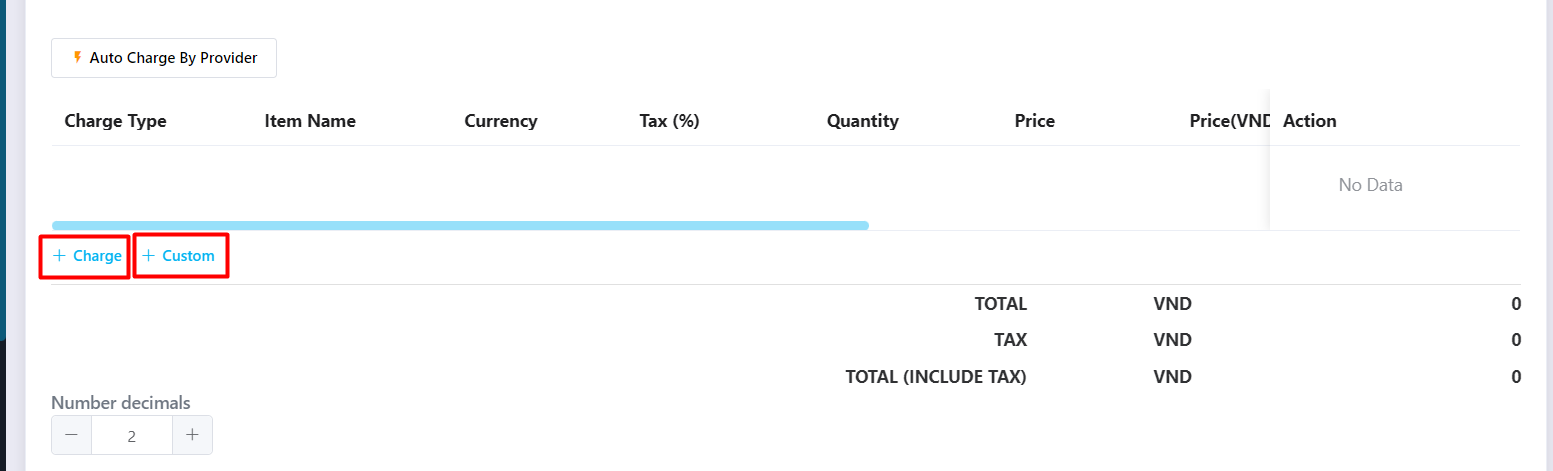
Number Decimals: Default is 2 decimal places → adjust using (+) or (–)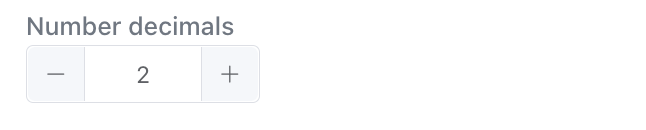
Exchange Rate Settings:
Click Change to adjust the exchange rate
Click Use currency system exchange rate to use system default (set at: Setting → Library → Exchange rate)

Attachments: Upload related supplier invoices (Debit Note / Invoice)
Note: Use Pay-Collect on behalf for Pay/Collect charges. 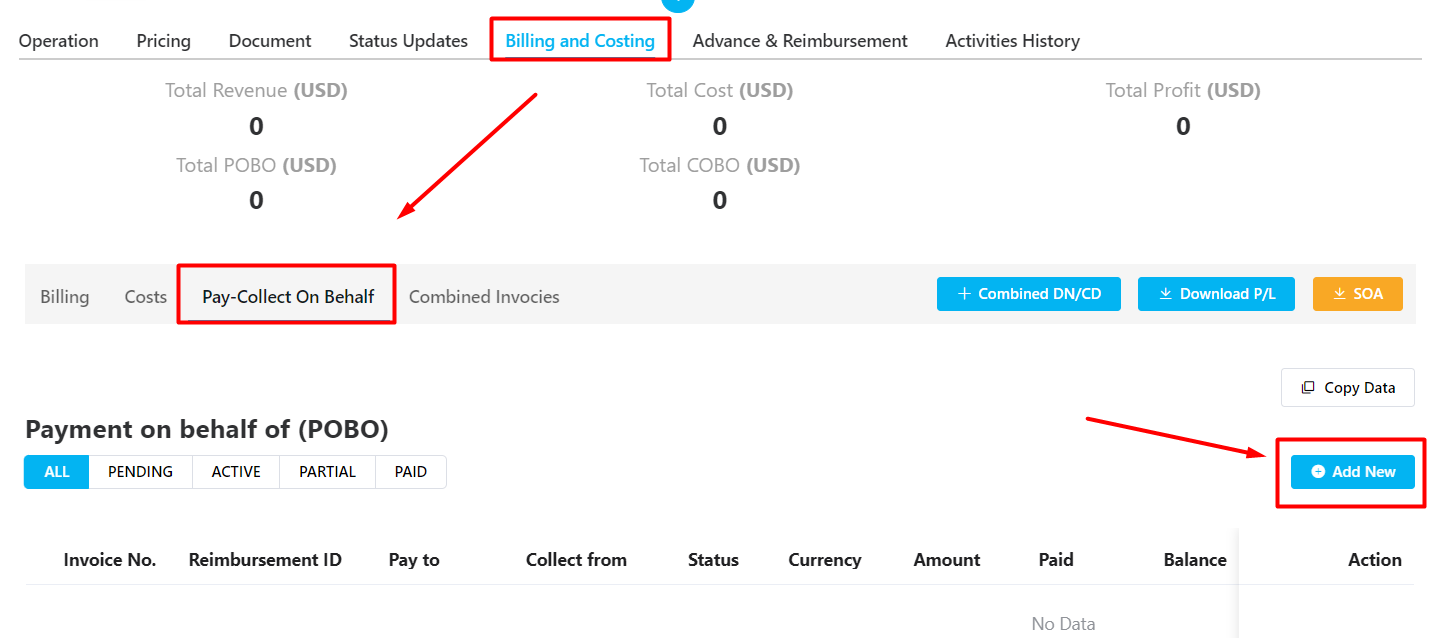
2. Create a Reimbursement for a Shipment
After all shipment costs have been entered:
Step 1: Go to Advance & Reimbursement → Reimbursement tab → + Add New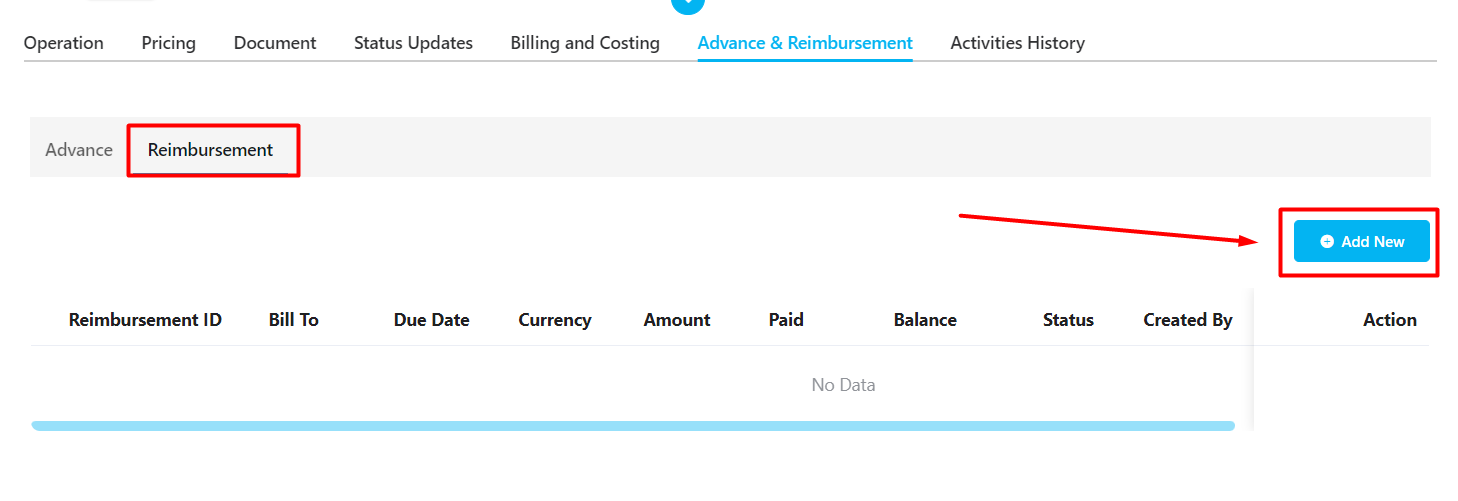
Step 2: Check the reimbursing staff name. If correct, the system will automatically match related Advances and Costs and calculate the reimbursable amount.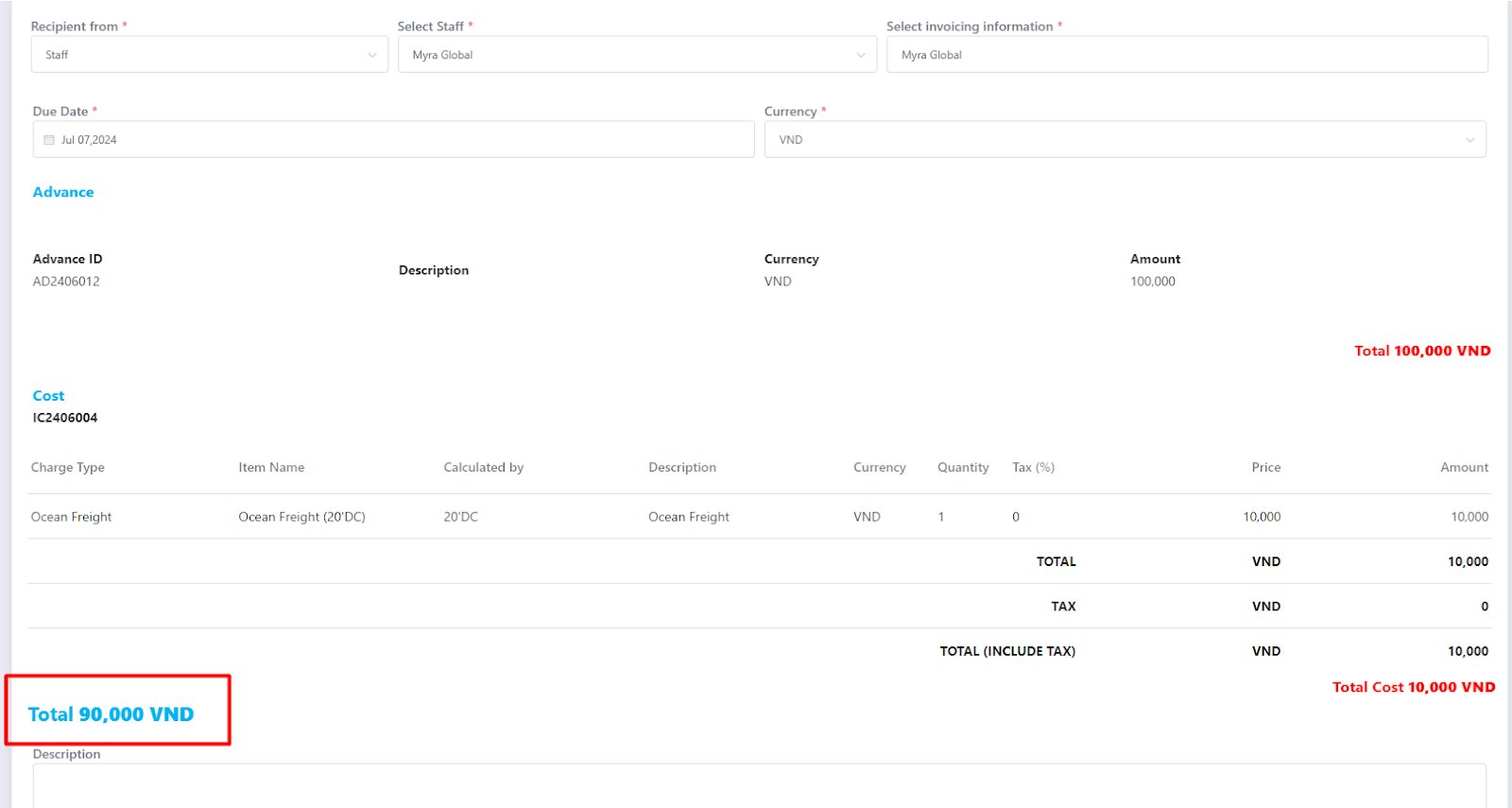
Step 3: Click Save to complete the reimbursement entry.
Was this article helpful?
That’s Great!
Thank you for your feedback
Sorry! We couldn't be helpful
Thank you for your feedback
Feedback sent
We appreciate your effort and will try to fix the article