1. Create Each Credit Note Individually via "+Add New"
Step 1: Go to Operation → Shipment → Select shipment → View
Step 2: Go to Billing & Costing → Costs → + Add New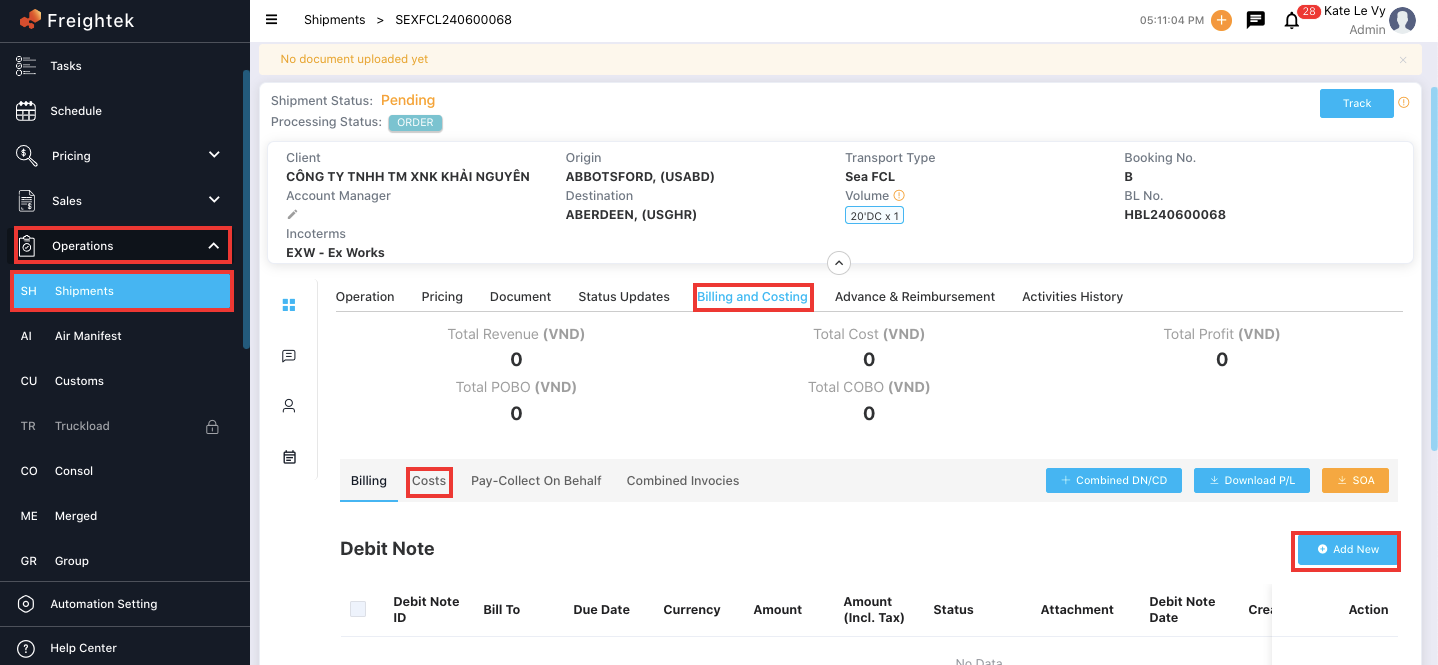
Step 3: Enter the required information
Recipient Type: Default recipient for Credit Notes is Provider
Exchange Rate Settings for Credit Note
Click Change to modify the current exchange rate
Click Use currency system exchange rate to apply the system default rate
(Configured in Setting → Library → Exchange Rate)
Select Provider: Auto-filled based on the Provider linked from the Pricing tab created by Sales. You may change the Provider by selecting another one from the list.
Select Invoicing Information: The information that will appear on the supplier’s Debit Note / Invoice.
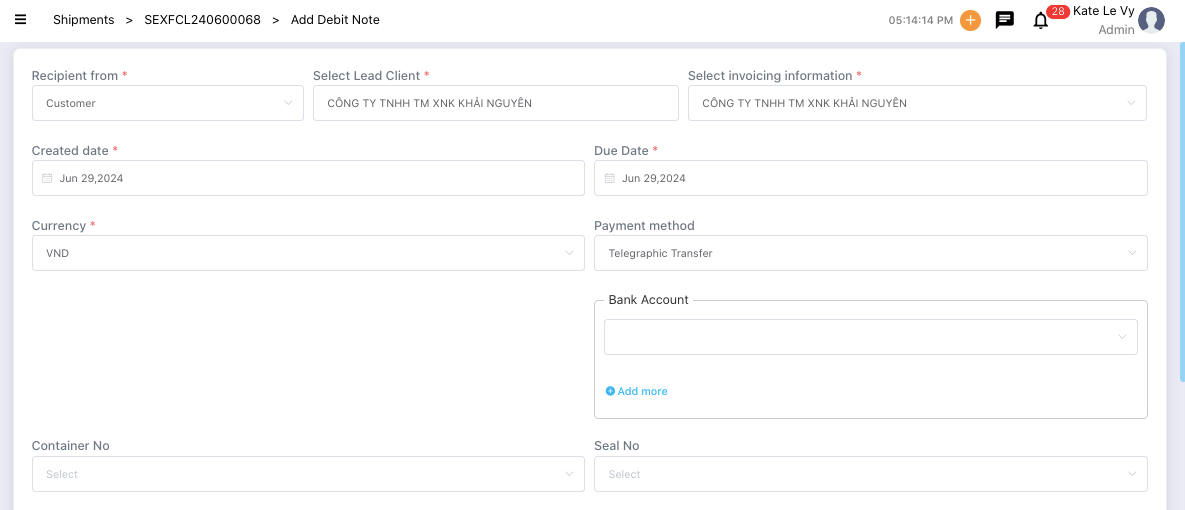
Note: To check whether all Credit Notes linked from the Pricing tab have been created, open “Add New” again - if no charges appear, it means all required Credit Notes have already been created.
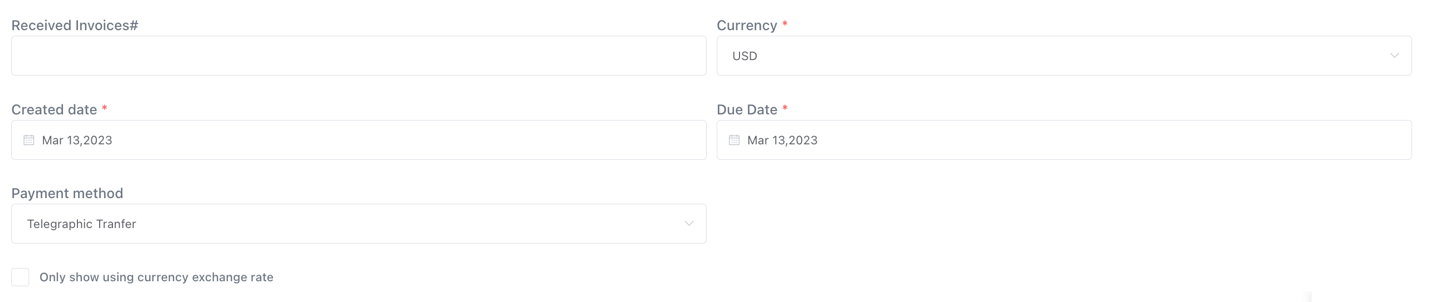
Received Invoice #: Invoice number issued by the provider
Currency
Created Date: Credit Note creation date
Due Date: Payment due date
Payment Method: Cash / Telegraphic Transfer
Charge Details
Case 1: Price already created in the Pricing tab: When creating a Credit Note, the system automatically pulls buying rates from the Pricing tab. You may add, edit, or delete charges.
Case 2: No price exists in the Pricing tab: Click Custom to manually enter charges.
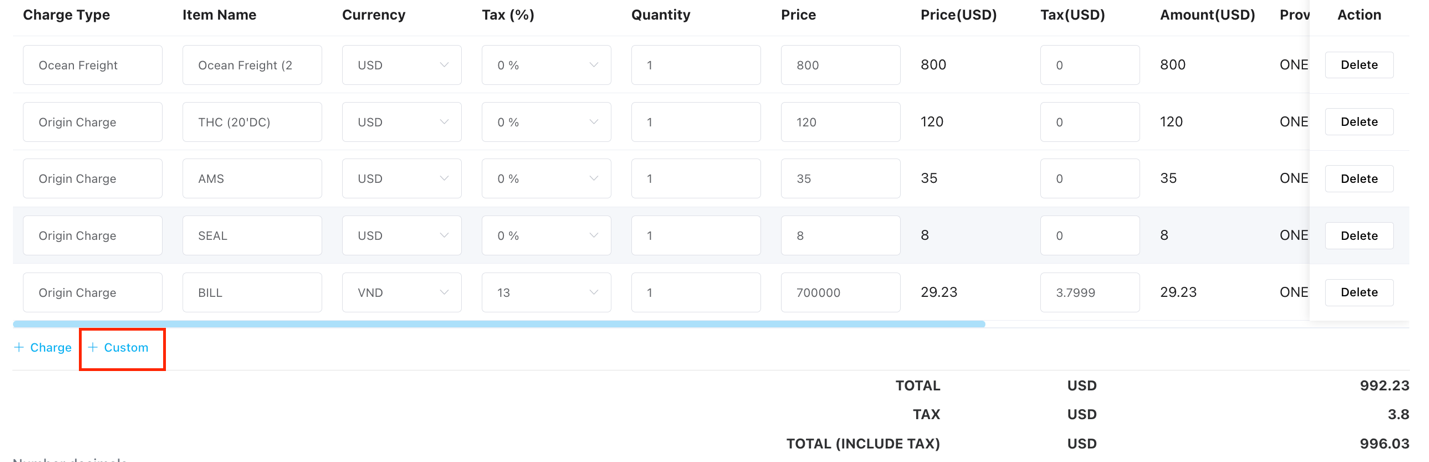
Number Decimals (rounding): The system defaults to 2 decimal places. Use (+) or (–) to increase or decrease the decimal accuracy.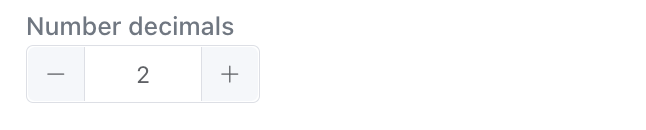
Exchange Rate Settings for Credit Note:
Click Change to modify the current exchange rate
Click Use currency system exchange rate to apply the system default rate (Configured in Setting → Library → Exchange Rate)

Attachments: Upload the supplier’s Debit Note / Invoice if available.
Note: Add notes if needed.
Step 4: Click Save to complete the Credit Note creation.
Credit Note Status Explanation
Status helps track whether the Credit Note has been “Make Cost” or not:
Pending: Credit Note has not been Make Cost
Active: Credit Note has been Make Cost
2. Create Credit Notes Quickly Using the Debit/Credit Note Button
Step 1: Go to Operation → Shipment → Select shipment → View
Step 2: Go to Billing & Costing → Combined DN/CD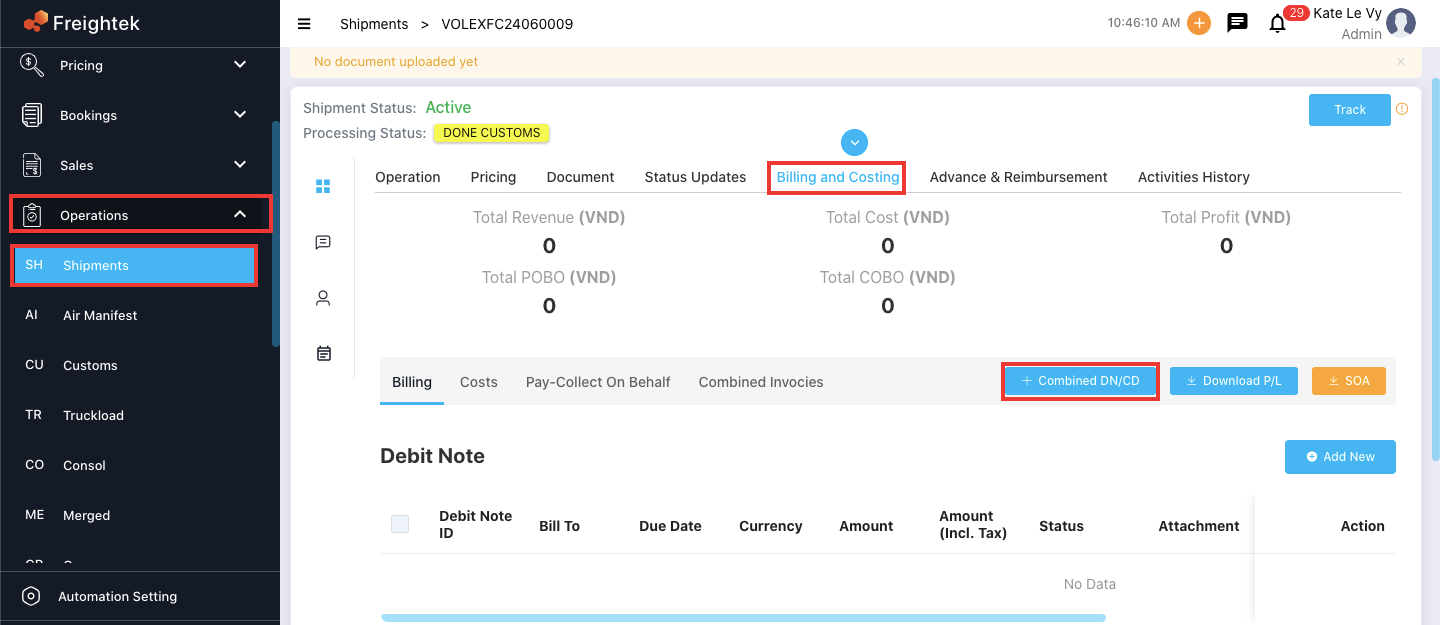
Step 3: Enter the required information
Recipient Type: Default is Provider
Select Provider: Auto-filled based on Pricing tab; can be changed
Select Invoicing Information: Appears on supplier’s Debit Note / Invoice
Created Date: Credit Note date (= invoice date)
Due Date: Auto-populated based on created date or Provider’s configured Credit Period
Currency
Payment Method: Cash / Telegraphic Transfer
Number Decimals: Adjust rounding
Note: Add remarks if needed
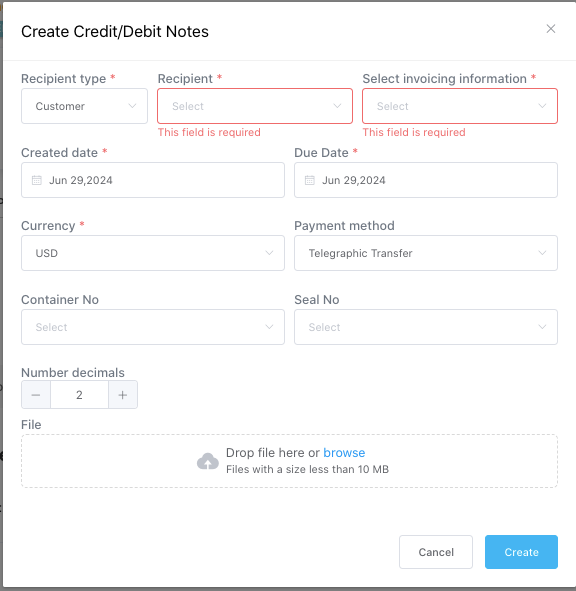
Step 4: Click Create to complete the Credit Note.
Special Case: When the Provider is OPS
Scenario 1: No invoice issued to the company
Select Provider: OPS staff name you need to track
Select Invoicing Information: OPS staff information (appears on supplier’s DN/Invoice)
Example:
Provider: Mr. A - OPS
Invoicing Information: Mr. A - OPS

Scenario 2: Invoice issued to the company
Select Provider: OPS staff name
Select Invoicing Information: Supplier issuing the invoice to the company
Example:
Provider: Mr. A – OPS
Invoicing Information: COSCO SHIPPING LINES CO., LTD

Was this article helpful?
That’s Great!
Thank you for your feedback
Sorry! We couldn't be helpful
Thank you for your feedback
Feedback sent
We appreciate your effort and will try to fix the article