1. Managing SOA (Statement of Account)
To support you in managing outstanding balances, generating SOA statements, and reconciling AR/AP with customers, agents, and vendors, Freightek generates SOA reports by combining information from Revenue, Cost, COBO, and POBO tabs.
Below is the guide on how to generate and download an SOA:
Step 1: Access the SOA management list: Go to Report → SOA.
Step 2: Search for the outstanding items or partner you want to generate an SOA for
Use filters to find the specific partner or transactions.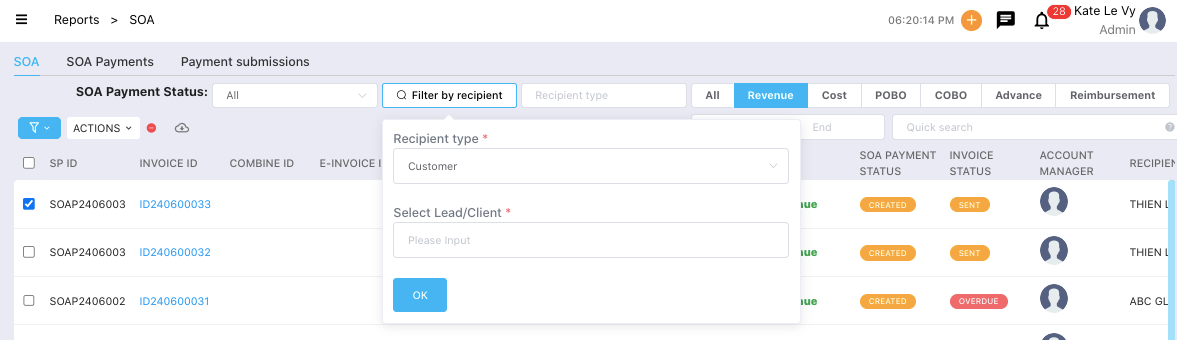
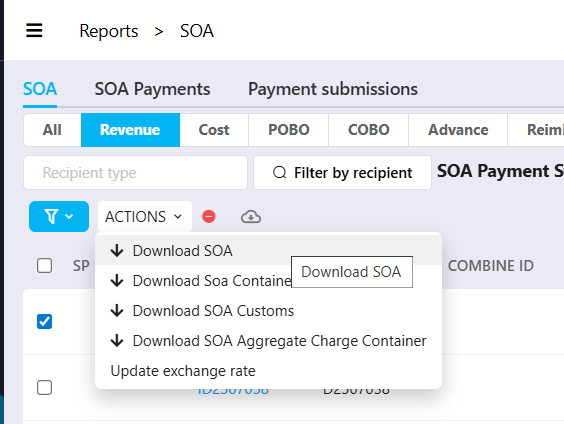
Step 3: In the Action tab, select a download option
Download SOA
Download SOA Container
Download SOA Customs
Download SOA Aggregate Charge Container
Step 4: Customize before downloading
Date Range: The date range displayed on the SOA.
Include Charges:
If checked → SOA will be exported as Excel with full charge details.
If unchecked → SOA will be exported as PDF with summary totals only.
Currency: Select the currency displayed on the SOA.
Number Precision: Decimal rounding setting.
Note: Add remarks to the SOA if needed.
Checkbox “Add new record to SOA Payments”: Checked by default. Uncheck if you do not want to create a new SOA Payment request.
Download: Click Download to export the SOA.
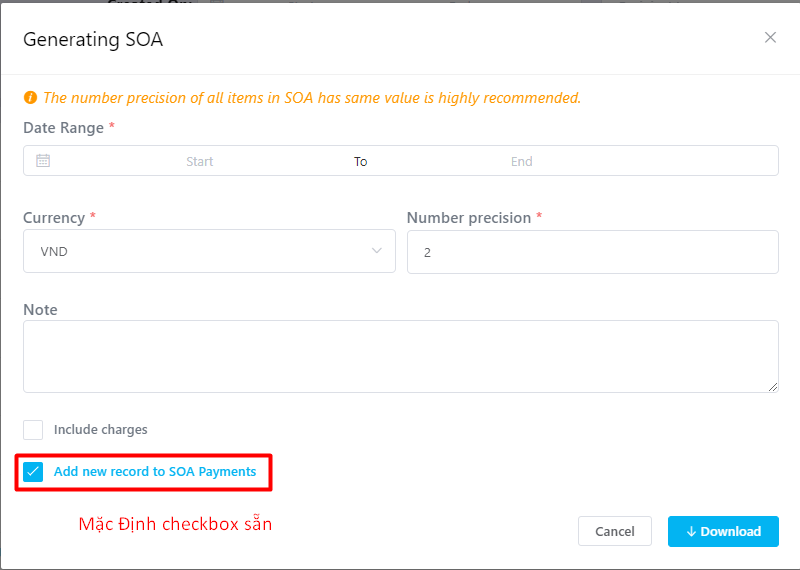 When download is successful, a corresponding SOA Payment record will also be created.
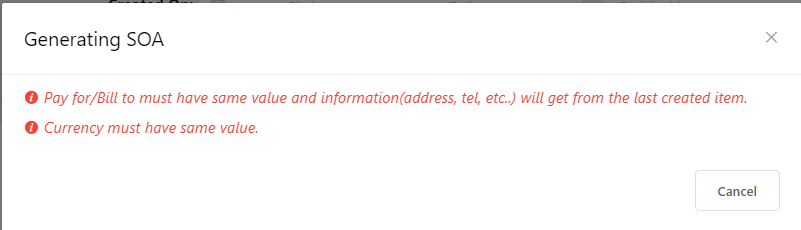
Important Notes If a red warning appears:
"Pay for/Bill to must have same value and information..." → The selected customers/agents/providers have inconsistent names or details. Please review and adjust the selection.
"Currency must have same value." → Multiple currencies were selected. Please ensure all selected invoices use the same currency.
2. Managing SOA Payment List & Recording Payments
Step 1: Go to the SOA Payment list.
Step 2: Search for the SOA Payment to record → click View → then click Receipt to record payment.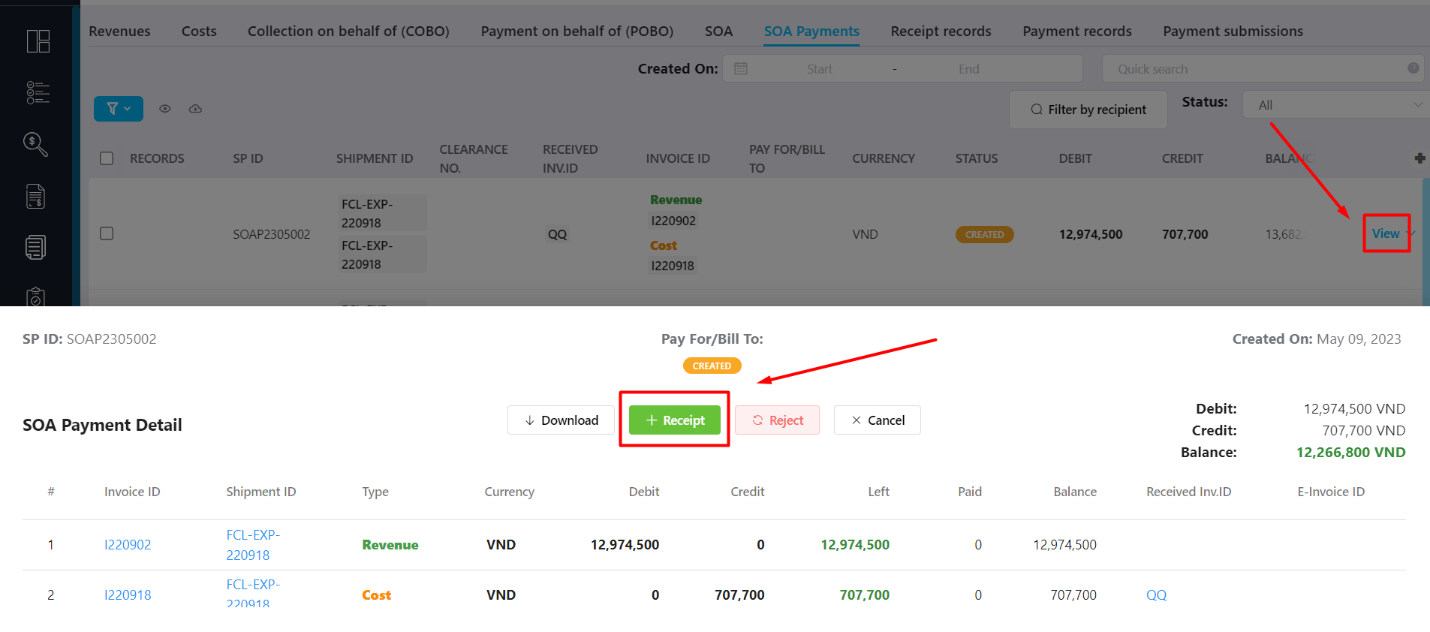
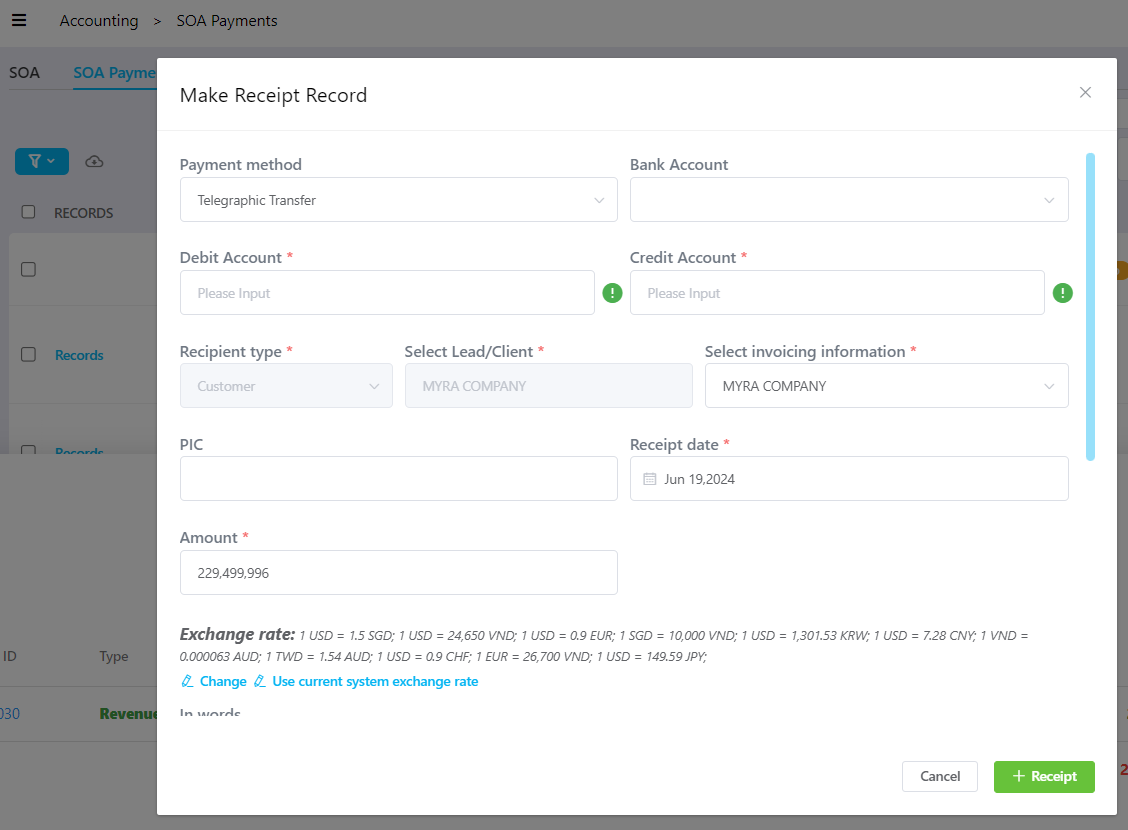
Make Receipt Record – Field Explanation
Recipient Type: Automatically loaded and cannot be edited.
PIC: Person in charge.
Receipt Date: Payment date (as shown on the bank transfer slip).
Amount: Auto-filled; can be adjusted.
Payment Method: Method of payment.
Description: Additional description (optional).
Note: Internal notes (optional).
Attachment: Upload supporting documents (optional).
Click Receipt to complete the payment record.
Was this article helpful?
That’s Great!
Thank you for your feedback
Sorry! We couldn't be helpful
Thank you for your feedback
Feedback sent
We appreciate your effort and will try to fix the article