The Rate Management function in Freightek allows users not only to input and store rates from multiple sources, but also to manage and search rates quickly using an intelligent filtering system.
Rate Status Filters
Available: Displays all valid (active) rates.
Expiring Soon: Shows rates that will expire within the next 7 days.
Expired: Shows rates that are no longer valid.
Quick Search & Filter Funnel
The quick search bar allows users to enter basic information such as Provider, Origin, Destination, Commodity to locate rates immediately without multiple steps.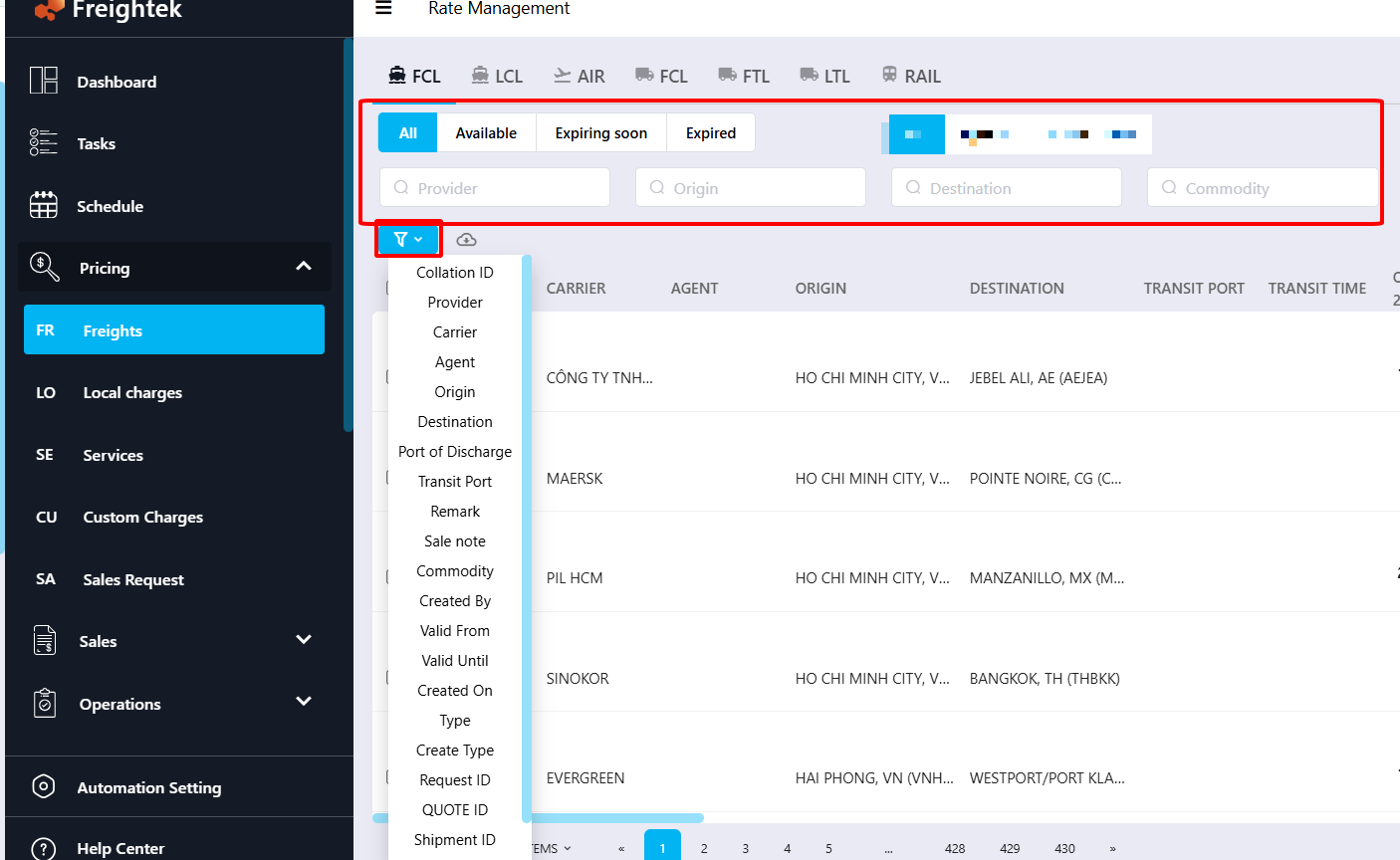
METHOD 1: MANUALLY ADDING A NEW RATE TO THE SYSTEM
Step 1: Go to Pricing → Freights
Freights = the complete list of freight rates across transport modes.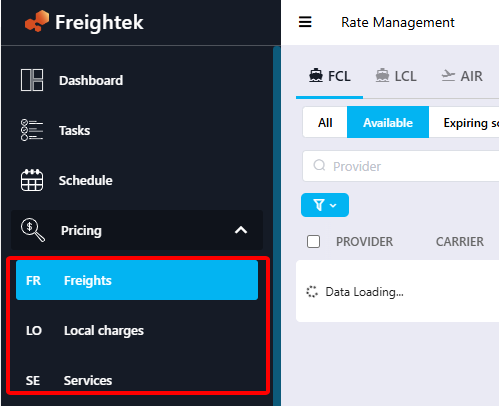
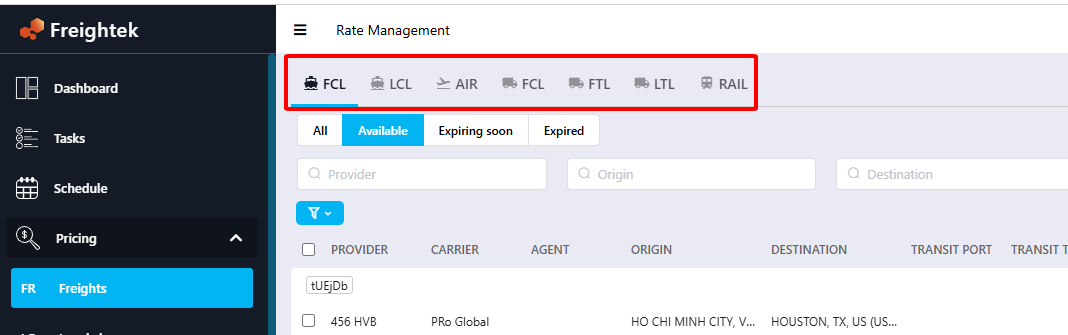
You can filter by transport mode, including:
Sea FCL – Full Container Load (Ocean)
Sea LCL – Less than Container Load (Ocean)
AIR – Air Freight
Truck FCL – Domestic trucking (full container)
FTL – Full Truck Load
LTL – Less than Truck Load (trucking consolidated cargo)
RAIL – Rail transport
Step 2: Add a new rate
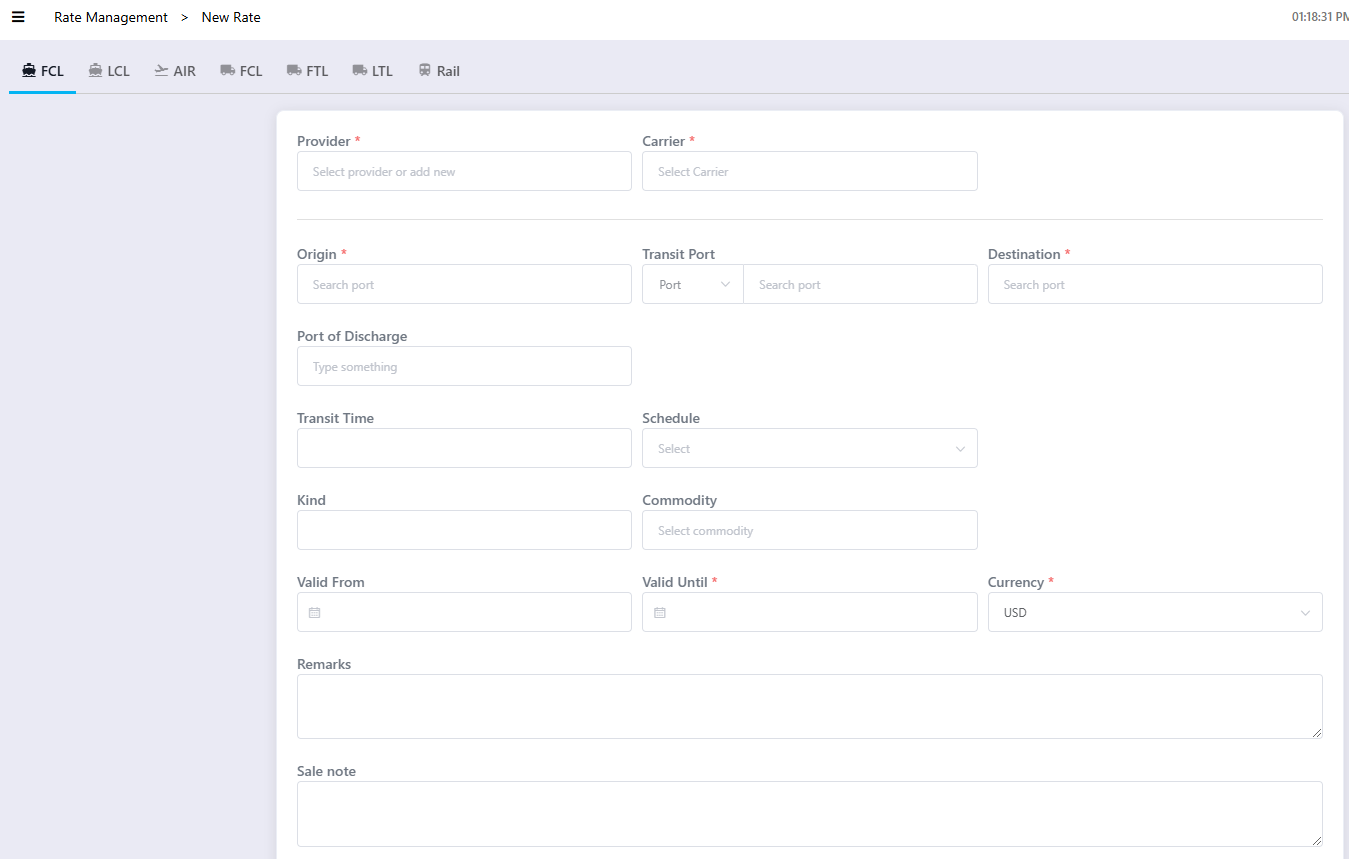
Click New Rate, then fill in all required and related rate information:
Provider: The vendor selling the service (from Partner List)
Carrier: Actual carrier performing the service (from Partner List)
Origin: Port of Load
Destination: Port of Destination
Transit Time, Schedule
Valid From / Valid Until
Currency
Remark
Ocean Freight Section:
Select the container type and enter the corresponding freight amount provided by your vendor.
Notes:
If additional rate information exists, enter it under Remark → This will appear on Sales quotation.
To leave internal notes only for the Sales team, use Sales Note → This will NOT appear on the quotation.
To add rates for multiple container types, click Add Another Unit → select container type.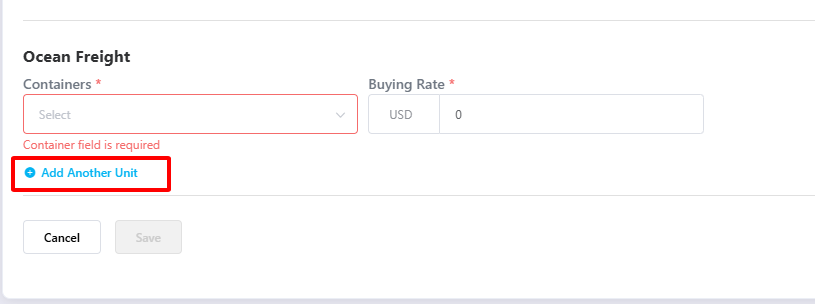
Step 3: Click Save.
Your newly created rate will appear at the top of the rate list.
METHOD 2: IMPORTING FREIGHT RATES USING EXCEL
Step 1: Go to Pricing → Freights → Upload Excel File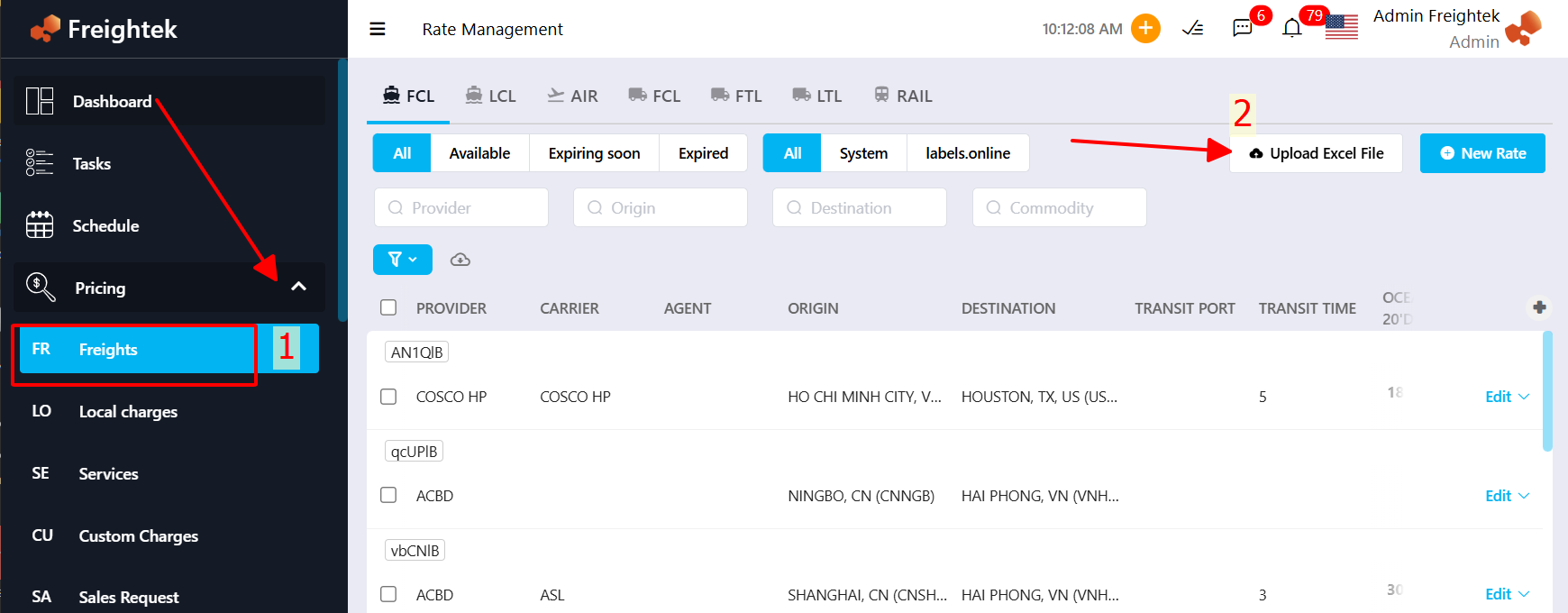
Step 2: Click Download Template to get the freight rate input file.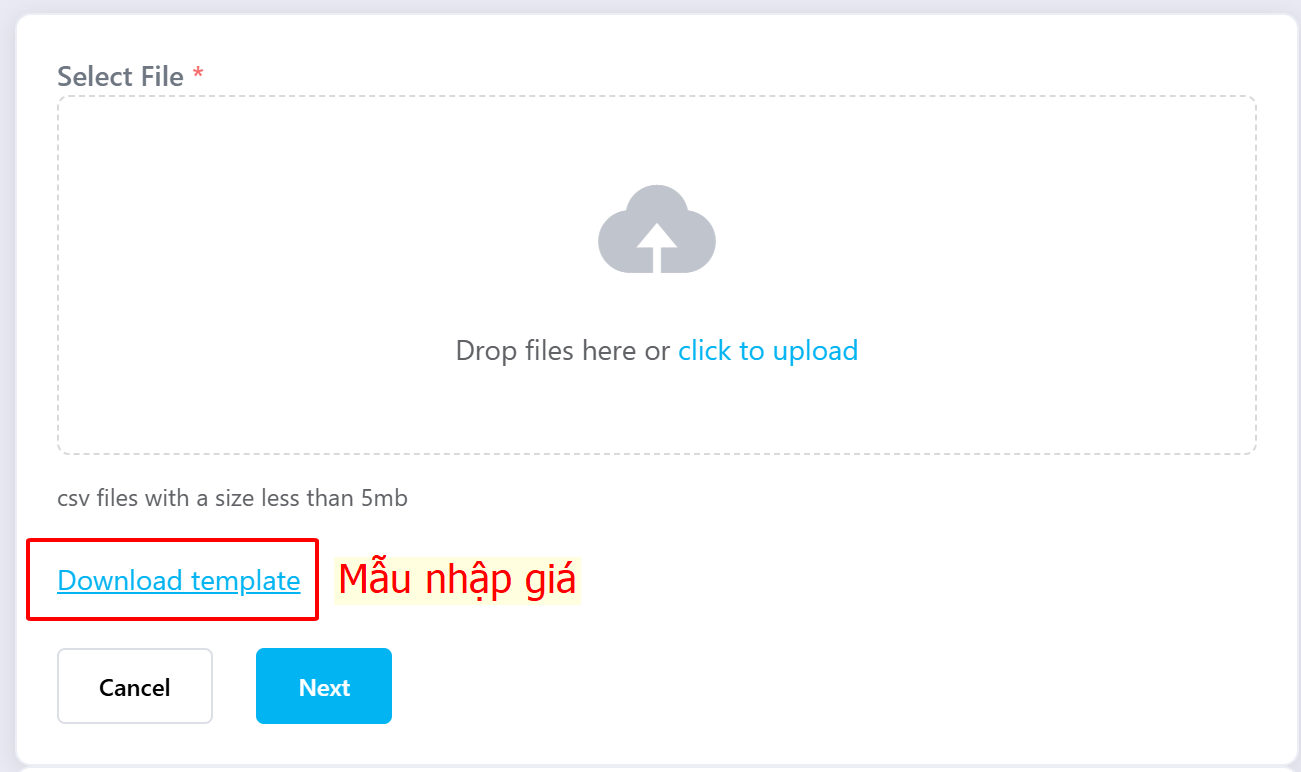
Step 3: Enter your rate data into the Excel file
Examples:
Origin / Destination: Enter port code or port name
Ex: VNSGN or HO CHI MINHPOD / Transit Port: Port code or port name
Provider / Carrier: Must match the Name field in Partner
→ If buying directly from carrier → Provider = Carrier
→ If buying via co-loader/agent → Provider = Co-loader/AgentCurrency: Enter 3-letter currency code (USD, VND…)
Price: Enter amount into the respective Volume field
Valid From/Valid Until: Enter dates
Other fields may be left blank if not required.
Notes:
Extra information may be added into Remark (this appears on quotation).
Internal notes for Sales can be added in Sales Note (not shown on quotation).
For adding completely new data fields, please contact Freightek Support.

Step 4: Upload the file
Select Drop files here or click to upload.
If you cannot find the file, set the browser to show All Files.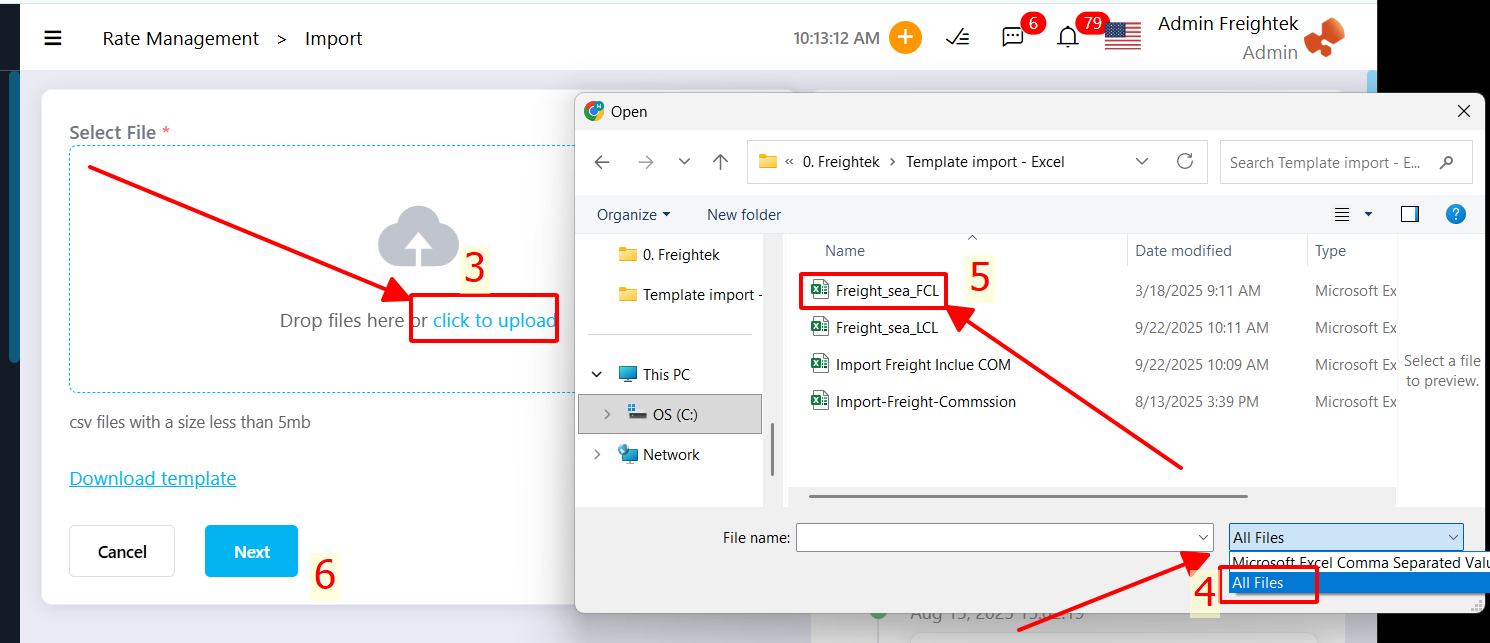
Step 5: Map data fields
Most fields are auto-mapped, users only need to review and confirm.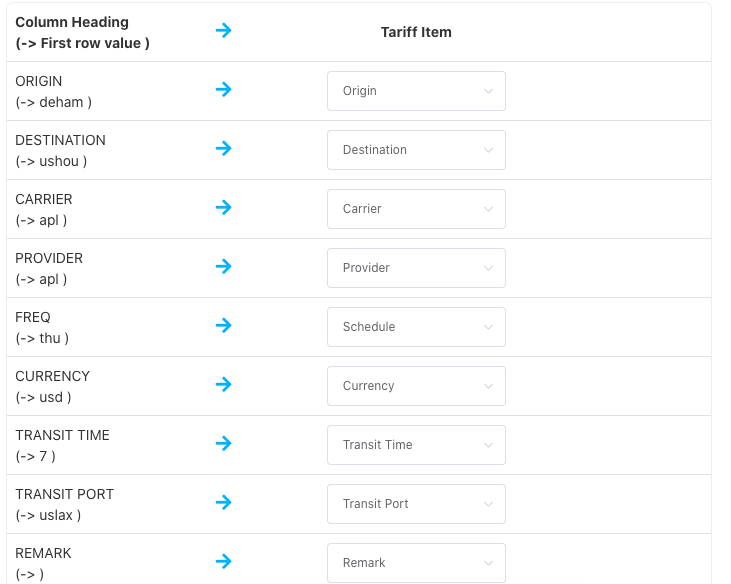
TIP: If your dataset contains new or custom columns, click Save a template to store your mapping.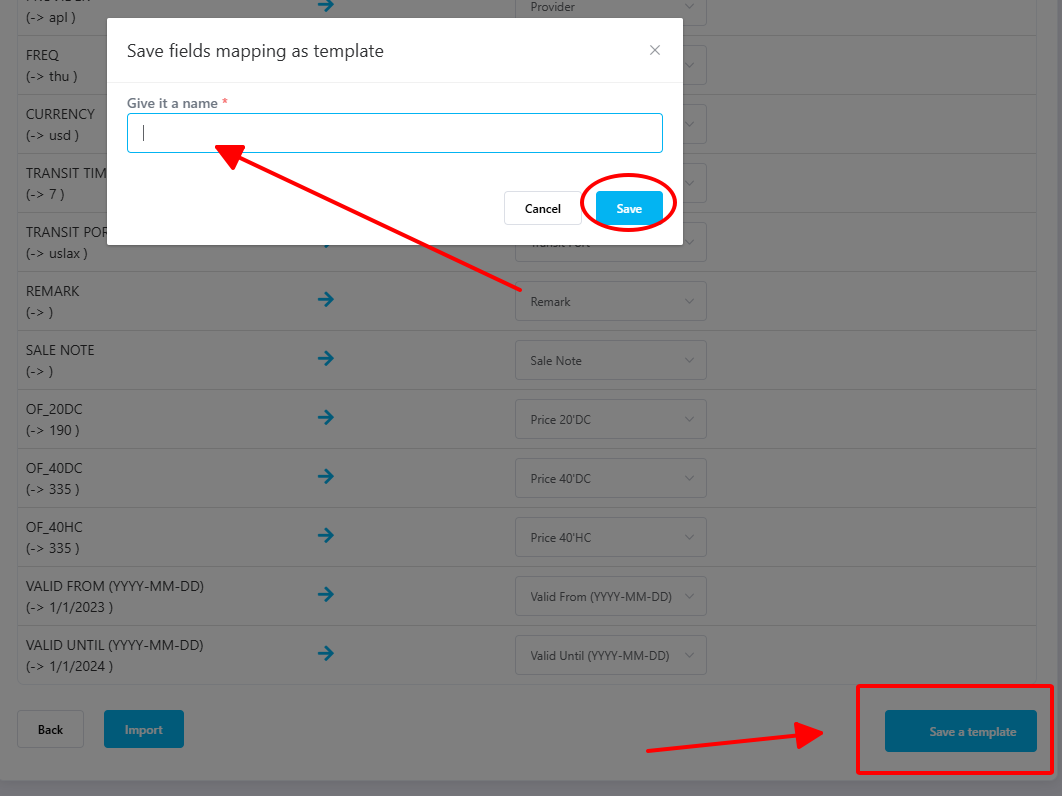 Next time, load it using From a saved fields mapping template.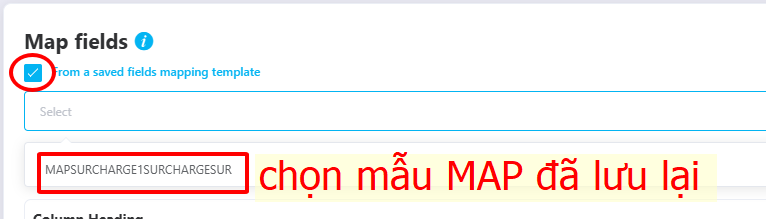
Step 6: Import the file
Click Import to upload the rate data.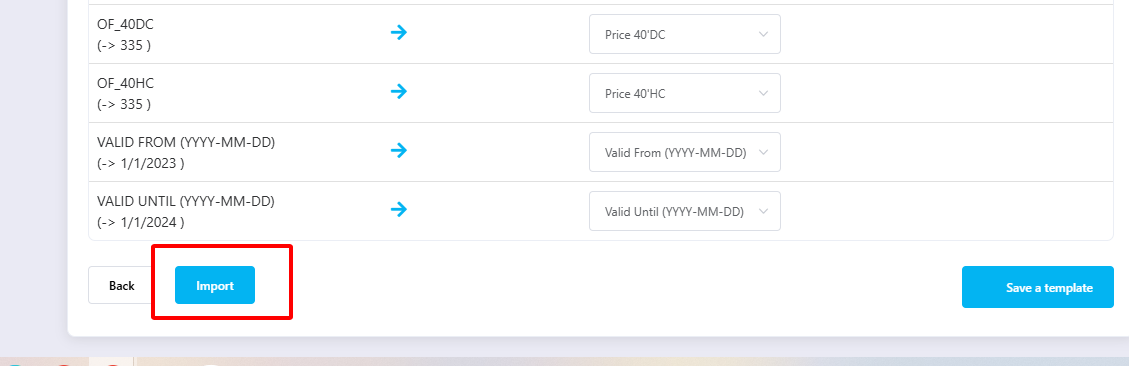
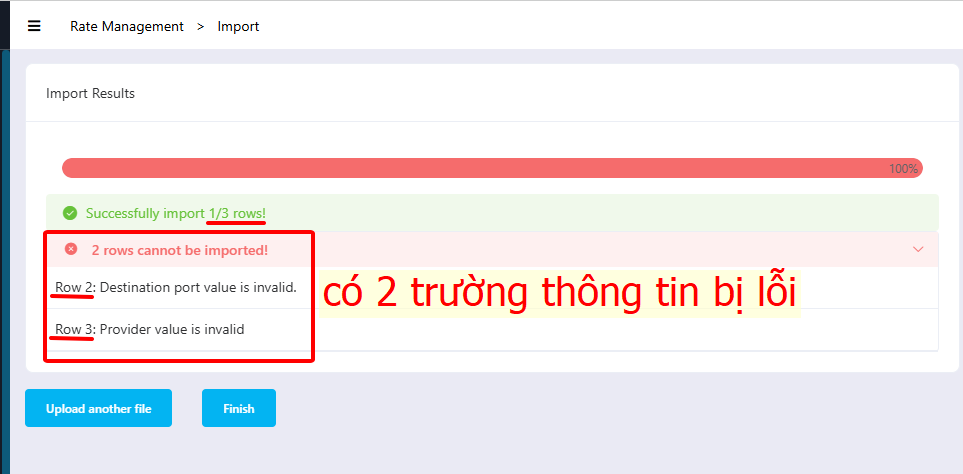
If successful: A Successful message will appear.
If errors occur: The system will highlight the row number and field causing the error so users can correct it quickly.
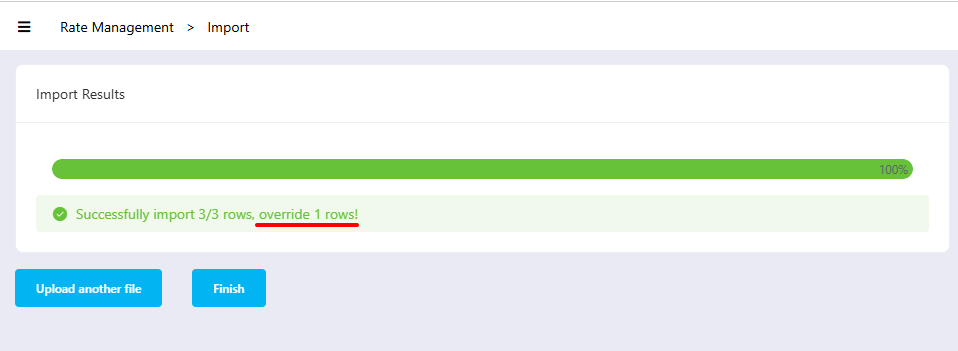
If duplicated rates exist, Freightek will auto-overwrite to prevent duplicate rows.
Was this article helpful?
That’s Great!
Thank you for your feedback
Sorry! We couldn't be helpful
Thank you for your feedback
Feedback sent
We appreciate your effort and will try to fix the article