If you want to create an automatic quotation for FCL, Air Freight, or Trucking using available rates, you can follow the steps below.
Step 1: Click Sales → Quote → Add Quote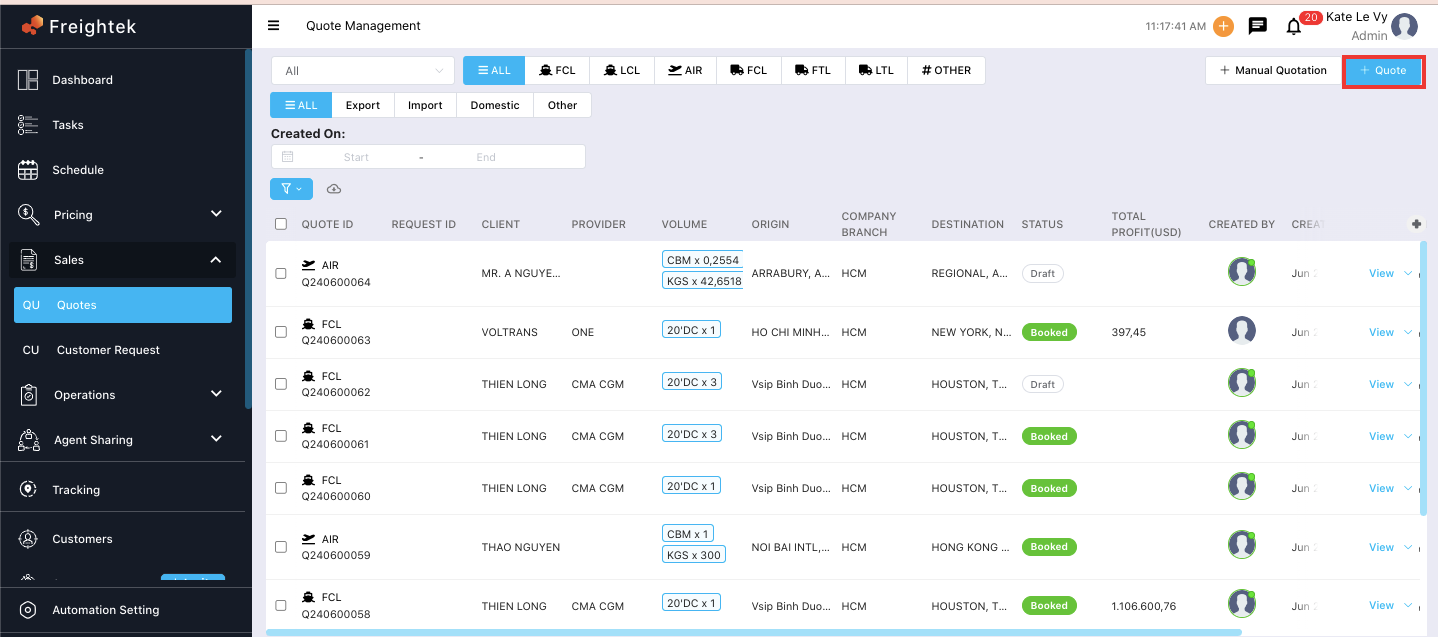
Step 2: Select your Lead/Client, then click Next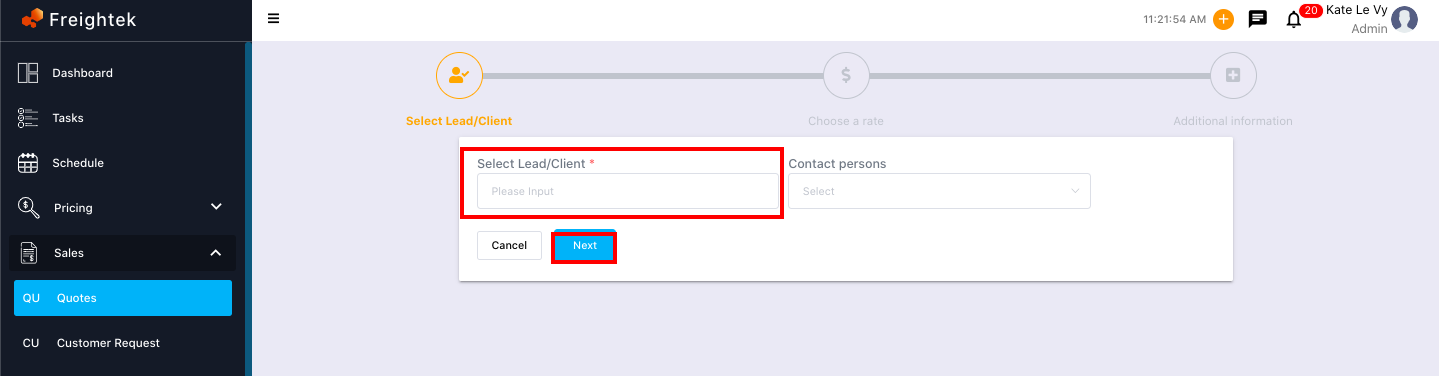
Step 3: Search for rates by Origin & Destination
Example: If you want to check freight rates from HAMBURG Port to HOUSTON Port,
enter the origin and destination in the search fields.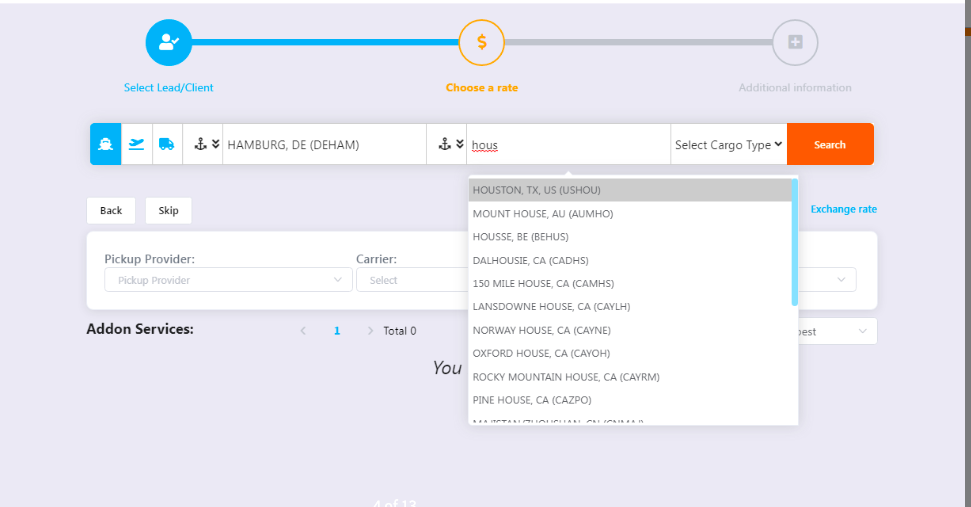
Step 4: Select the volume / quantity
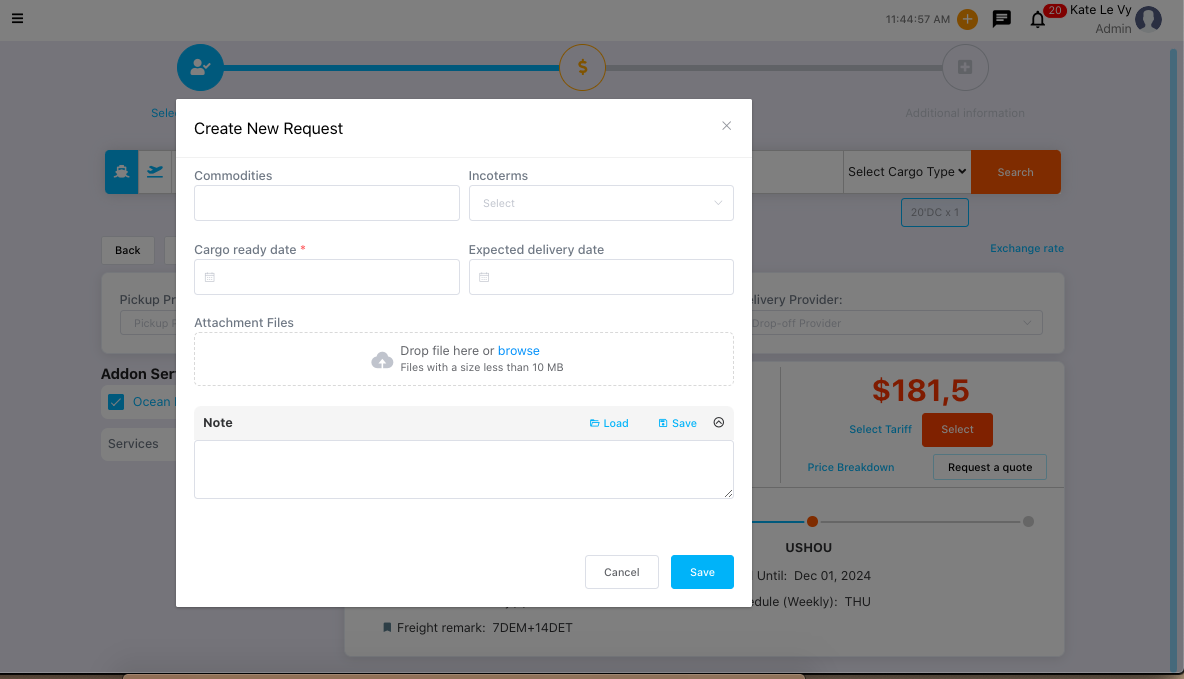
Note: If you search for a rate but no available rate appears, click “Request a quote”.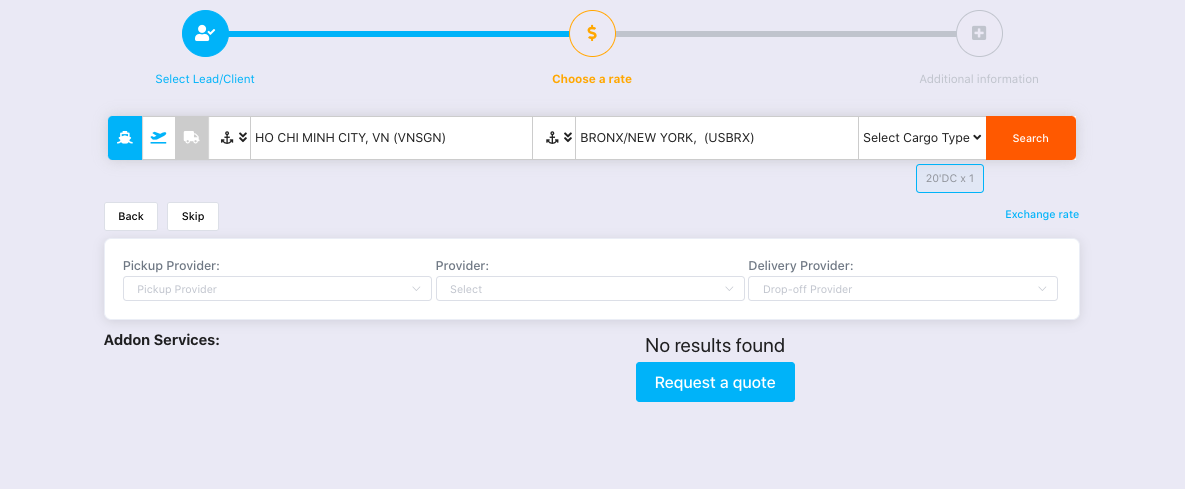
Then fill in the rate request form and click Save to send the request to the Pricing team.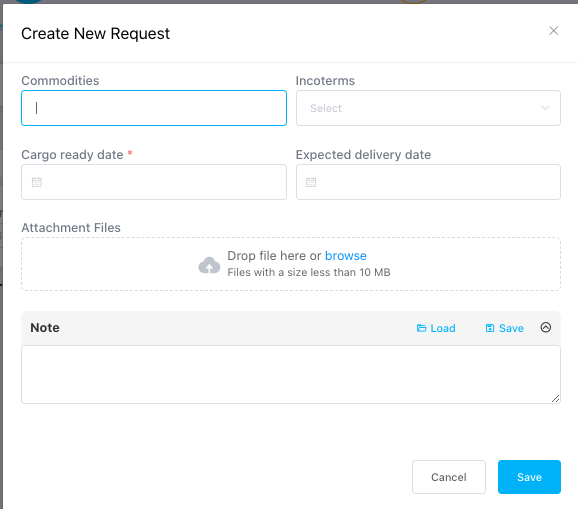
After that, the user fills in the required rate request information in the form and clicks Save to send the request to the Pricing team for rate checking.
Step 5: Select an available rate (updated rates)
Click “Select” if the displayed rate is suitable.
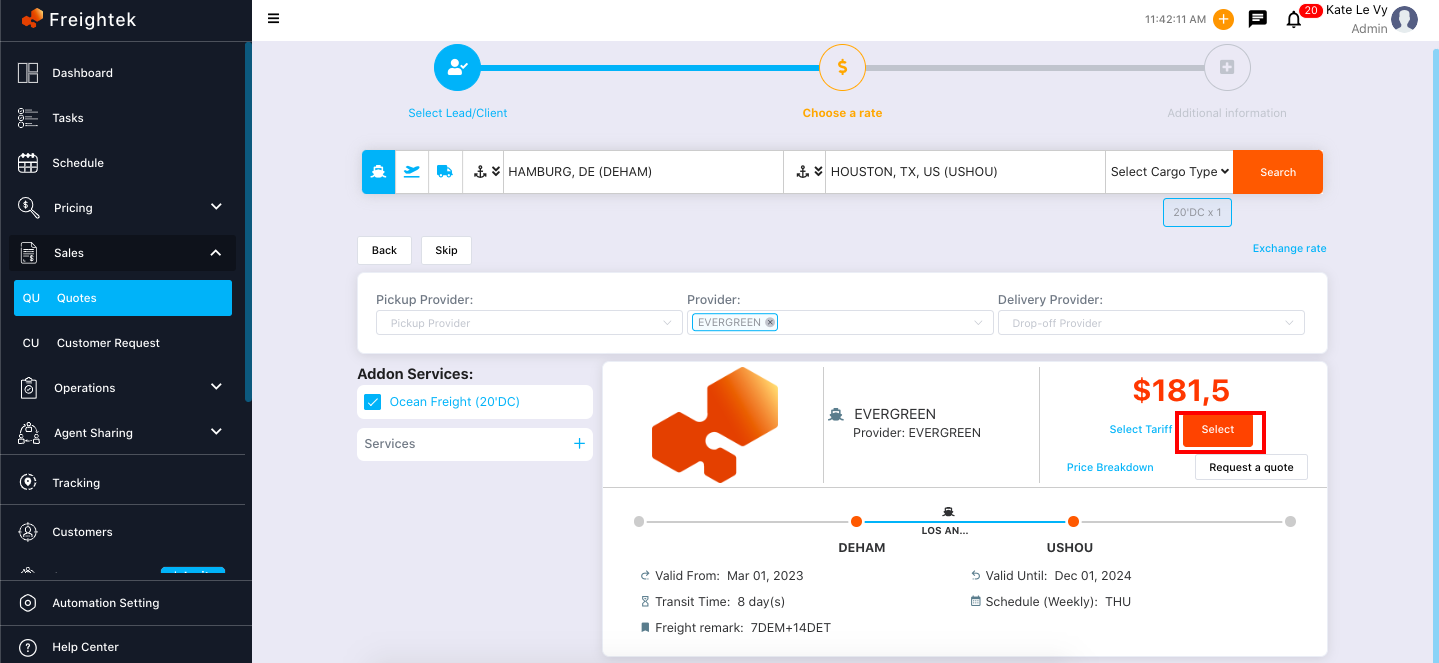
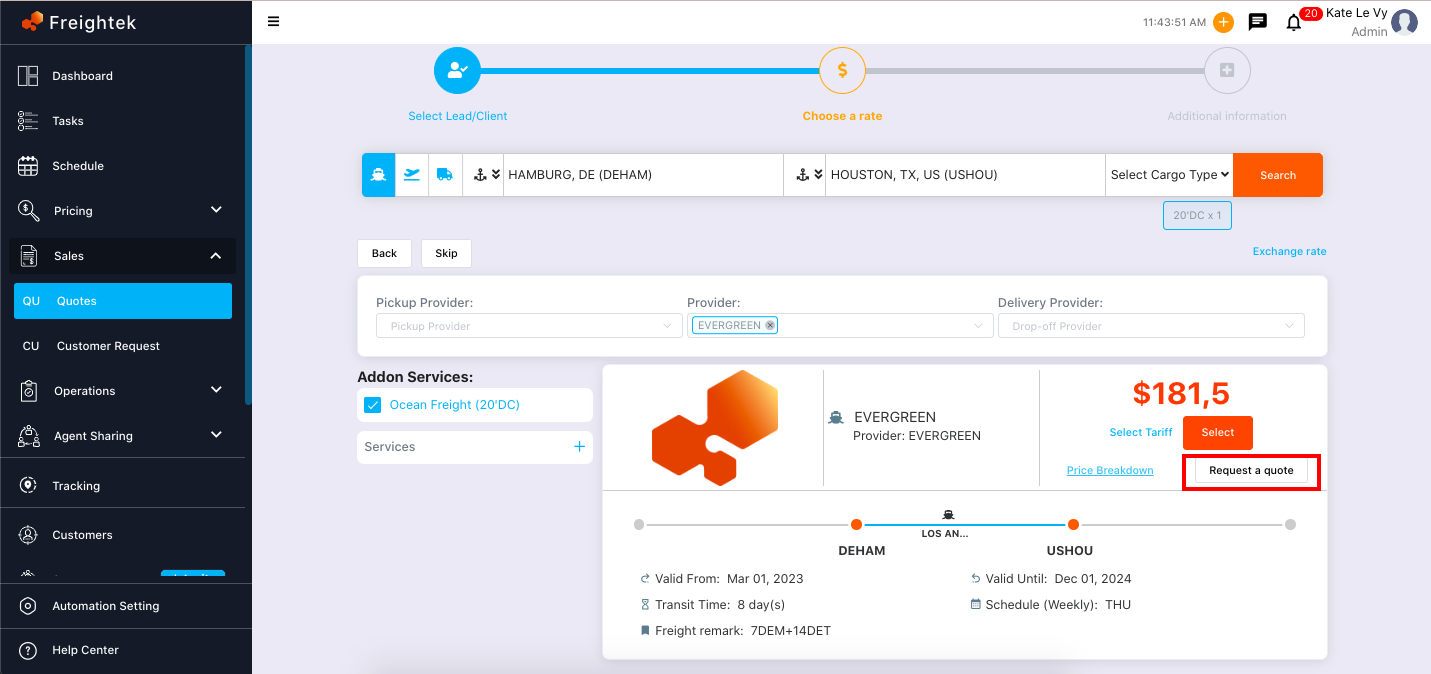
Click “Request a quote” if the rate is not suitable and you need to request a new one from the Pricing team.
Step 6: Enter any additional information required for the quotation.
Step 7: Choose “Save” or “Save & Send”
Save: The quotation will be saved as Draft, not sent to the customer yet, and can still be edited.
Save & Send: The quotation will be sent to the customer’s Client Portal, and the status will become Pending.
Step 8: Edit the quotation
The system will display the quotation page.
You can click Edit to modify the quotation.
Step 9: Export the quotation as PDF or copy the URL link to send to your customer.
Step 10: After the quotation is successfully confirmed → click + Create Shipment.
Then check the related users to notify them of the new booking → click Create Shipment.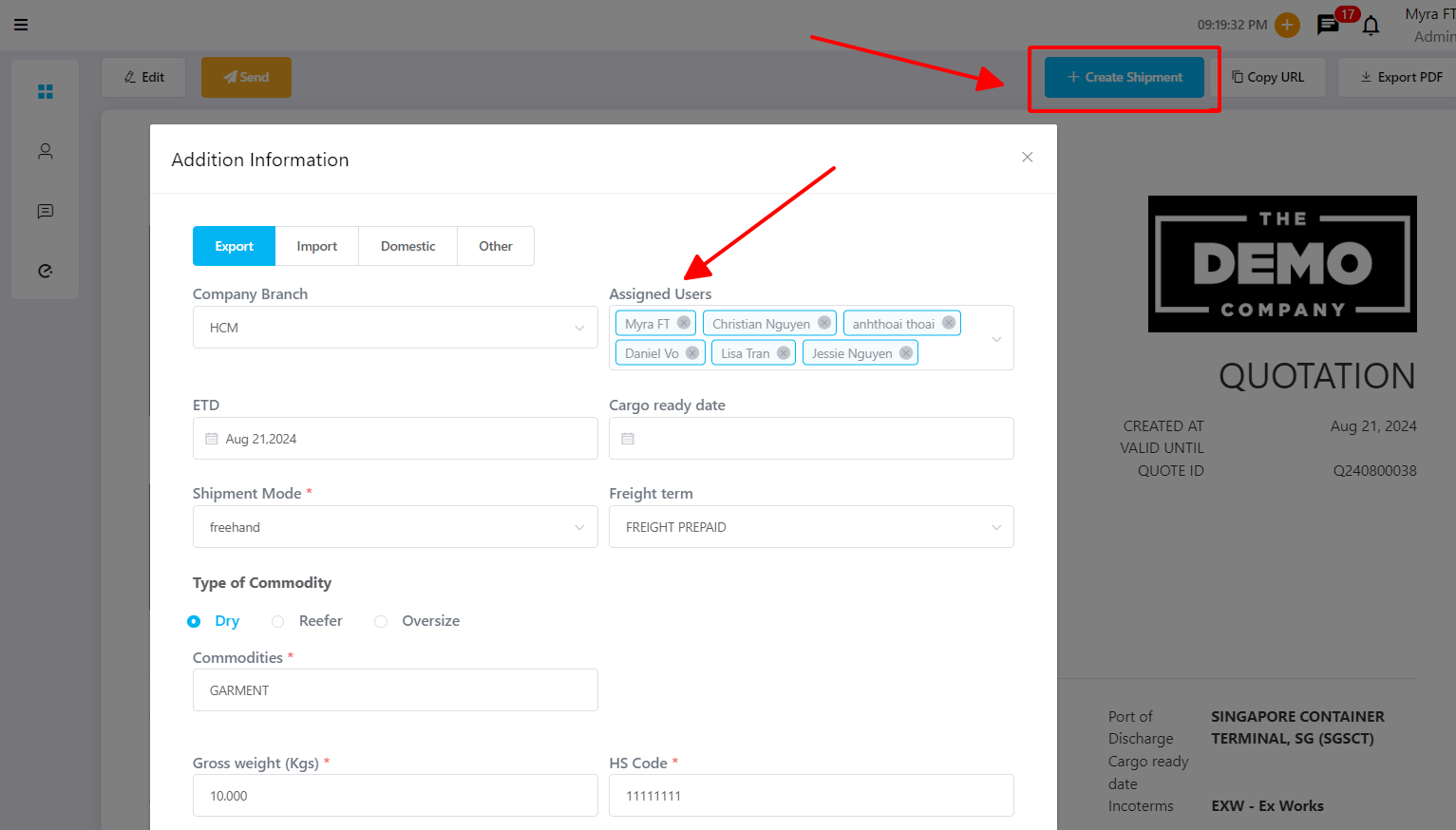
Was this article helpful?
That’s Great!
Thank you for your feedback
Sorry! We couldn't be helpful
Thank you for your feedback
Feedback sent
We appreciate your effort and will try to fix the article