Method 1: Confirm Each Debit Note Individually
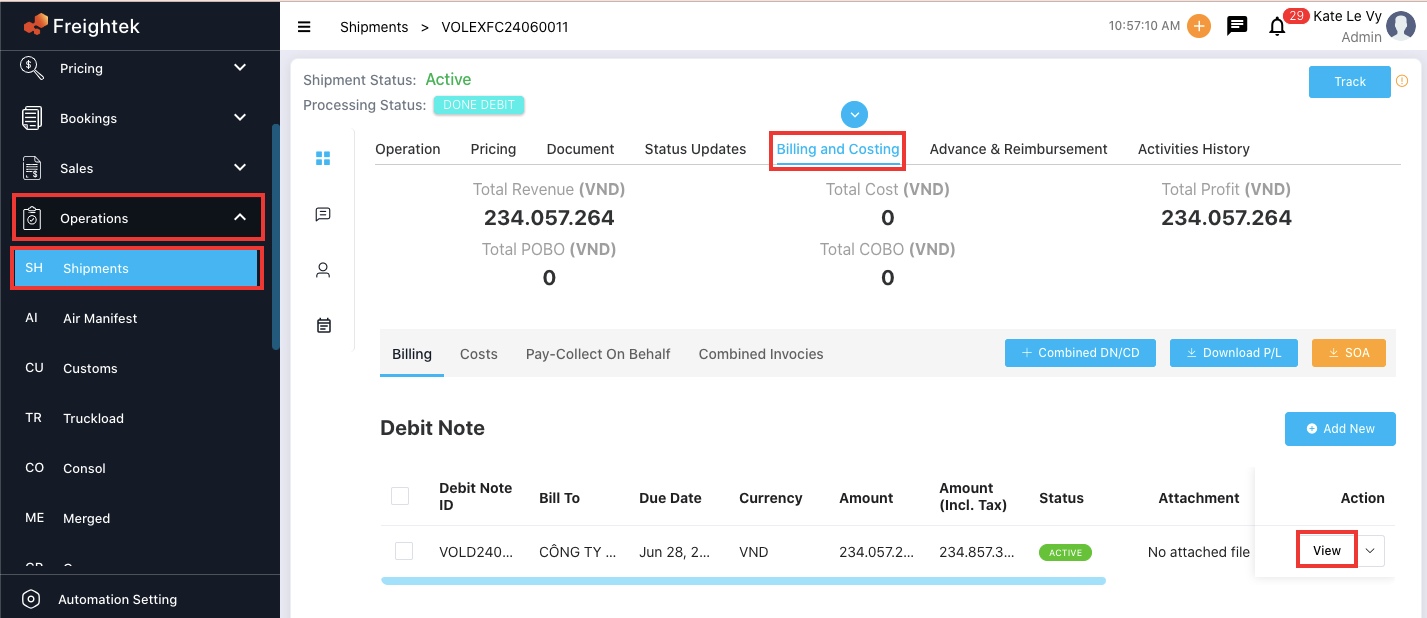
Step 1: Click View on the Debit Note you want to issue an invoice for.
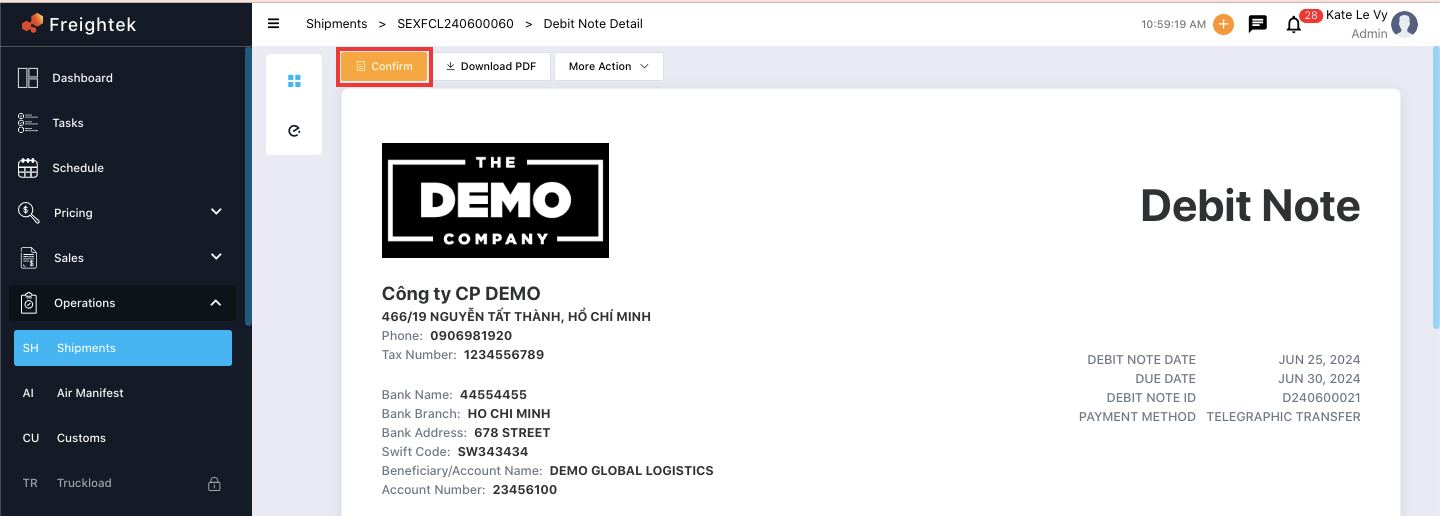
Step 2: Click the Confirm button.
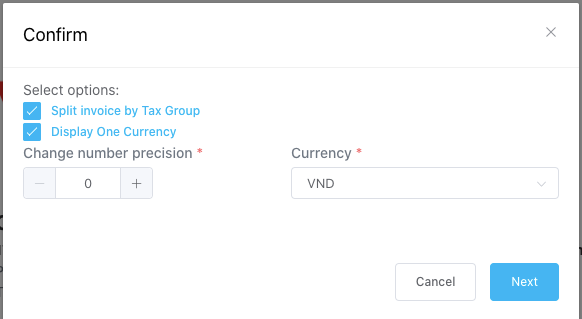
A confirmation window will appear with the following default checkboxes enabled:
Split Invoice by Tax Group: Automatically separates invoices by tax type (e.g., 0% VAT in one invoice, 10% VAT in another).
Display One Currency: Shows only a single currency on the invoice.
Change Number Precision: Rounds decimal numbers (default rounding: 0 decimals).
Currency: Select the currency you want to issue the invoice in.
Step 3: Click Next to complete generating the revenue invoice.
? Important Note: Invoices cannot be edited after creation to ensure they always match the Debit Note exactly. Once confirmed, the revenue will be recorded under: Accounting → Revenue tab
Method 2: Make Invoice for Multiple Debit Notes at Once
Step 1: Select multiple Debit Notes → click Confirm.
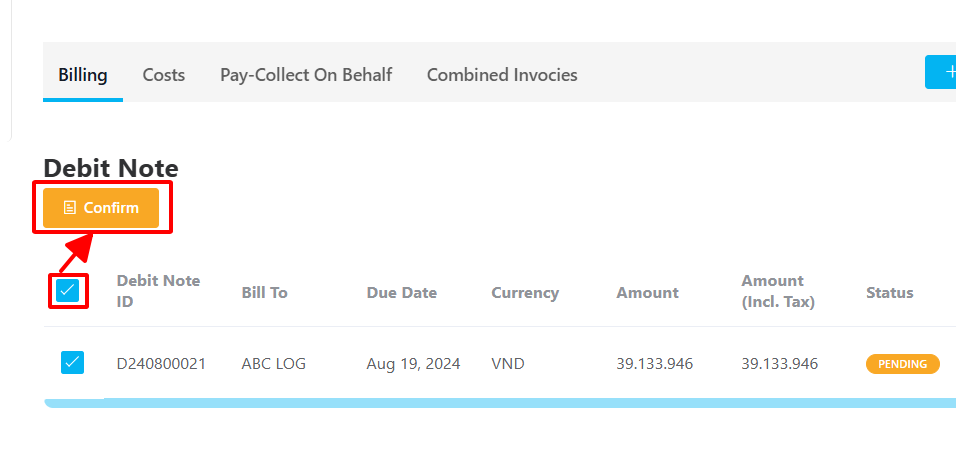
Step 2: The same confirmation window (as in Method 1) will appear → click Next to generate all invoices.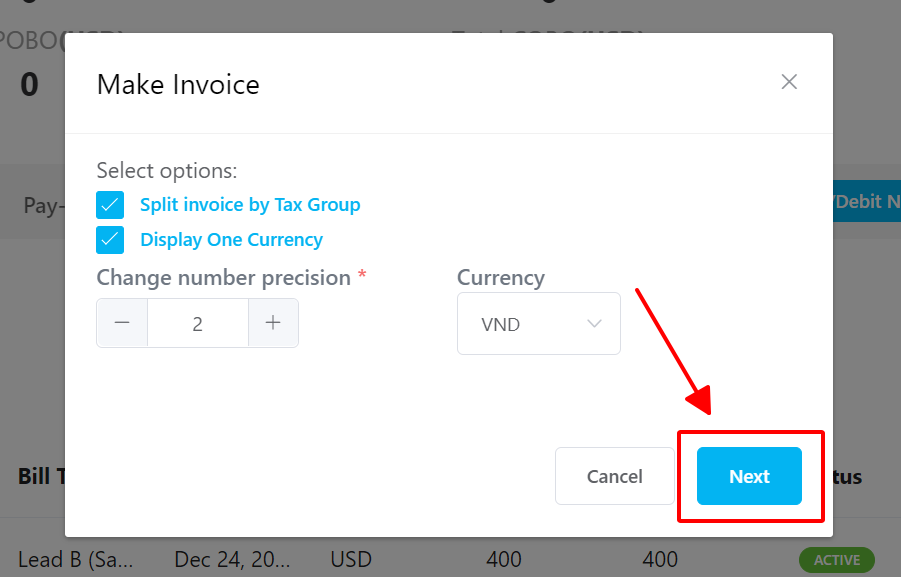
How to Delete Invoices
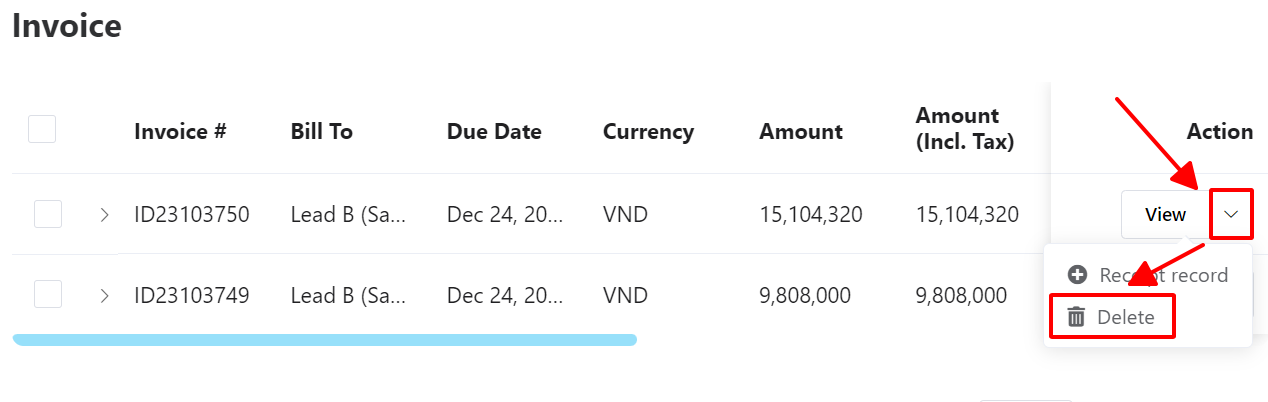
1. Delete a Single Invoice
Open the invoice list
Click the arrow next to “View” on the invoice
Select Delete
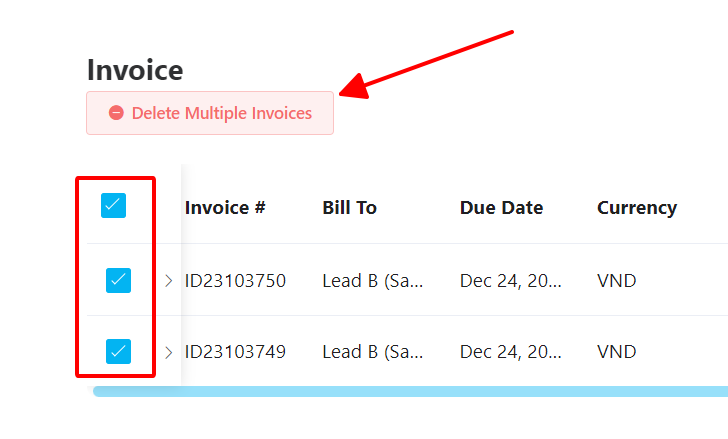
2. Delete Multiple Invoices
Tick the invoices you want to delete
Click Delete multiple invoices
Was this article helpful?
That’s Great!
Thank you for your feedback
Sorry! We couldn't be helpful
Thank you for your feedback
Feedback sent
We appreciate your effort and will try to fix the article