Note: COBO records appear after you have created a new COBO entry under Shipment → Billing & Costing → Collection On Behalf Of.
PART 1 - Handling COBO (Collection On Behalf Of)
1. How to check all COBO records
Step 1: Go to Accounting → Revenue & Cost → COBO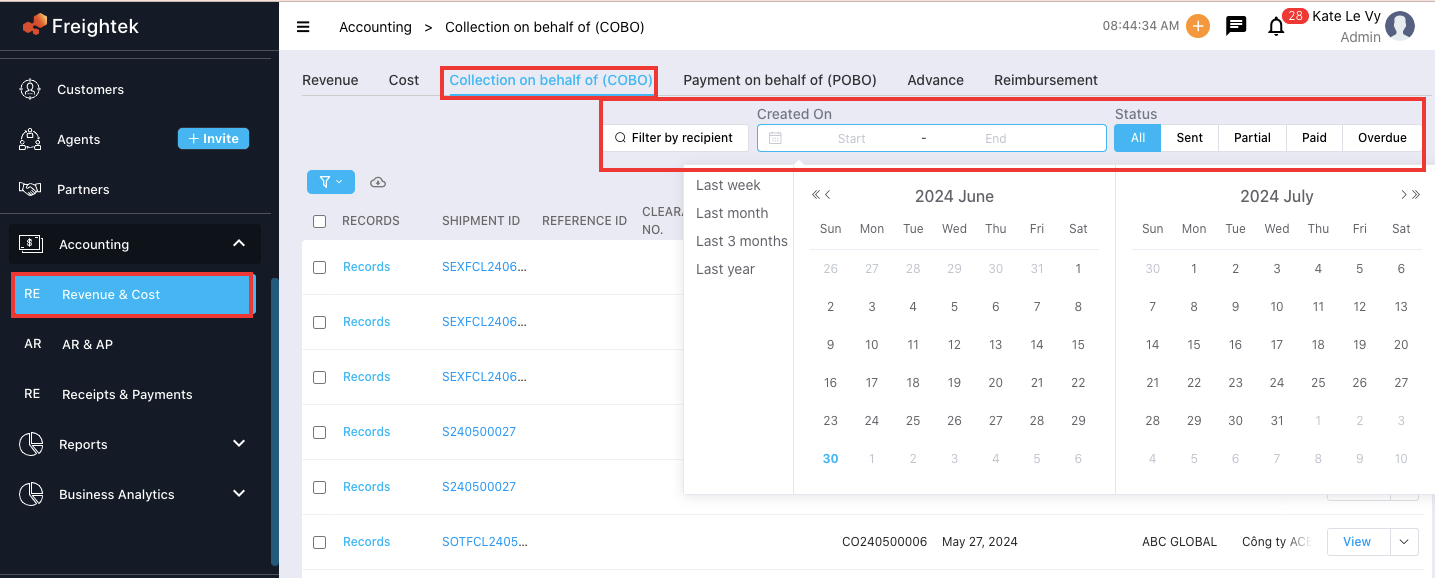
Step 2: Use the date filter (highlighted in red) to search records by specific date ranges
(day / month / year / any custom period).
2. How to Make a Receipt Record (record the money collected)
Step 1: Use the filters to locate the COBO record you want to process.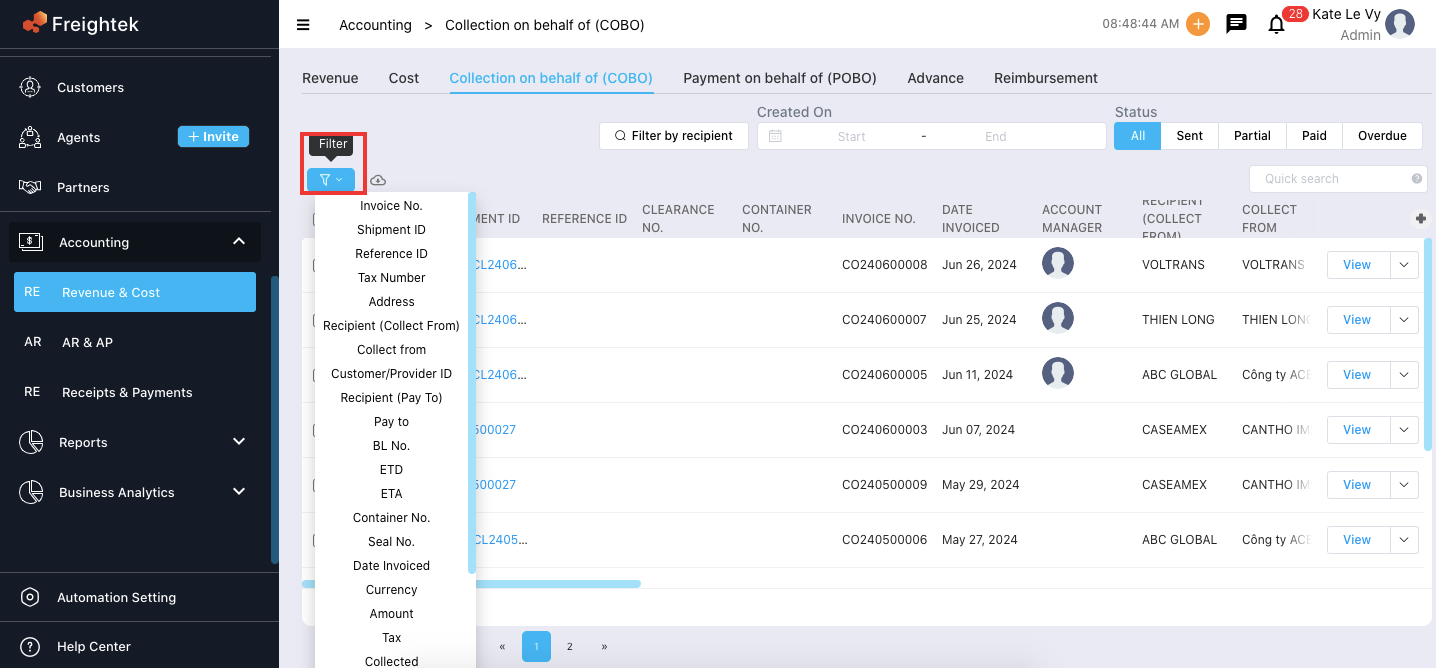
Step 2: Tick the corresponding COBO entry → go to Actions → Make Receipt Record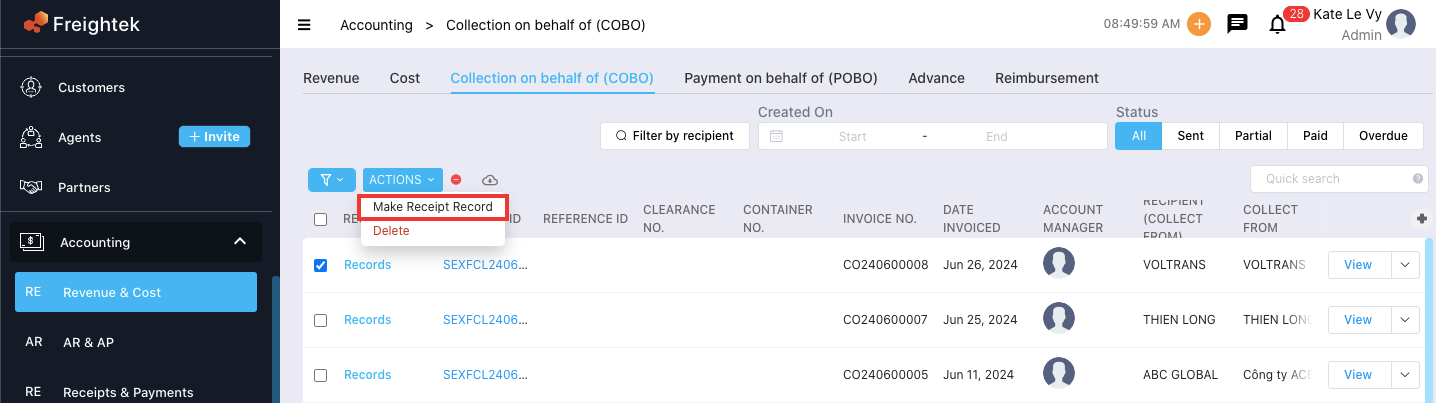
Step 3: The Make Receipt Record window will pop up. Freightek automatically loads all required information. You only need to fill in optional fields such as:
PIC
Description
Attachment
Click Save → The COBO status will change from Pending → Paid,
confirming the collection has been recorded.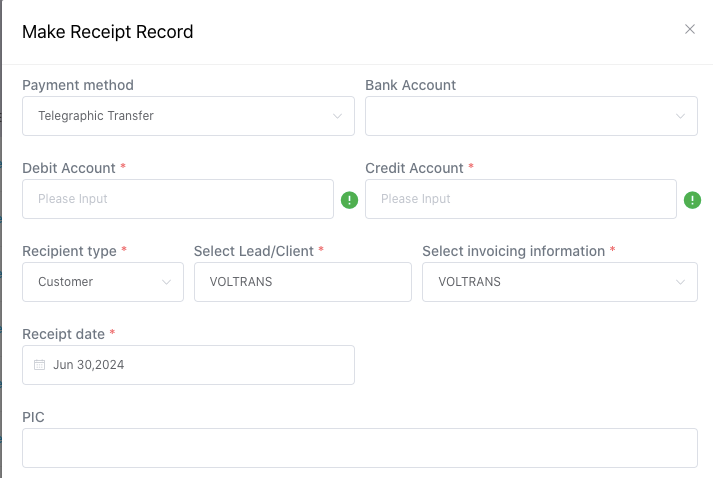
PART 2 - Handling POBO (Payment On Behalf Of)
1. How to check all POBO records
Step 1: Go to Accounting → POBO
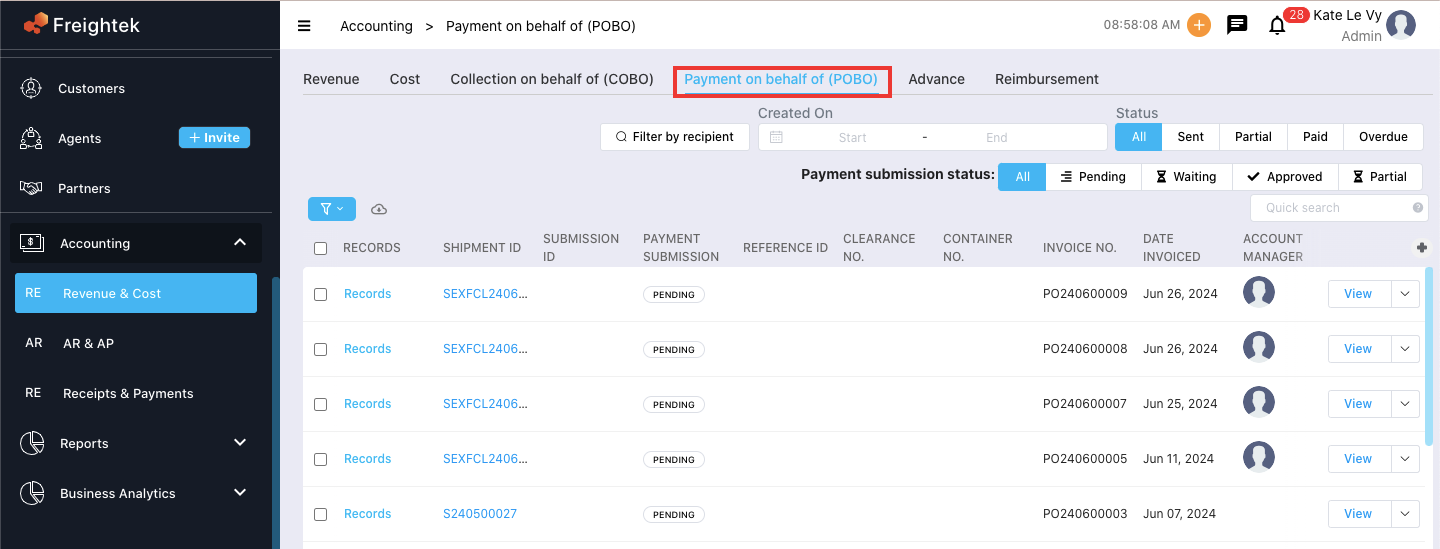
Step 2: Use the date filter to view records by any desired time range.
2. How to Make a Payment Record (record the payment made)
Step 1: Use the filters to find the POBO record you need to process.
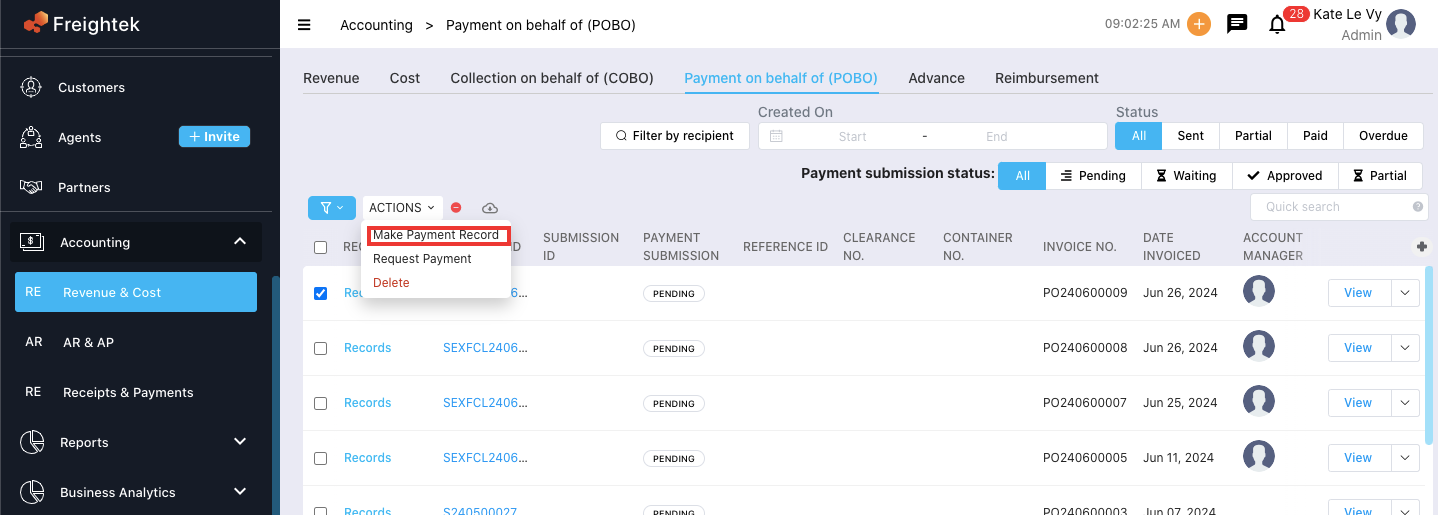
Step 2: Tick the POBO entry → go to Actions → Make Payment Record
Step 3: The Payment Record window appears. The system will auto-load all required information. You may add optional details:
PIC
Description
Attachment
Click Save → POBO status will change from Pending → Paid, confirming that the payment has been processed.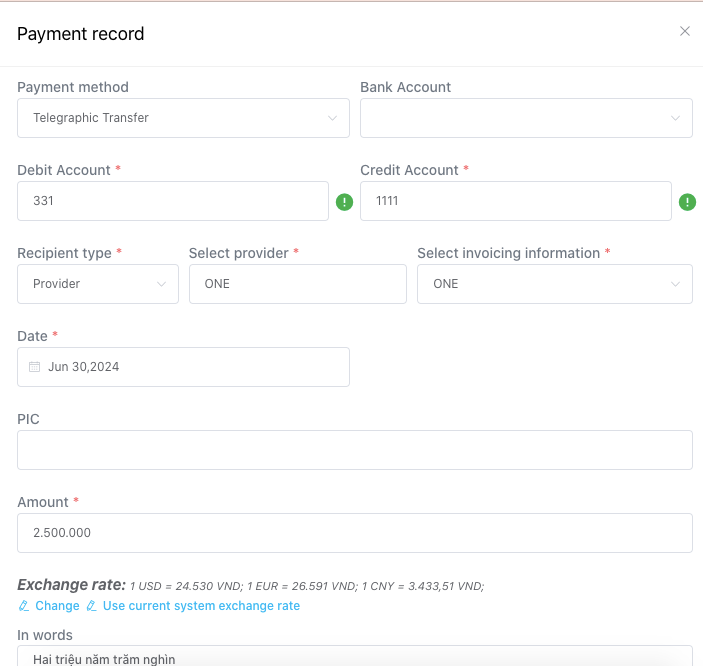
Was this article helpful?
That’s Great!
Thank you for your feedback
Sorry! We couldn't be helpful
Thank you for your feedback
Feedback sent
We appreciate your effort and will try to fix the article