1. Purpose of the Integration
Connecting Freightek with Easybook allows you to:
Automatically push sales invoices (Revenue Invoices) from Freightek to Easybook
Automatically push vendor invoices (Cost / Received Invoices) to Easybook
Reduce manual data entry and avoid mistakes
Help the accounting team manage documents easily in Easybook
2. Steps to Connect Freightek → Easybook
Step 1: Open the Integration Settings
Go to: Automation Settings → App → Easybook → CONNECT
You will see the Connect button on the Easybook integration card.
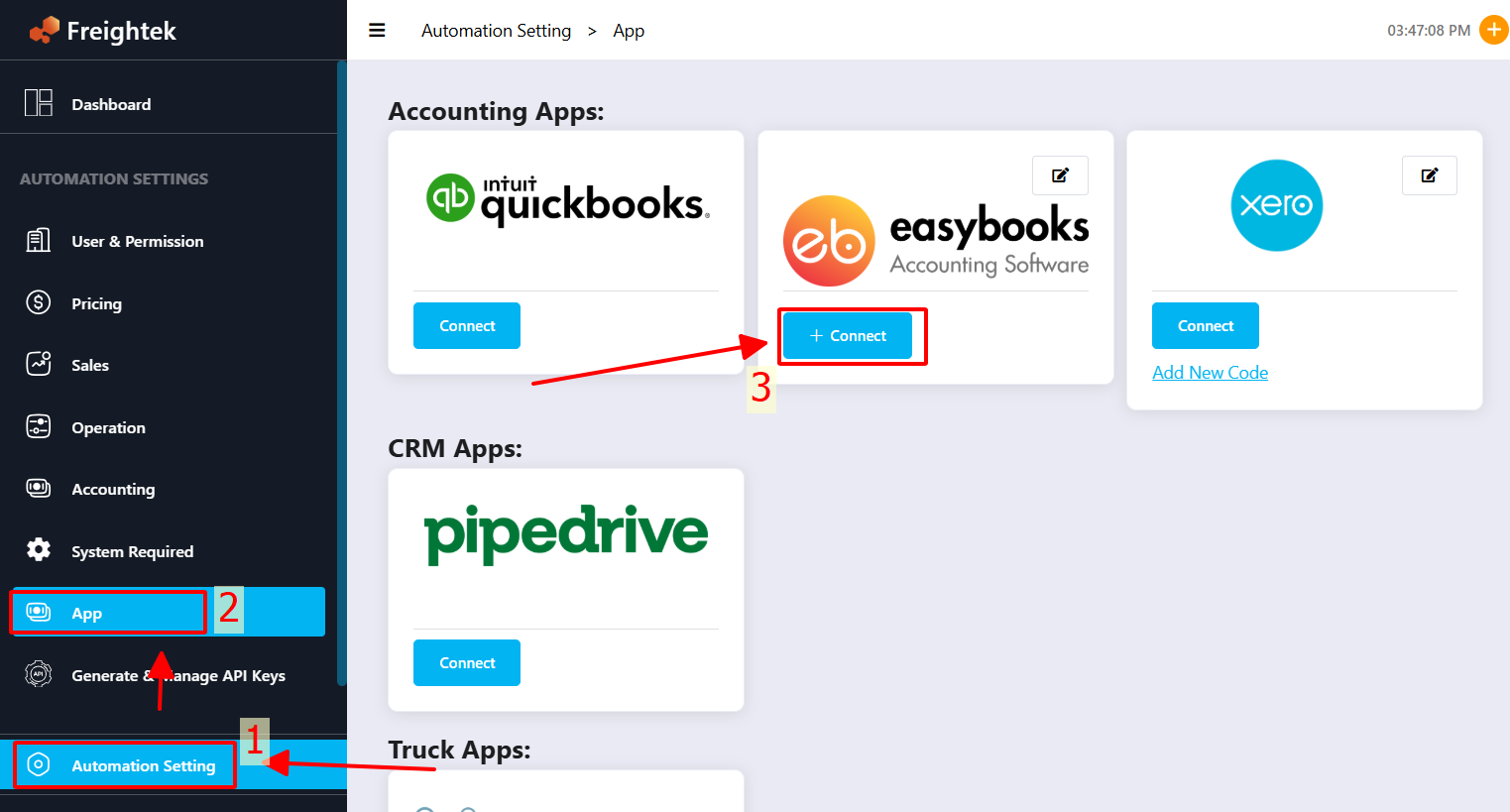
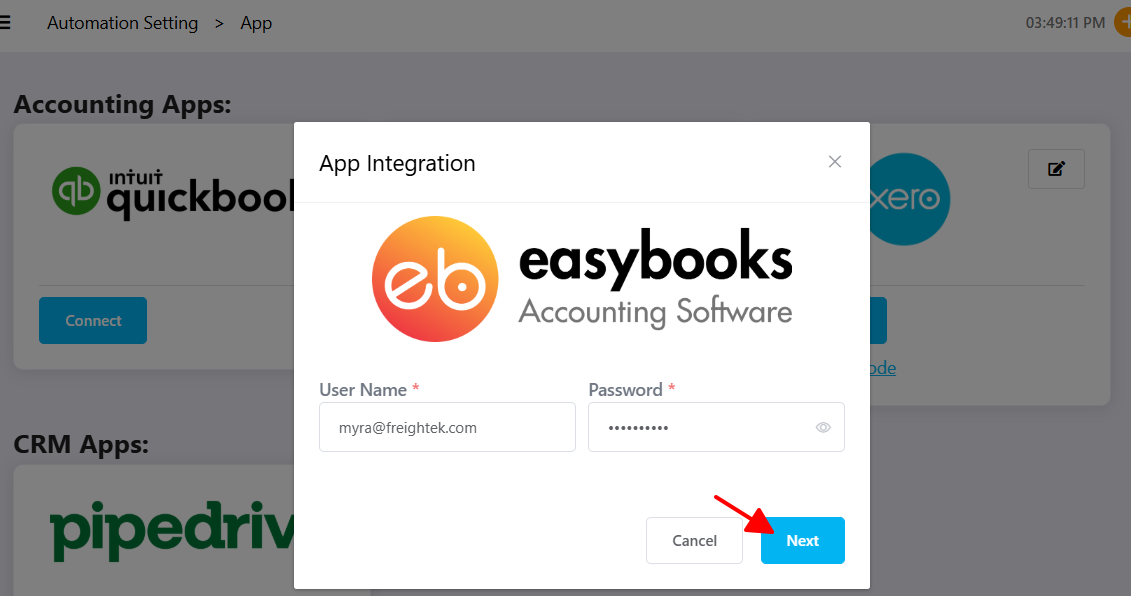
Step 2: Enter your Easybook login credentials
Fill in:
User Name: Your Easybook account
Password: Your Easybook login password
Click Next to proceed.
Your login is only used to generate a secure token. Freightek does NOT store your password.
Step 3: Select your company
If your Easybook account is linked to multiple companies, Freightek will display a list.
Choose the correct company you want to connect and click Connect.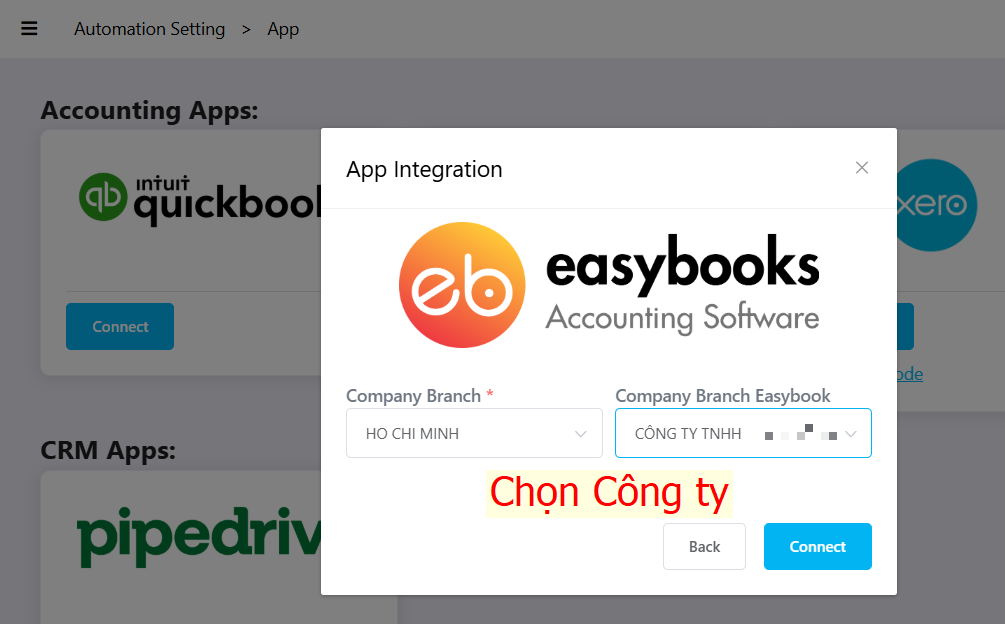
Step 4: Connection completed
Once the connection is successful, Freightek will display:
Status: Connected
Easybook Company Name
Company Code
Last Connected Time
From this point, Freightek and Easybook are officially integrated.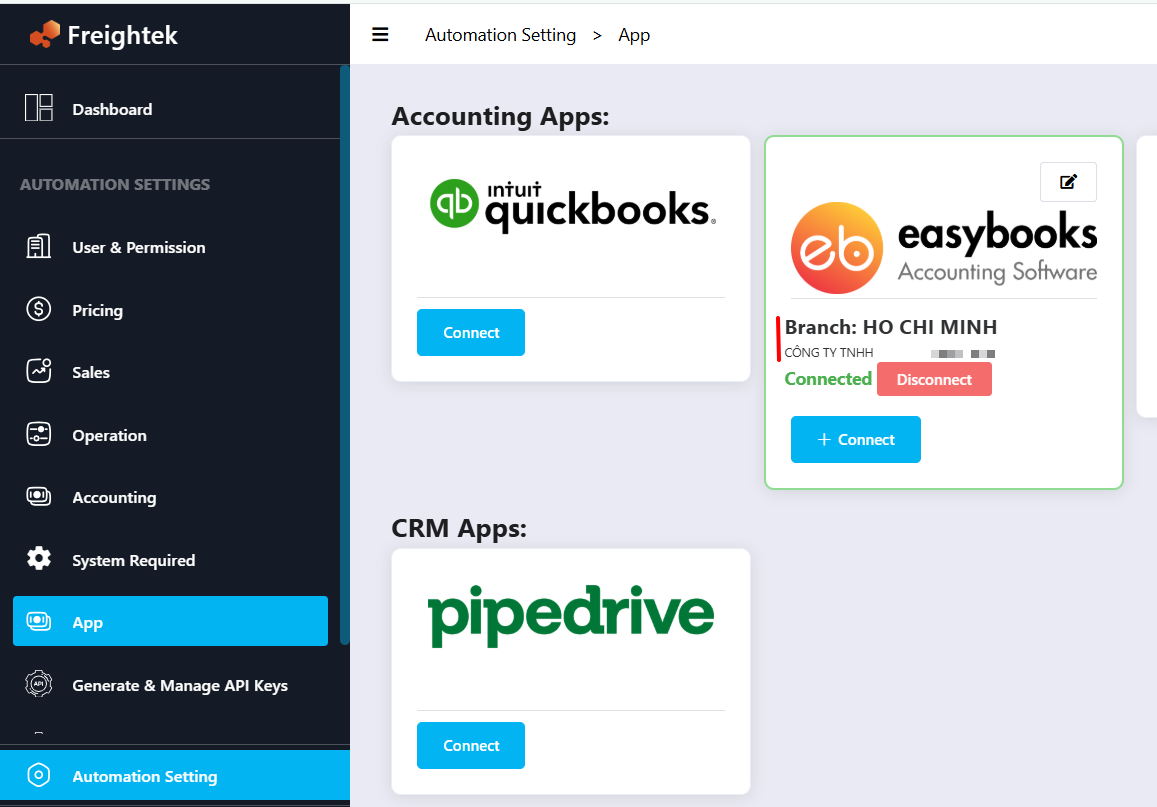
3. Important Notes
1. Only Freightek Admin users can perform the integration
You must have Admin permission to access: Automation Settings → App.
2. Ensure you select the correct Easybook company
Choosing the wrong company will cause data sync issues.
3. If incorrect Easybook credentials are entered
The system will fail to connect and prompt you to re-enter the information.
4. After successful connection
New Invoices / Cost Invoices generated in Freightek can be pushed to Easybook:
Automatically (if auto-sync is enabled)
Or manually (depending on your setup)
Was this article helpful?
That’s Great!
Thank you for your feedback
Sorry! We couldn't be helpful
Thank you for your feedback
Feedback sent
We appreciate your effort and will try to fix the article