I. Syncing Sales Invoices (Revenue) from Freightek to Easybook
1. Push data to Easybook - Create a Draft Sales Invoice
On Freightek: Accounting → Revenue & Cost → Revenue
Step 1: Select the invoice you want to sync → Actions → Sync data to connected Apps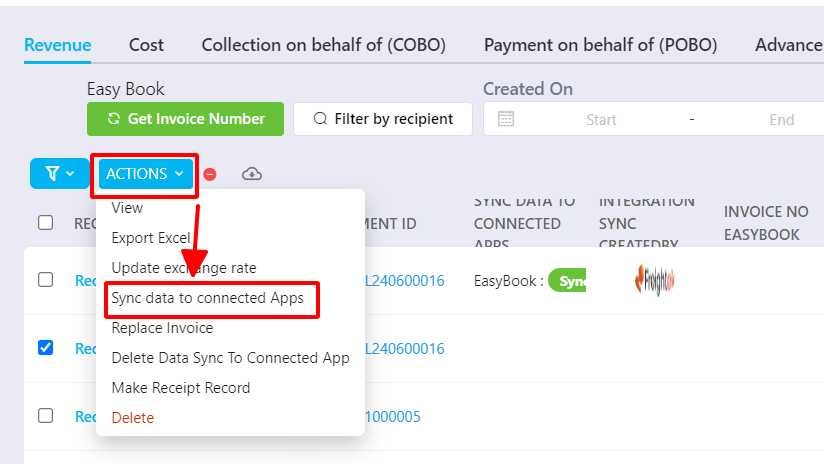
Step 2: Enter the accounting accounts. You can configure default accounts if you frequently use the same codes.
Debit Account
Credit Account
VAT Contra Account
After entering the accounts → click Confirm to sync.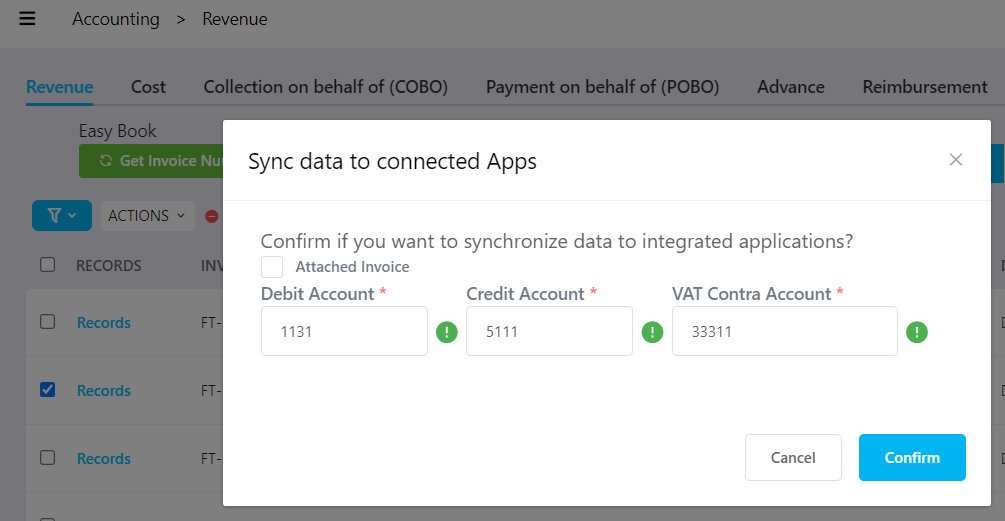
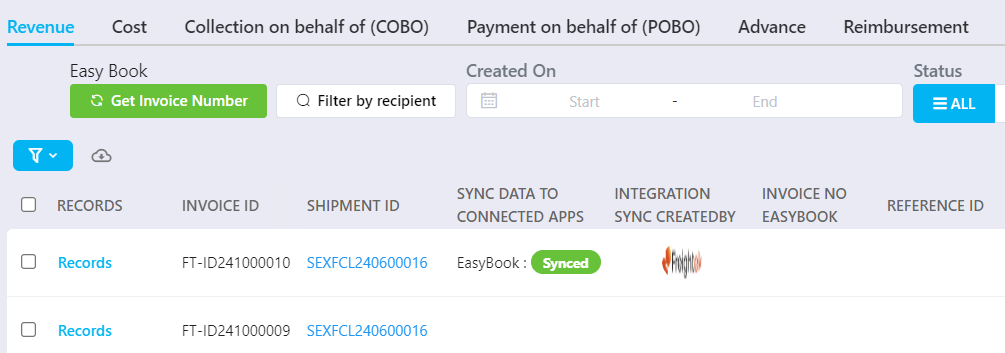
Step 3: Check sync status
If successful → Green message: “Sync data Easybook Success”
Column Sync Data to Connected App will display confirmation
Column Integration Sync Created By will show the icon of the person who synced
 2. Retrieve E-Invoice Number from Easybook into Freightek
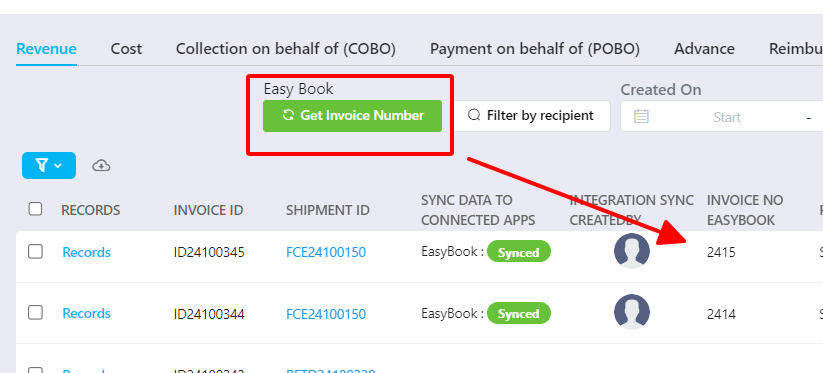
After the electronic invoice is successfully issued in Easybook:
Click the green “Get Invoice Number” button
The official invoice number will appear in Invoice No. Easybook
 3. Combine Multiple Freightek Invoices → Sync as One Entry into Easybook
Step 1: Go to Report → SOA
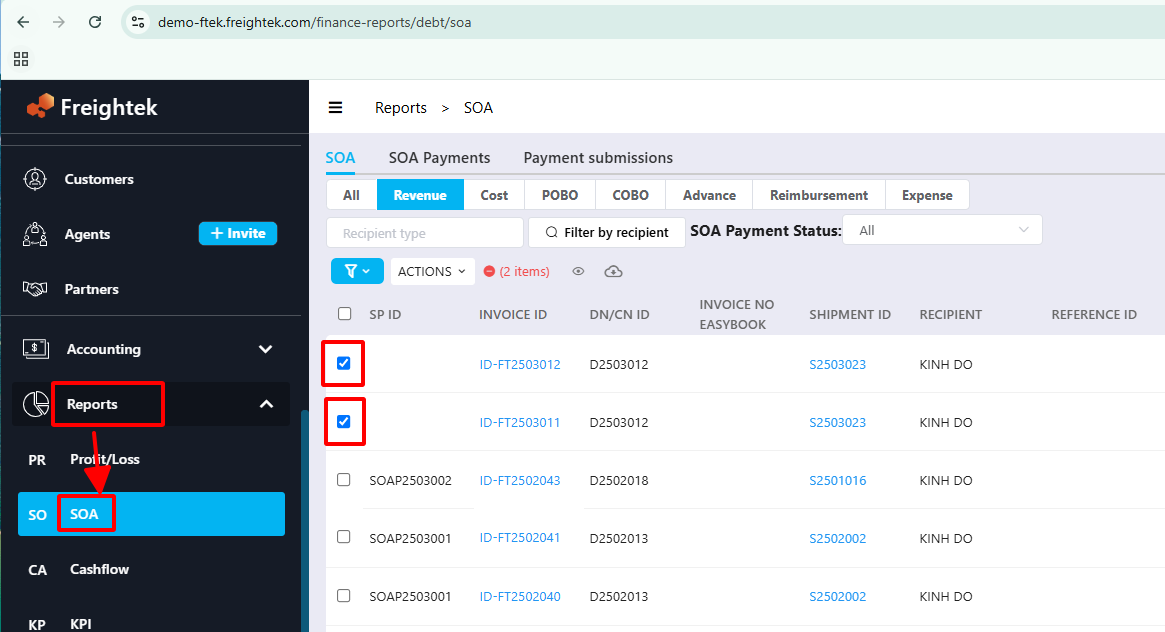
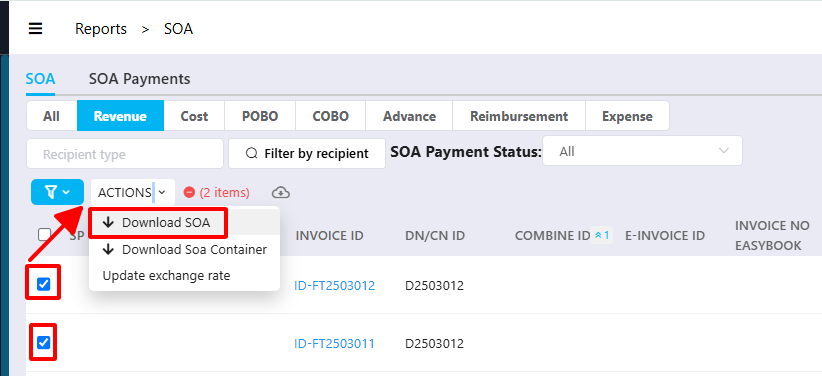
Step 2: Select the invoices → Actions → Download SOA
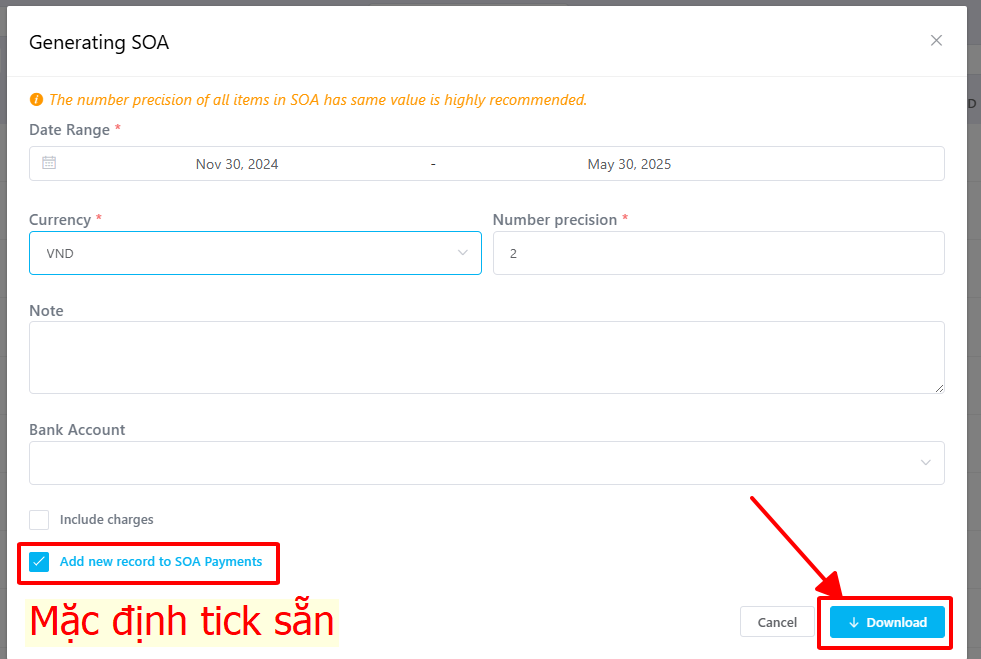
Step 3: Go to SOA Payment tab → tick the combined SOA entry → Actions → Sync data to connected App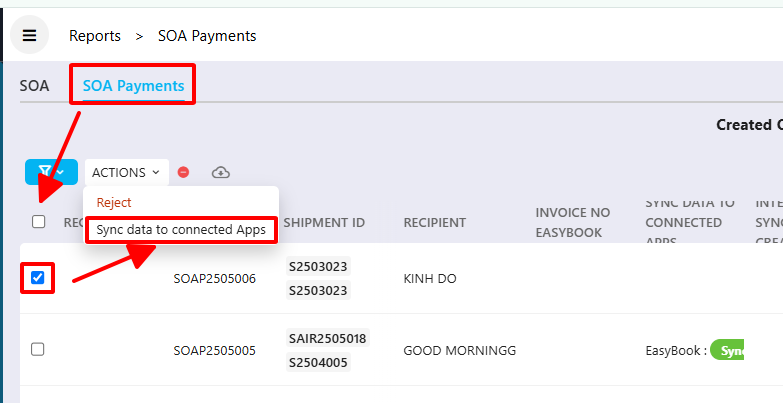
II. Syncing Vendor Invoices (Cost / Received Invoices) on Freightek: Accounting → Cost
Step 1: Select the vendor invoice → Actions → Sync data to connected Apps
Step 2: Enter:
Debit Account
Credit Account
VAT Contra Account
Click Confirm.
Step 3: Check sync status
If successful:
Green message: “Sync data Easybook Success”
Columns update similar to Revenue Invoice sync
III. Cash Receipts, Cash Payments & Bank Transfers
1. CASH RECEIPT - Sync to Easybook
When recording a receipt in Freightek:
Step 1: Perform Make Receipt Record as usual.
Step 2: In the Make Receipt Record screen:
Payment method = Cash
Enter Debit Account & Credit Account
Step 3: If no error message → sync completed successfully.
2. CASH PAYMENT (Phiếu Chi) - Sync to Easybook
When recording a payment:
Step 1: Perform Make Payment Record as usual.
Step 2: In the form:
Payment method = Cash
Enter Debit Account & Credit Account
Step 3:
If successful → a Cash Payment Voucher is created in Easybook.
3. BANK TRANSFER - Debit Note
Created when payment is made via bank transfer.
Step 1: Perform Make Payment Record
Step 2: Enter accounts and choose: Payment method = Bank Transfer
Note: You must set up Provider Bank Accounts:
Enter provider bank information
Set the correct bank in Invoicing Information
Step 3: If successful → a Bank Transfer Payment Voucher is created in Easybook.
4. BANK DEPOSIT - Credit Note
Created when receiving customer payment via bank transfer.
Step 1: Perform Make Receipt Record
Step 2: In the form:
Payment method = Bank Transfer
Select “Deposit to Account” (bank account from Company Profile)
Step 3: If successful → a Bank Receipt Voucher is created in Easybook.
IV. Important Notes
All customers, suppliers, and charge codes must have a valid ID/Code
Otherwise, syncing will fail.
Account codes displayed in Freightek come directly from Easybook
Description field in Freightek = description printed on vouchers in Easybook
If any sync error appears
Report it to the shared support group (Company x Freightek x Easybook)
Freightek only syncs data that already exists on Freightek
All further accounting activities must be completed directly inside Easybook.
Was this article helpful?
That’s Great!
Thank you for your feedback
Sorry! We couldn't be helpful
Thank you for your feedback
Feedback sent
We appreciate your effort and will try to fix the article