Step 1: Go to Report → Payment Submission tab.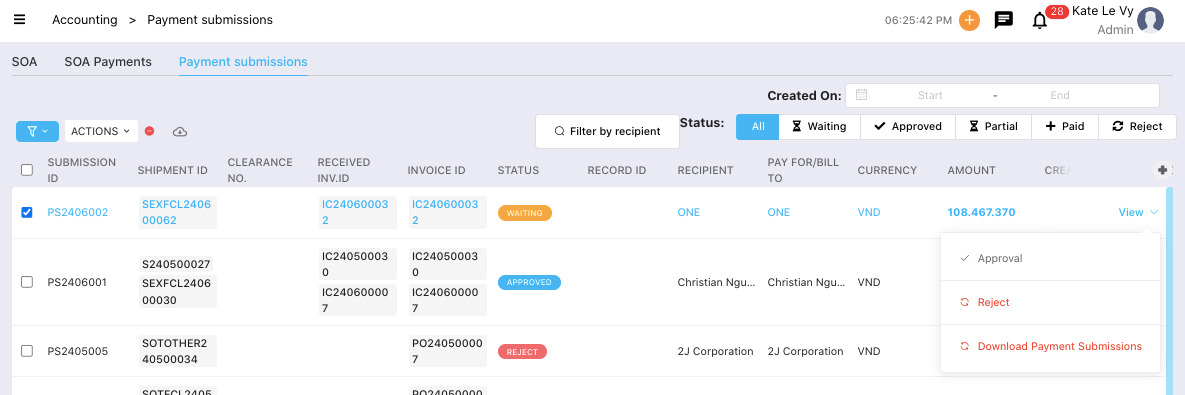
After the Payment Request has been Approved and the bank transfer has been completed, select the Payment Submission you want to record → click View.
Step 2: Review the information and click Payment to create a Make Payment Record.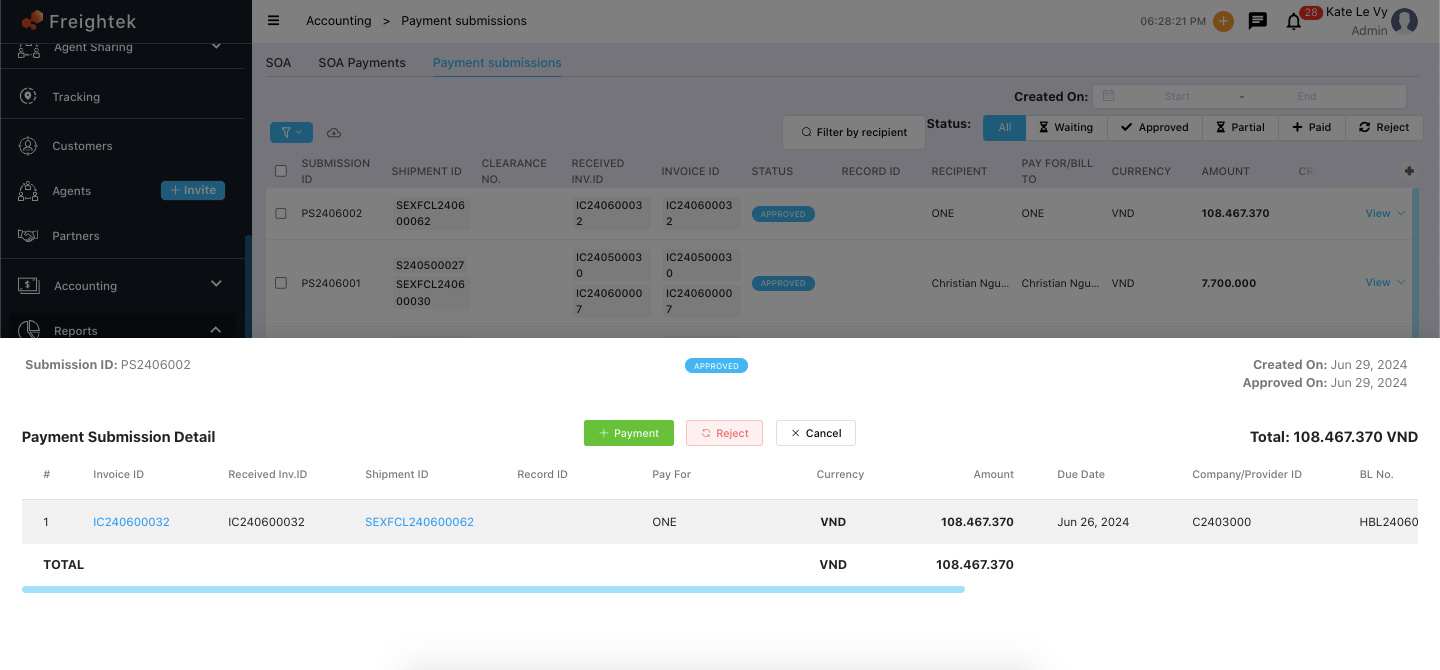
Make Payment Record – Field Explanation:
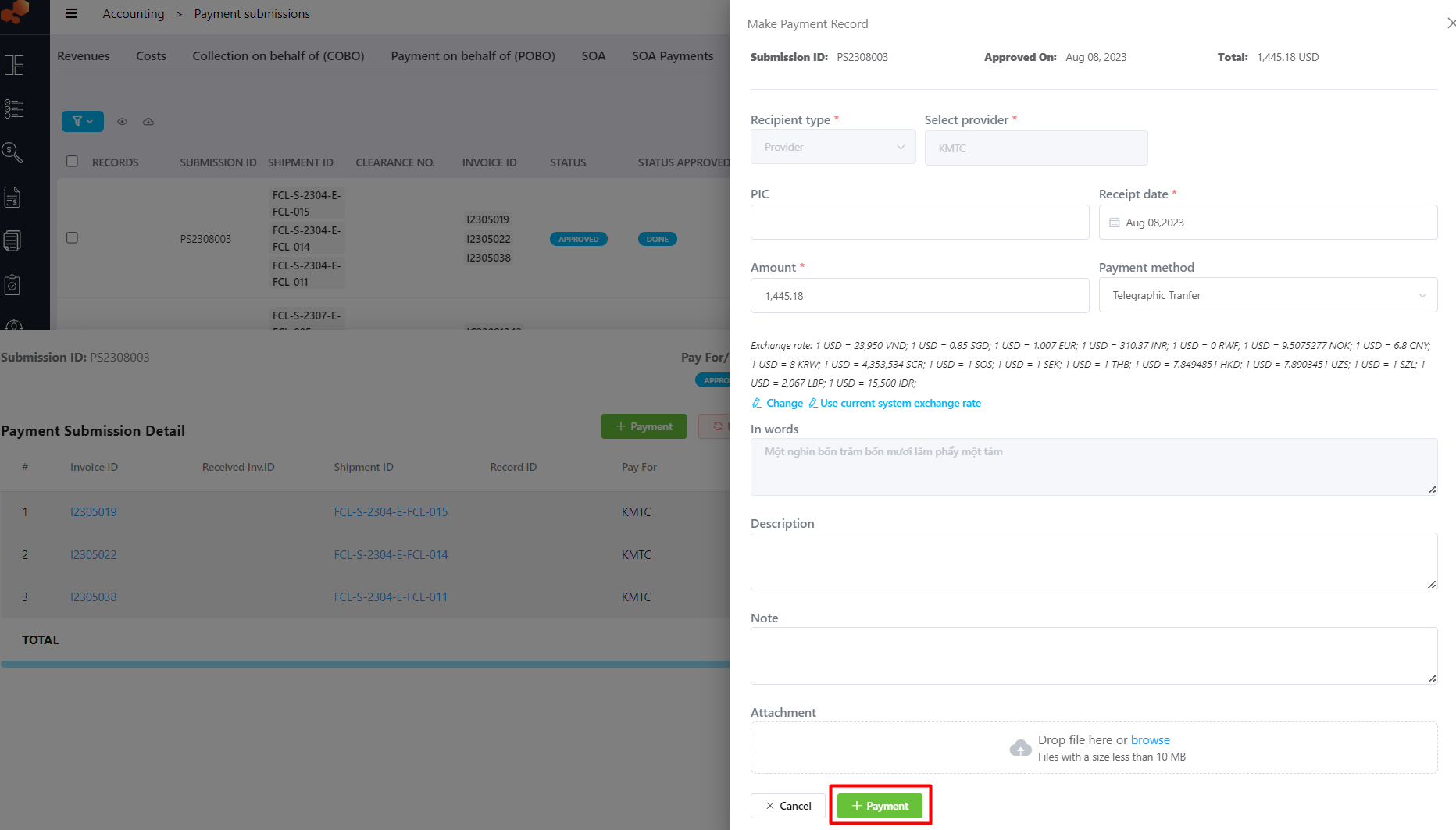
Recipient Type & Select Provider (who you are paying):
Automatically loaded based on the invoice and cannot be edited.PIC: Person in charge from the vendor/provider side.
Receipt Date: The payment date (shown on the bank transfer slip).
Amount: Auto-filled with the payable amount. You may adjust it if necessary.
Payment Method: The method used to pay the vendor.
Description: Payment description (optional).
Note: Internal notes (optional).
Attachment: Upload supporting documents if needed (e.g., bank transfer slip).
Payment: Click Payment to complete and record the supplier payment.
Was this article helpful?
That’s Great!
Thank you for your feedback
Sorry! We couldn't be helpful
Thank you for your feedback
Feedback sent
We appreciate your effort and will try to fix the article