1. Set up Expense Categories
Step 1: Go to Automation Settings → Pricing → Expenses/Incomes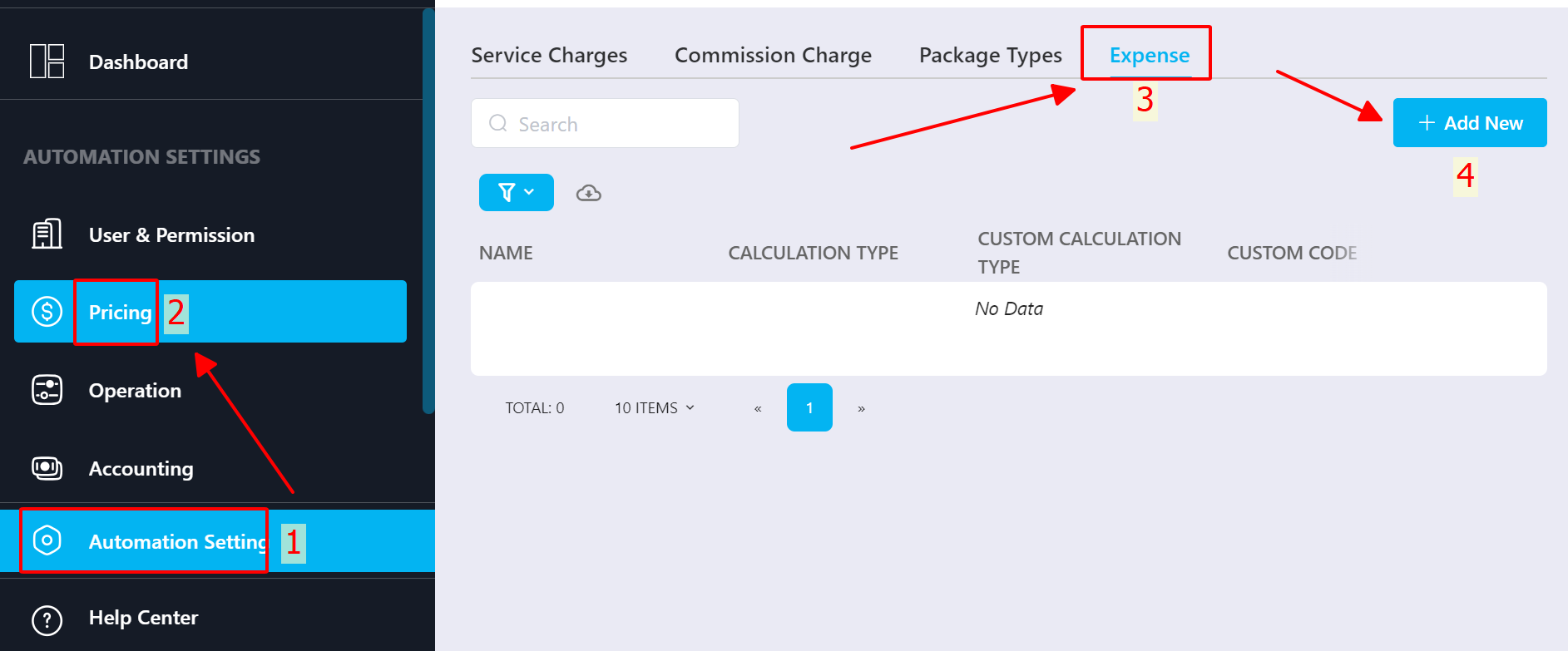
Step 2: Click +Add New to create a new expense category → Save
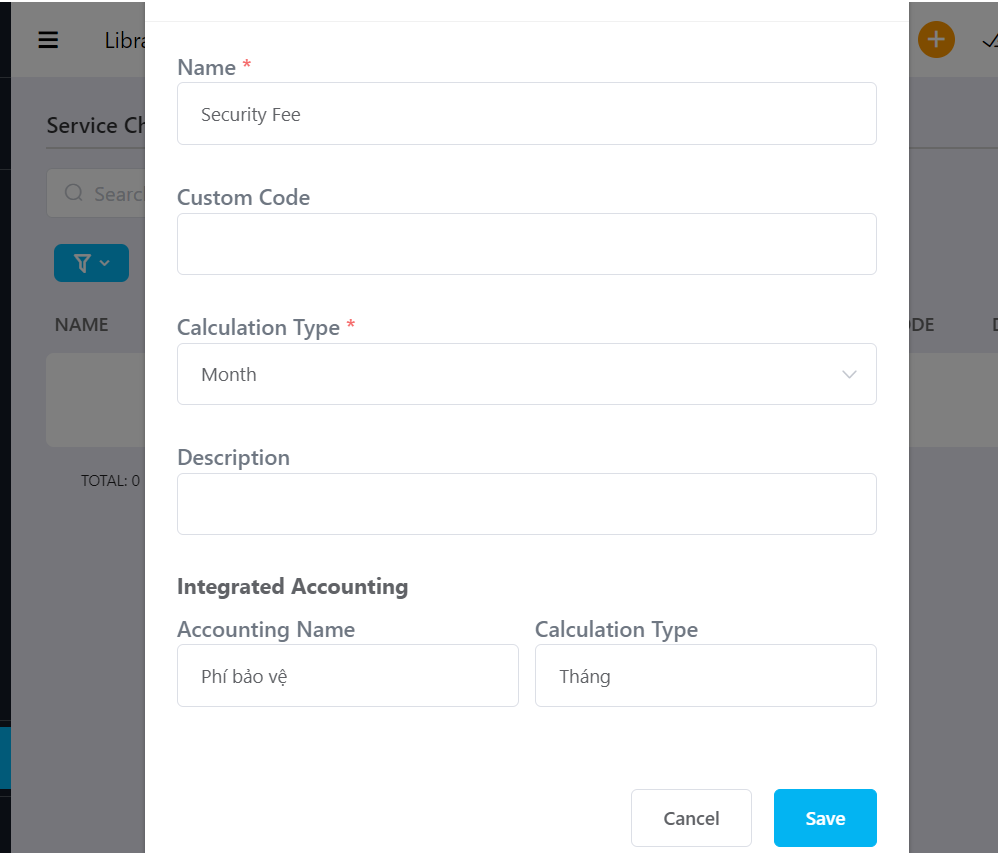
Fields include:
Name: Expense name
Custom code: Optional code
Calculation type: Unit of calculation
Description: Detailed description
Integrated Accounting
Accounting name: Name displayed on invoice
Calculation type: Unit displayed on invoice
2. Add Payment Recipient (if not already in the list).
Go to Partner → + Add New
Fill in required information → Select Type: Other Vendor → Save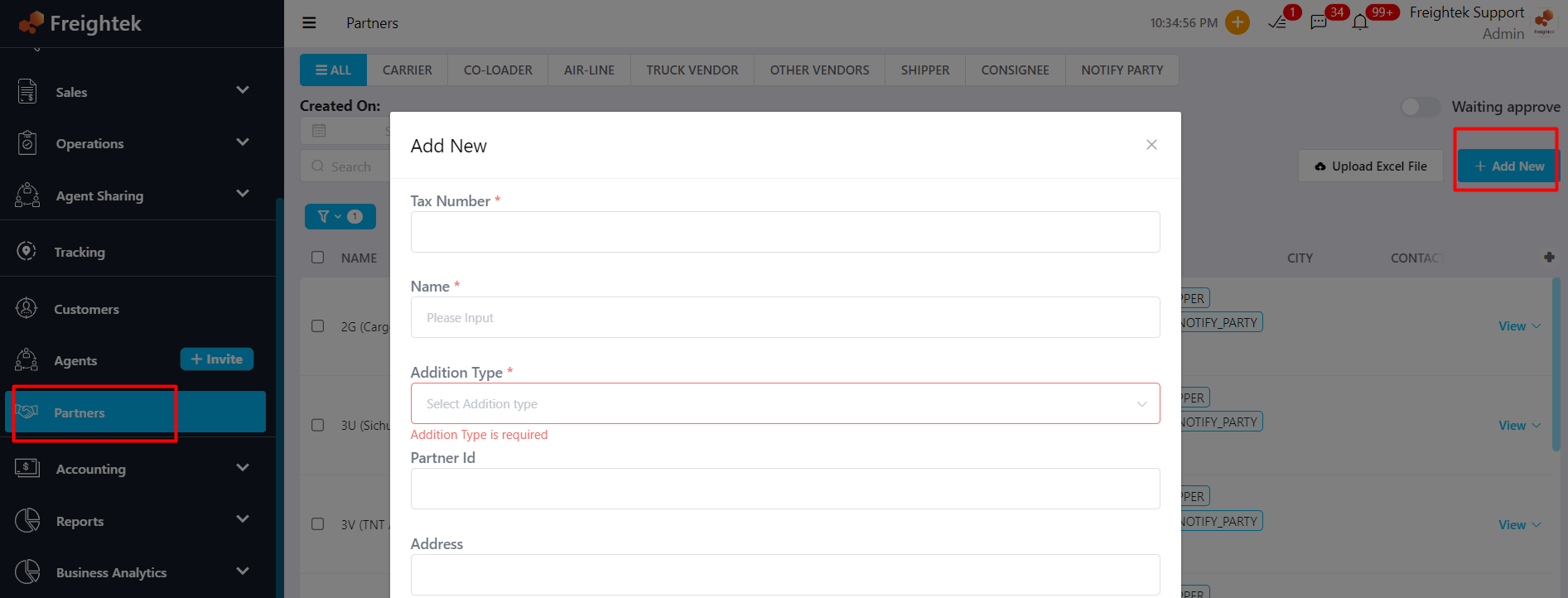
3. Create an Expense Record
Step 1: Go to Accounting → Revenue & Cost → Income
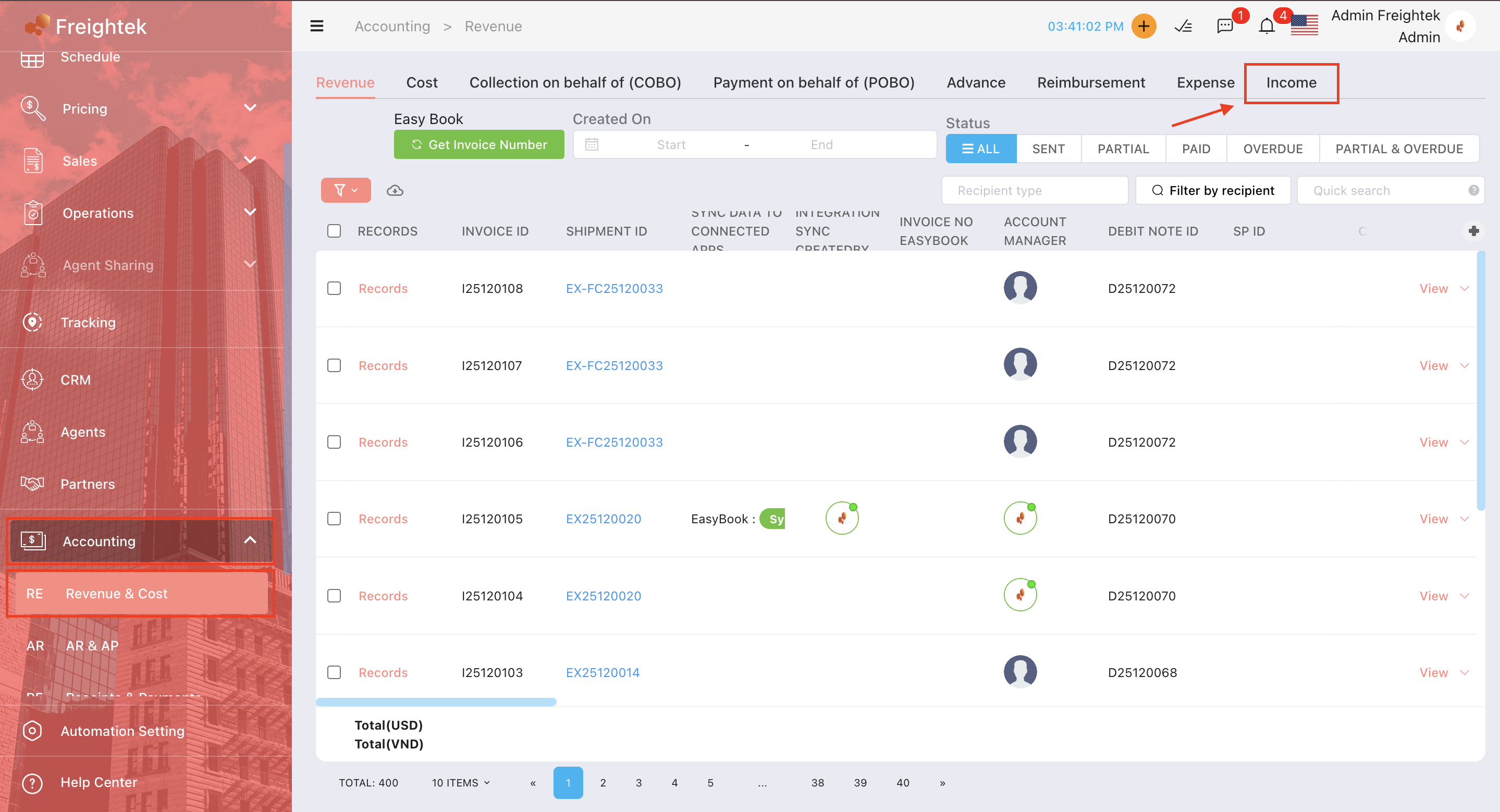
Step 2: Click New Income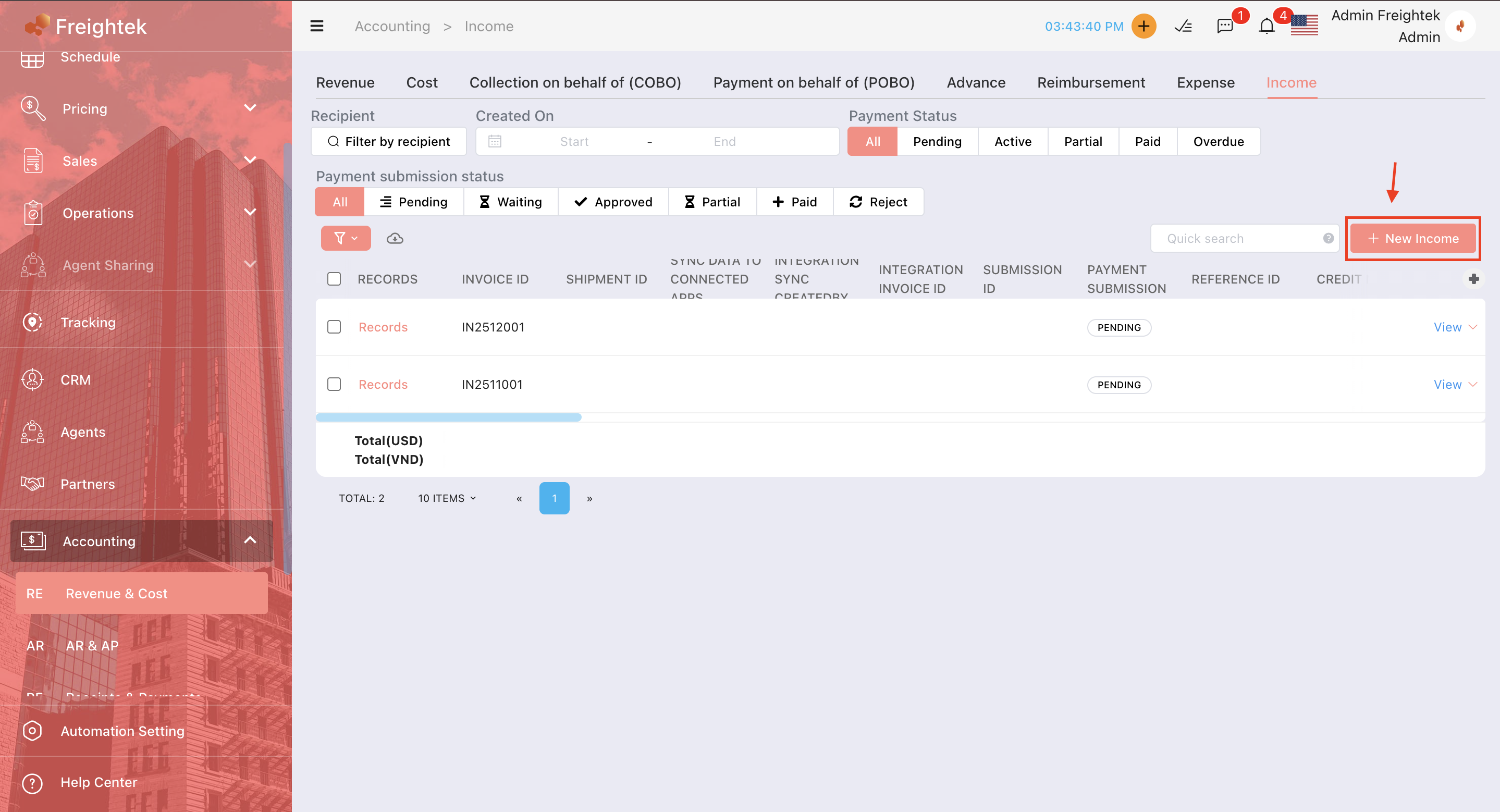
Step 3: Fill in all required fields and add expense line items (Upload invoices if available), then click Save.
Notes:
If the expense is collected directly from the customer, select Customer
If the expense was paid by staff and needs reimbursement → select Staff,
and under Invoicing Information, choose the vendor’s invoicing details
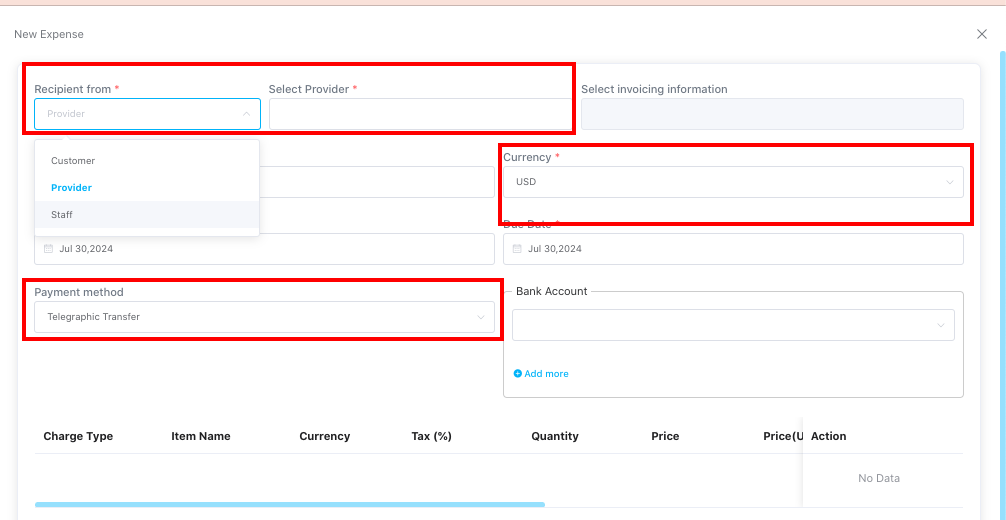
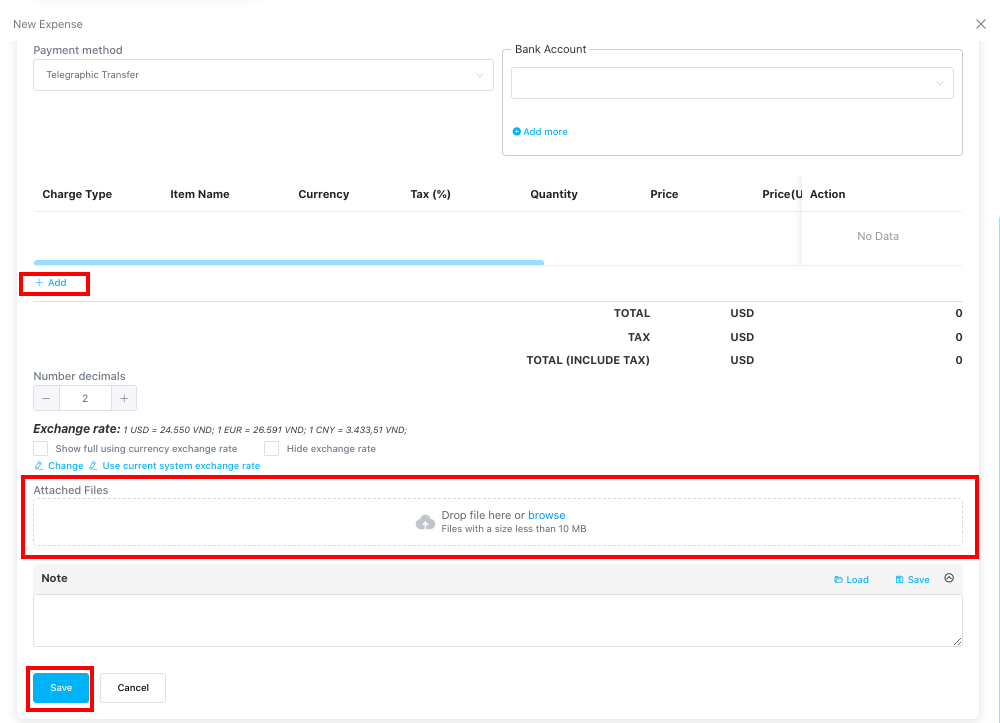
Note: Upload invoice files and images if available.
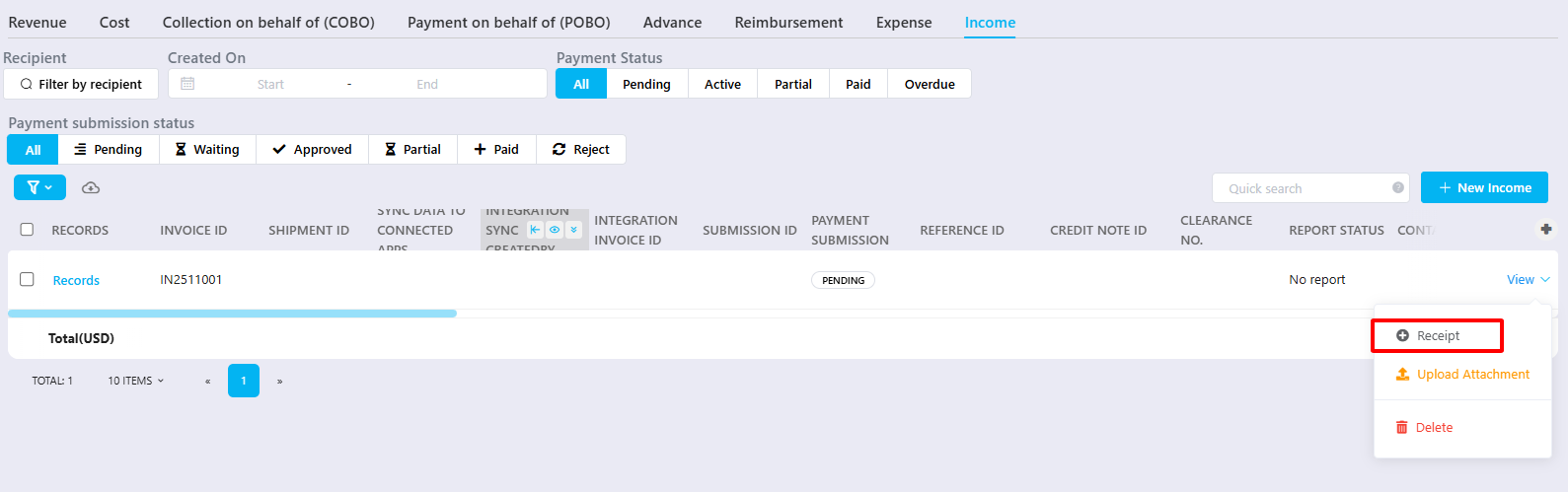
Step 4: Upon receiving the payment, the accountant will record the receipt using the RECEIPT button (similar to receiving payment for a shipment).
Was this article helpful?
That’s Great!
Thank you for your feedback
Sorry! We couldn't be helpful
Thank you for your feedback
Feedback sent
We appreciate your effort and will try to fix the article