If you want to create a quotation without using available rates, you can manually create it as shown below.
Step 1: Go to Sales → Quotes → Manual Quotation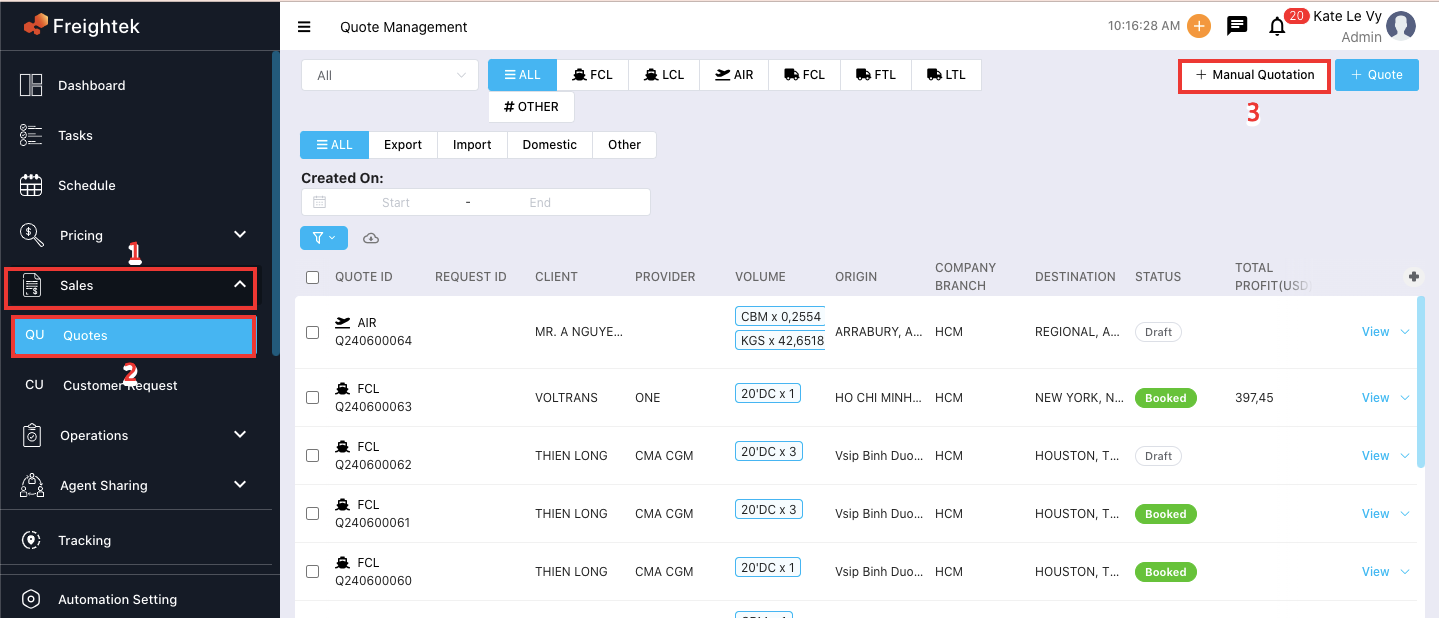
Step 2: Fill in the following fields:
Transportation Mode: Select Ocean, Air, or Truck.
Type: Select shipment type: Export, Import, or Other services.
Origin & Destination: Enter the pickup and delivery addresses (Door to Door).
POL–POD: Choose Port of Loading and Port of Discharge (CY to CY).
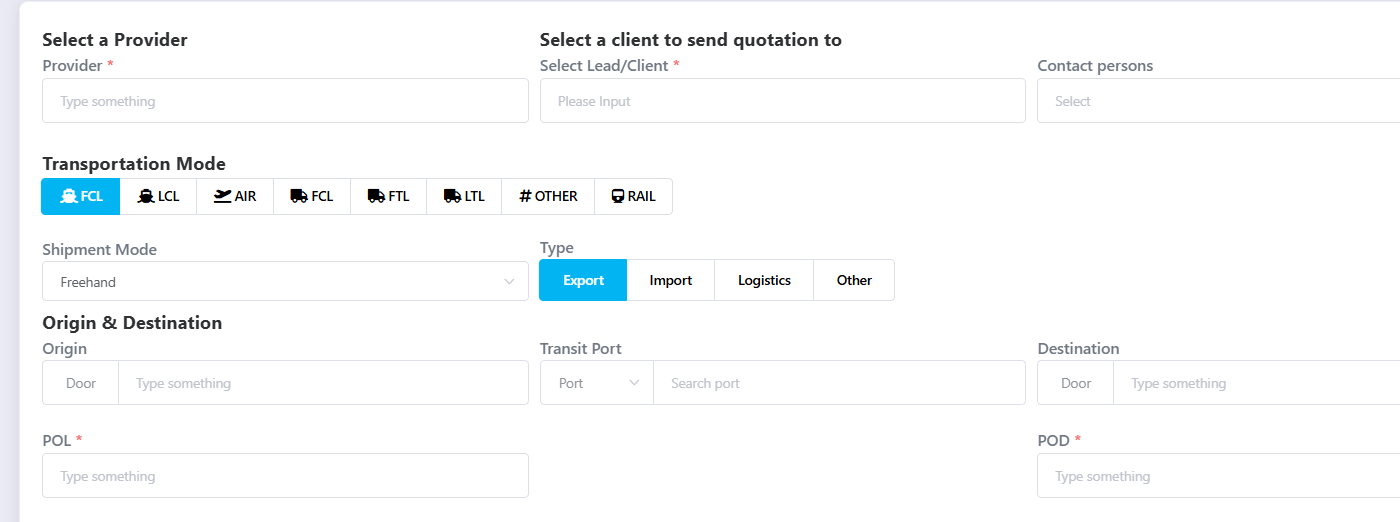
Cargo Information:
FCL (Full Container Load): Enter the number of containers.

LCL / LTL: Choose one of the two methods:
+ By Unit: Enter detailed cargo dimensions (length, width, height, quantity).
 + By Total Shipping: Enter the total shipment weight.
Charge Details: Enter rate information, including charge type, commodity, calculation type, provider, quantity, currency, buying rate, selling rate, and number of units.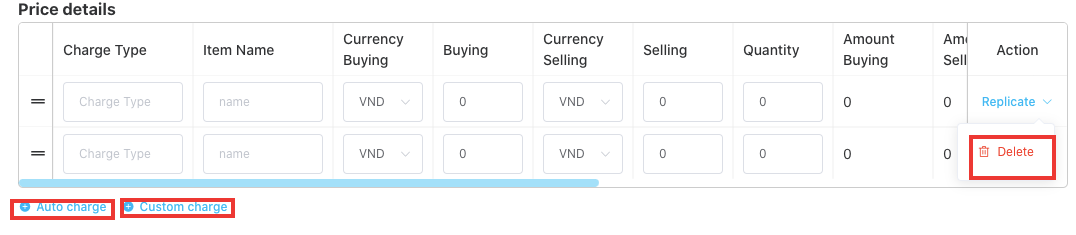
Auto Charge: Automatically adds system charges; buying and selling prices will be auto-filled if available.
Custom Charge: Manually enter buying and selling prices for custom charges.
Other fields such as Validity, Schedule, ETD, Ready Date, Incoterms, Commodity must be entered manually.
Note: all information here is manually entered.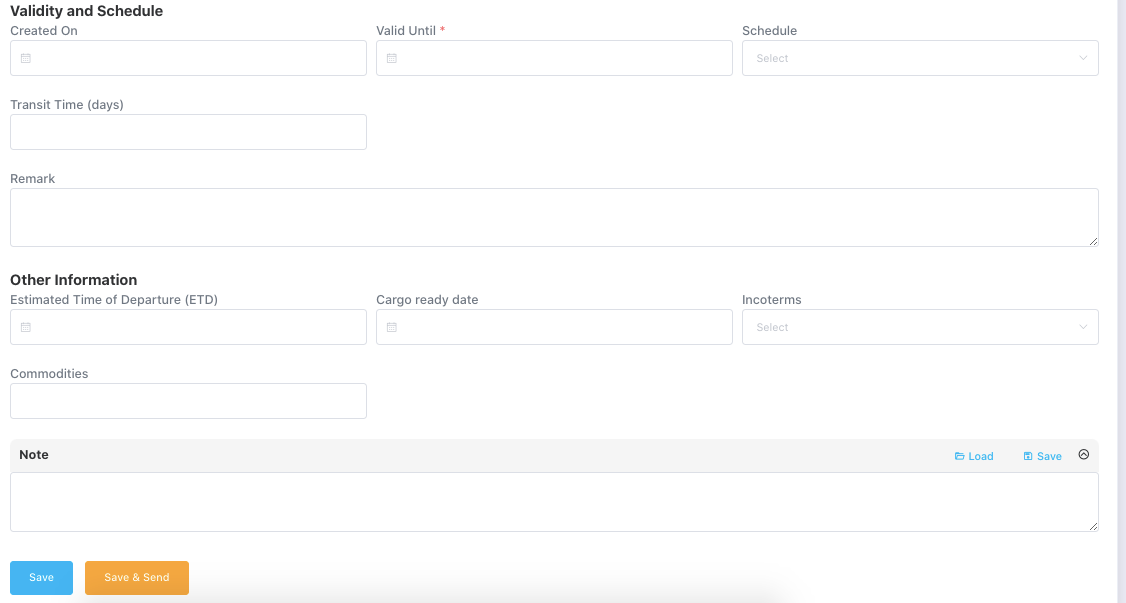
Step 3: Select Save or Save & Send
Save: The quotation stays in Draft status. It is saved but NOT sent to the client and can still be edited.
Save & Send: The quotation is sent to the Client Portal, and its status changes to Pending.
Step 4: The system will display the quotation page. You may click Edit to modify the quotation.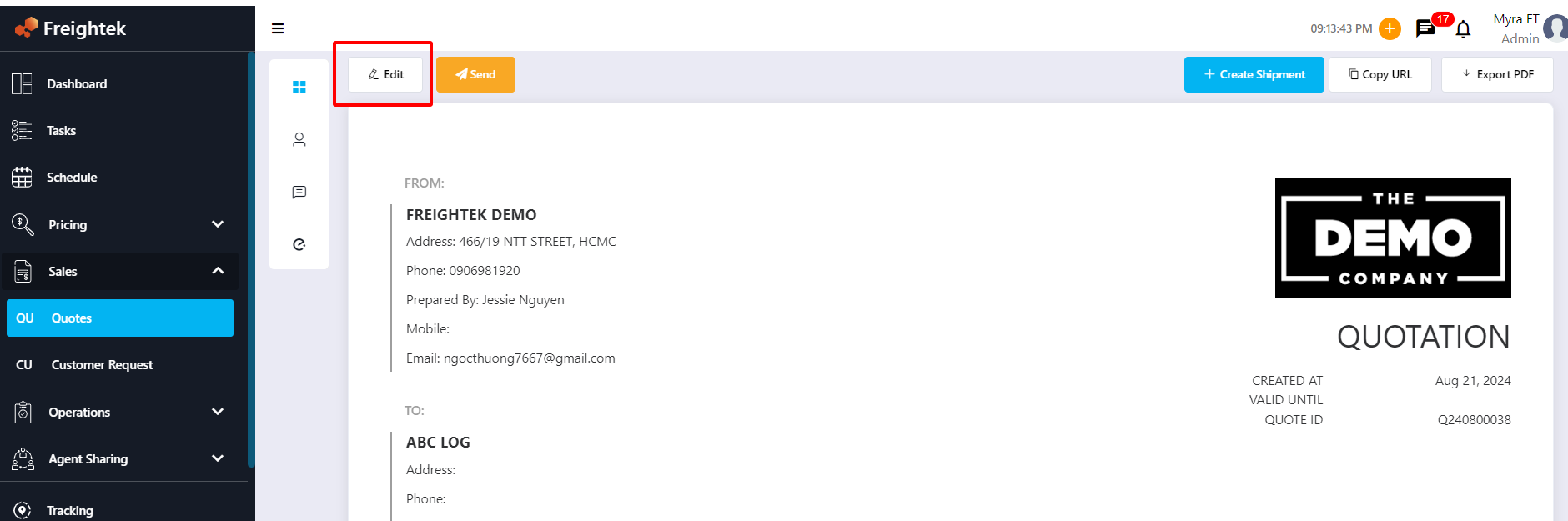
Step 5: Export the quotation as a PDF or copy the URL link to send to your customer.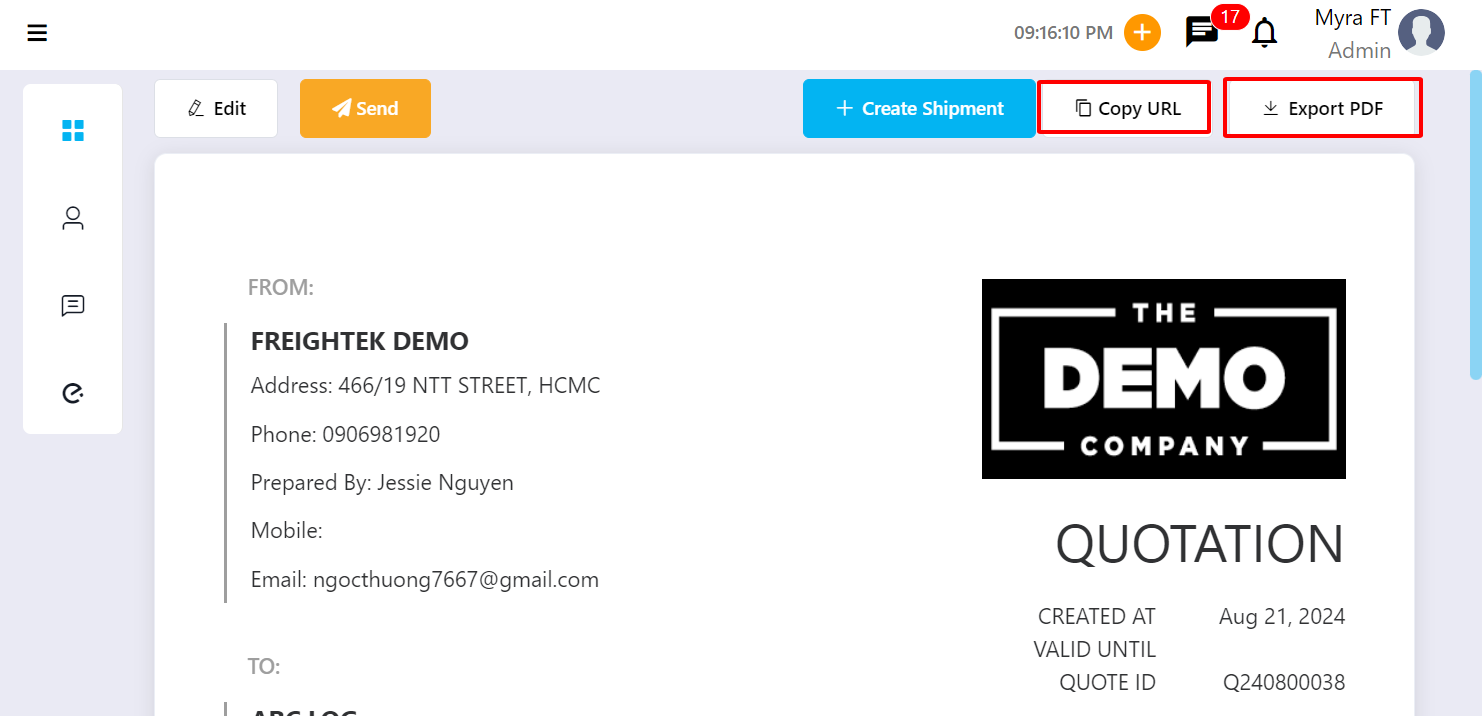
Step 6: After the customer confirms the quotation → click + Create Shipment.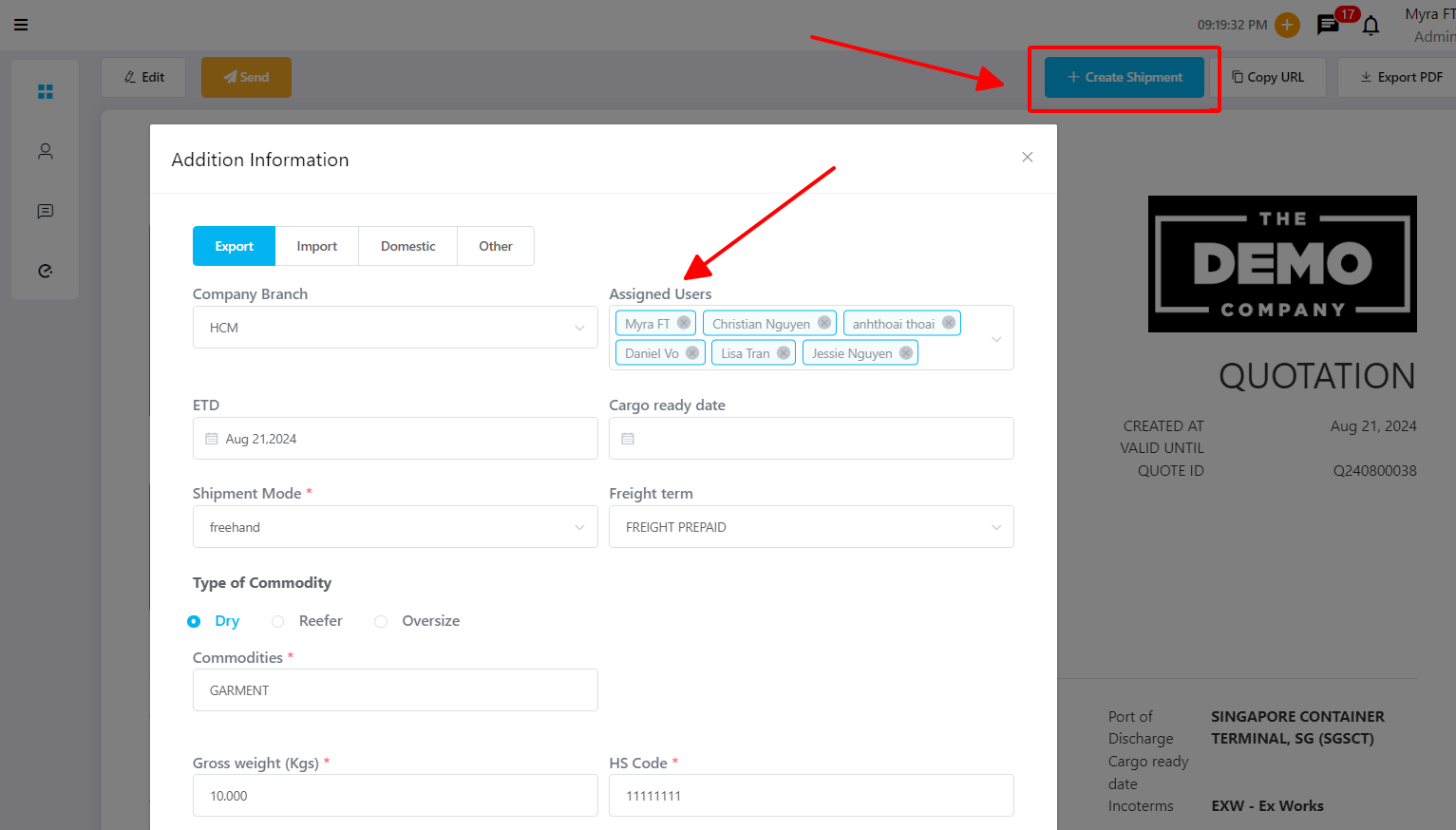 Review the list of assigned users to notify them of the new booking → click Create Shipment.
Was this article helpful?
That’s Great!
Thank you for your feedback
Sorry! We couldn't be helpful
Thank you for your feedback
Feedback sent
We appreciate your effort and will try to fix the article