If a customer cannot find a quotation on your website and wants to submit a new quote request directly within the system, follow the steps below.
Step 1: Go to Sales → Customer Request → View and select the quote request with the status Pending.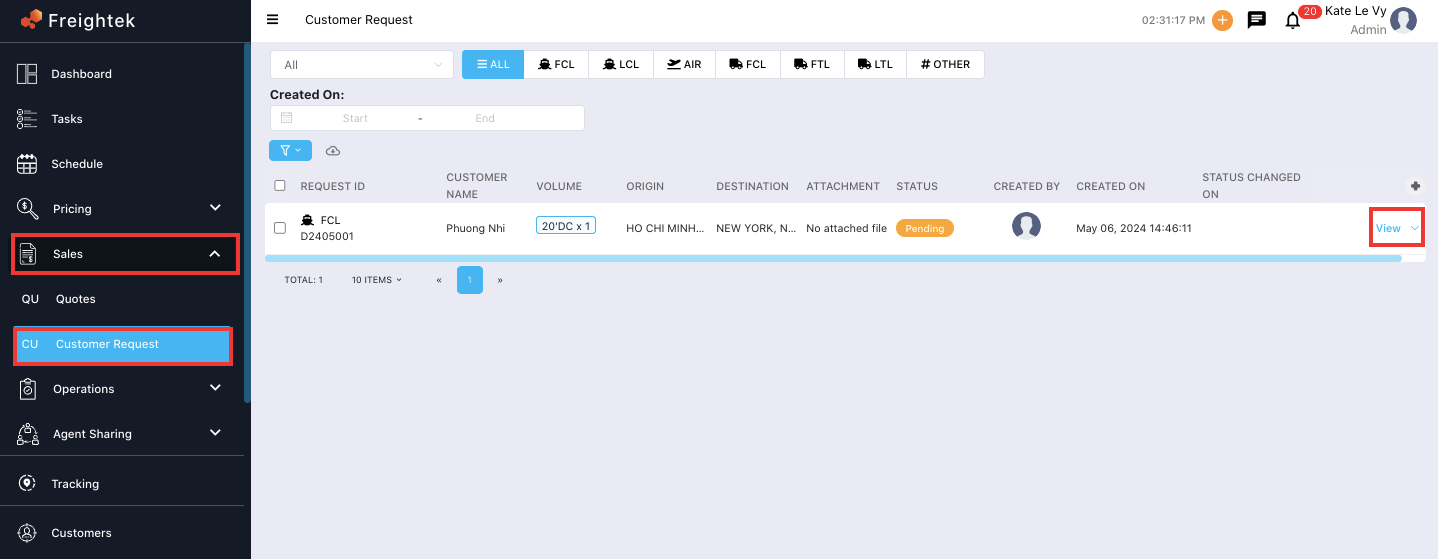
Step 2: In the quote request detail screen, click Create a Quote.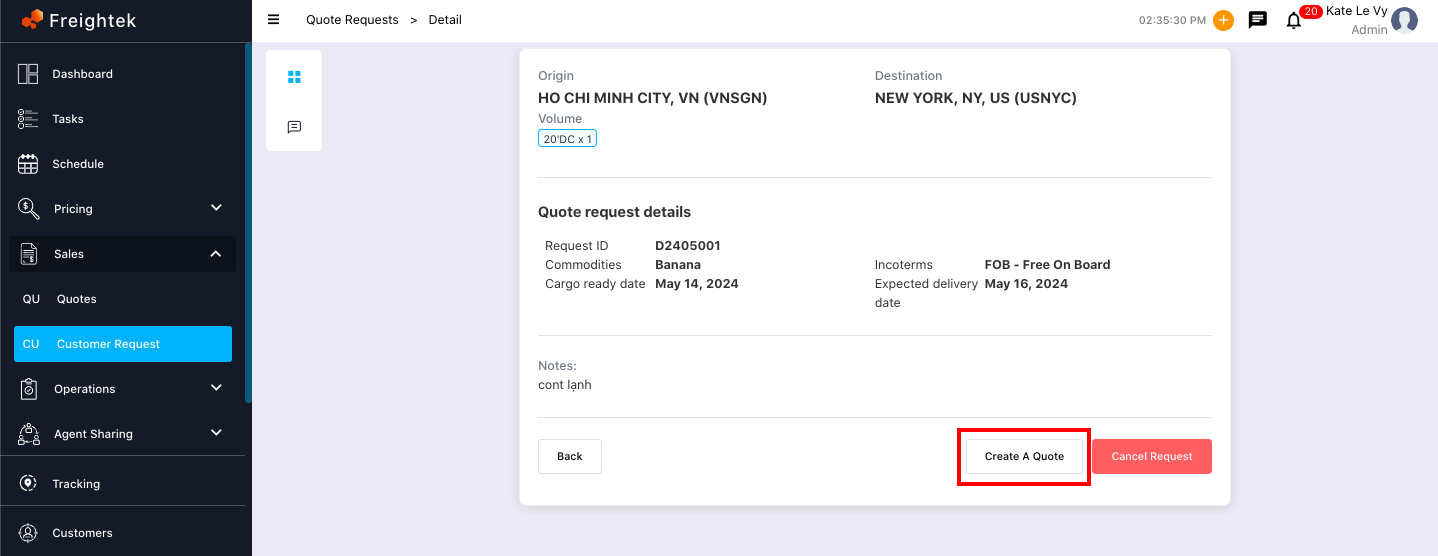
Step 3: Start creating a quotation for the request.
Fill in all required fields. (The steps are the same as creating a manual quotation.)
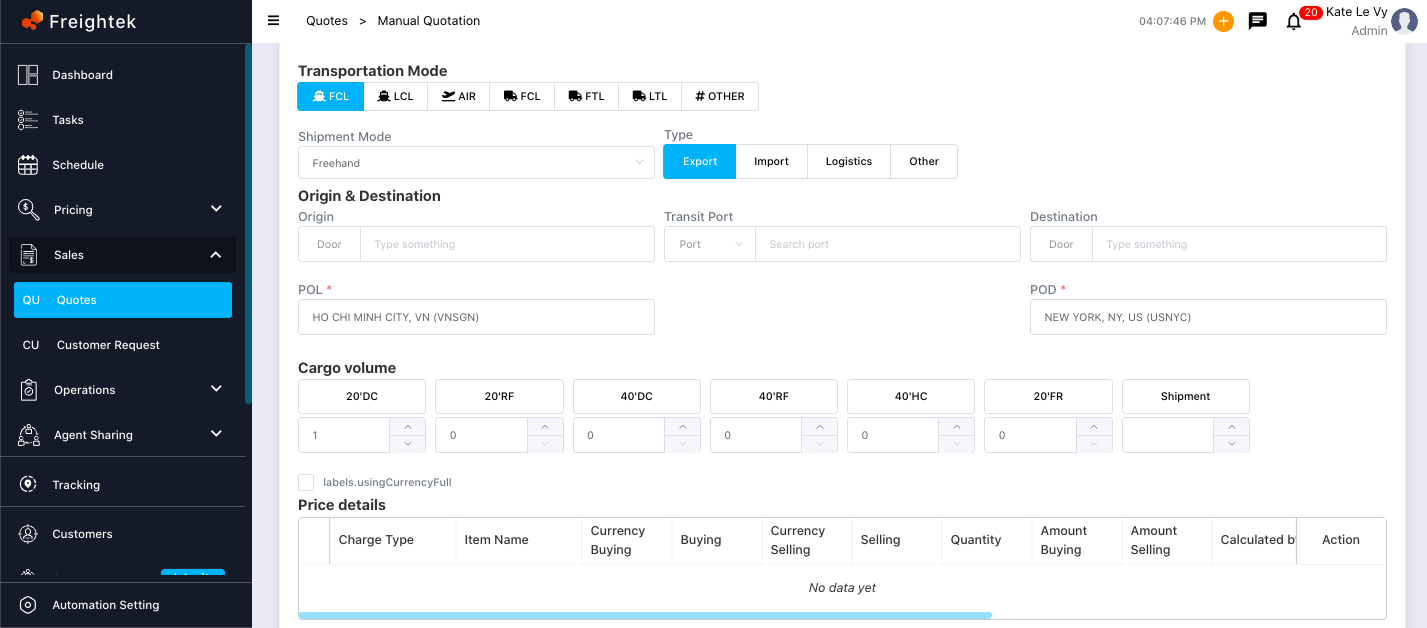
Step 4: Choose Save or Save & Send:
Save: The quotation will move to Quotes → List and its status becomes Draft.
Save & Send: The quotation will be sent to the customer’s Client Portal and the status becomes Sent (Pending on list view). It will also appear under Quotes → List with the status Pending.
Customer Quote Request Statuses
Similar to quotation statuses, customer requests have their own status indicators:
- Pending: The customer’s quote request is waiting for you to process.
- Quote Sent: You have already created and sent a quotation based on the customer’s request.
- Cancelled: The request has been cancelled by the customer or deleted by you.
Was this article helpful?
That’s Great!
Thank you for your feedback
Sorry! We couldn't be helpful
Thank you for your feedback
Feedback sent
We appreciate your effort and will try to fix the article