1. Assigning Permissions for the E-Log Team
Step 1: Click your Avatar → Company Profile → Client Portal Settings.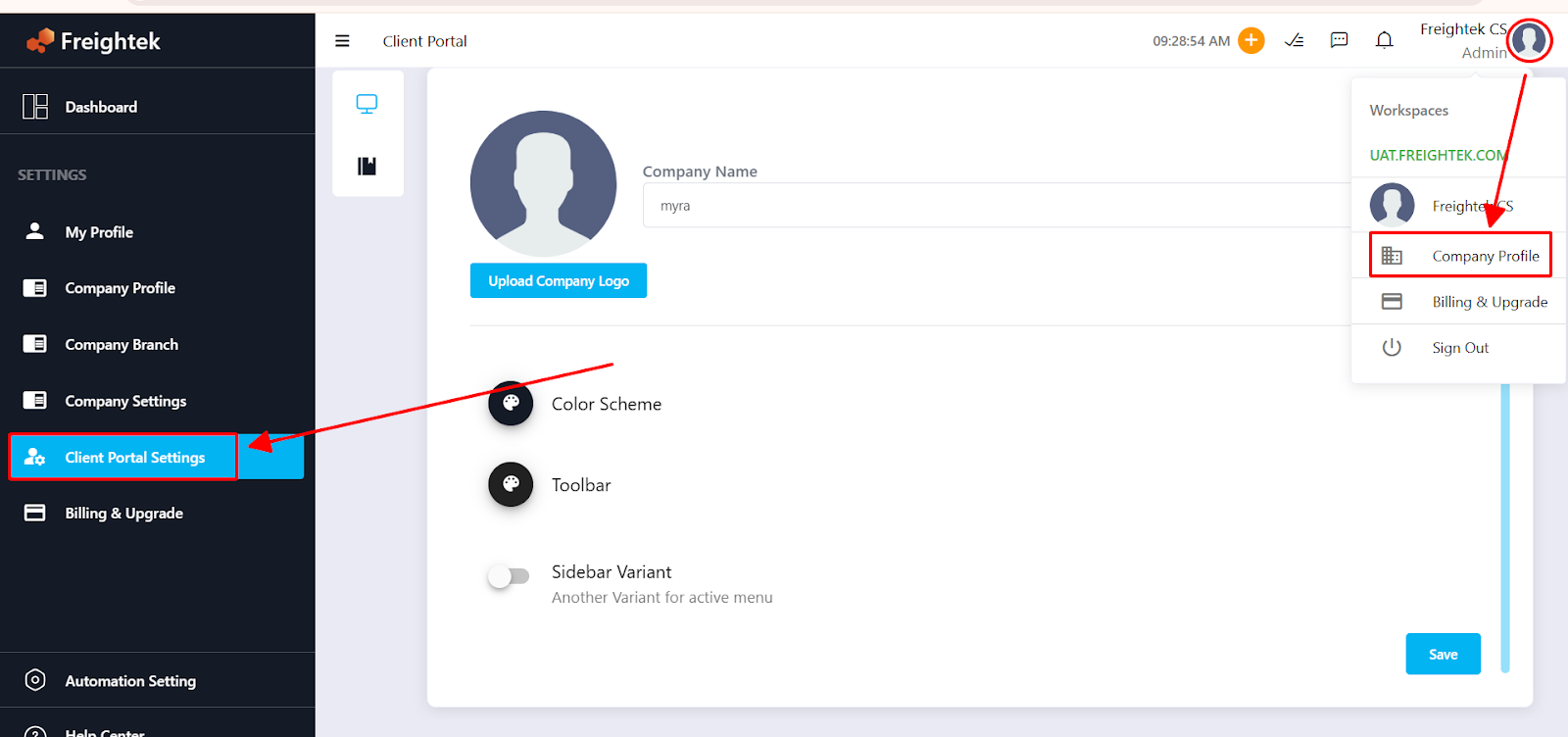
Step 2: Configure the information displayed on the Client Portal interface.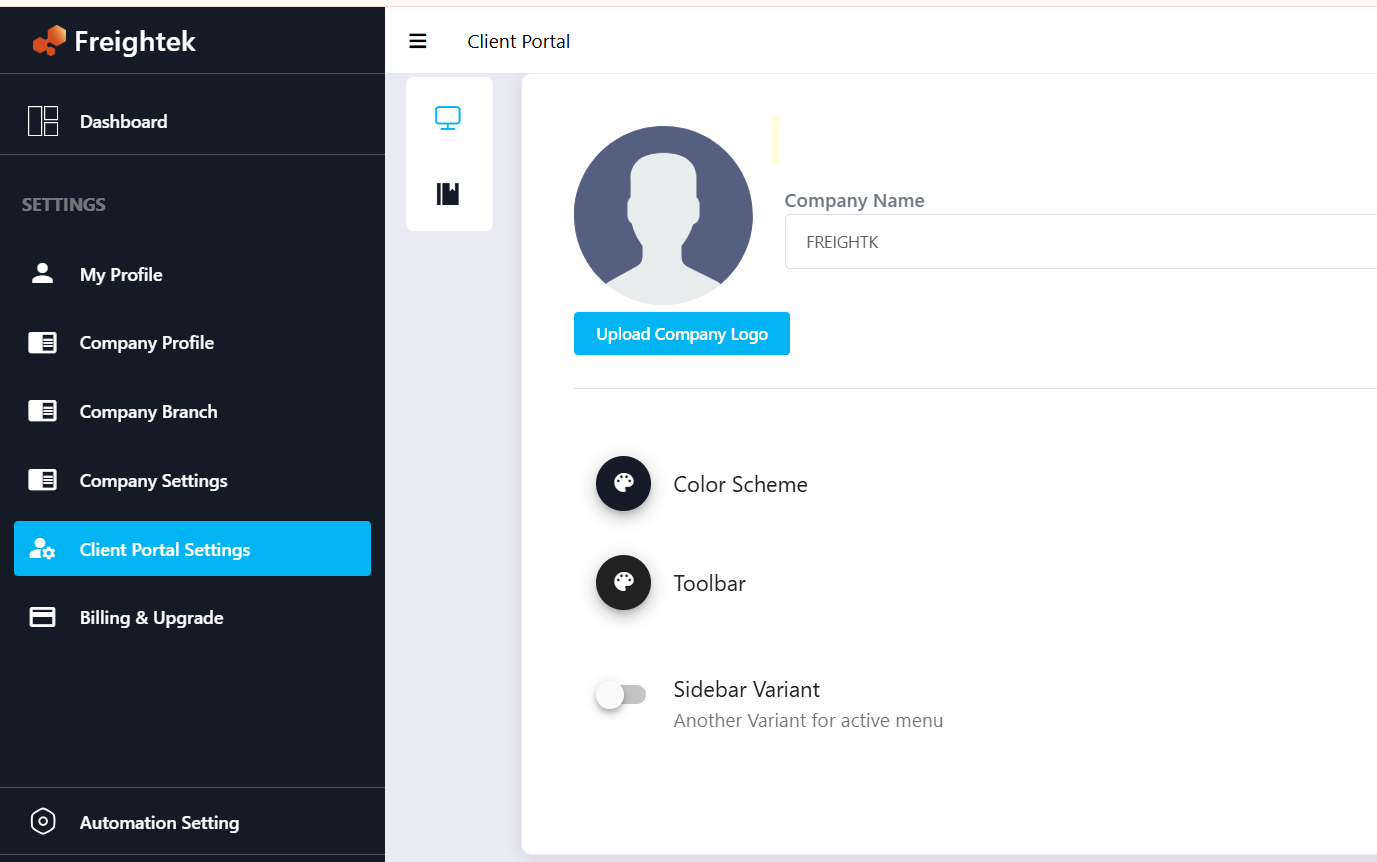
Step 3: Select Group → Create to set up permission groups for the Client Portal.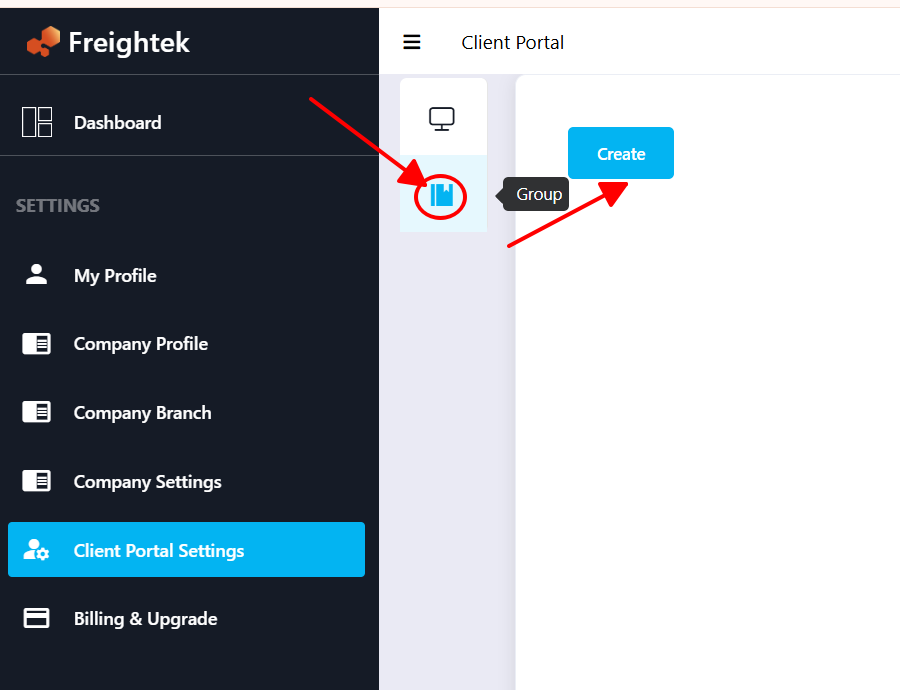
Step 4: Select the modules you want this group to access → click Add.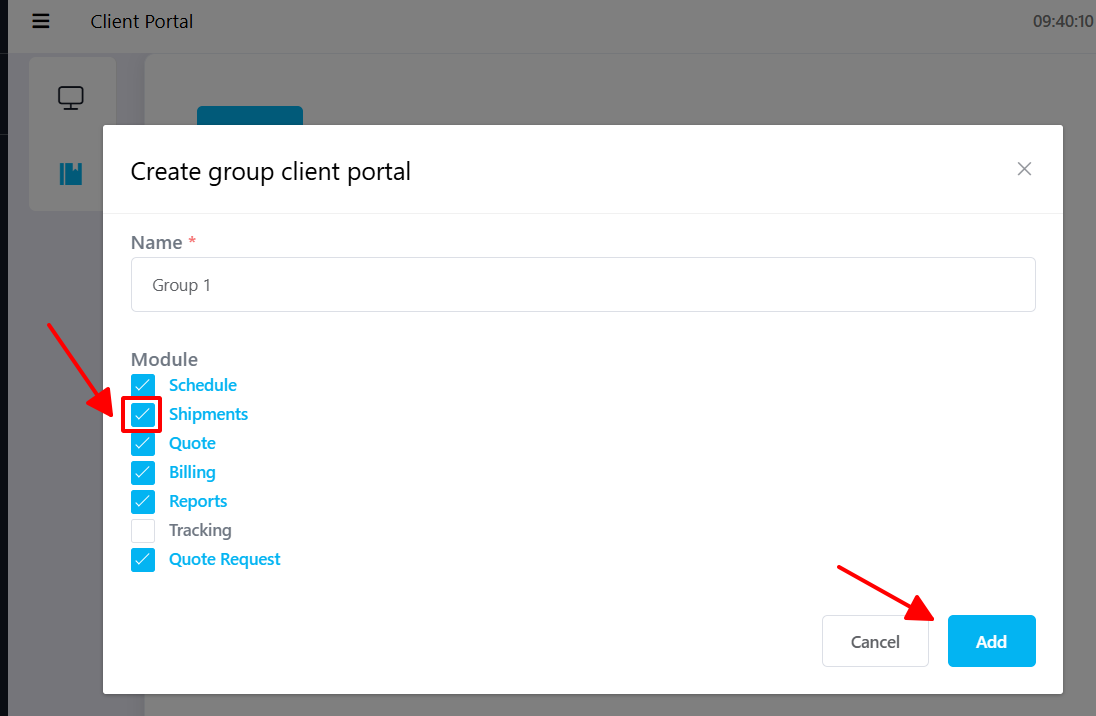
2. E-Log Team Receives Customer Registration Notification
The E-Log team will receive an email when a customer registers on the Client Portal.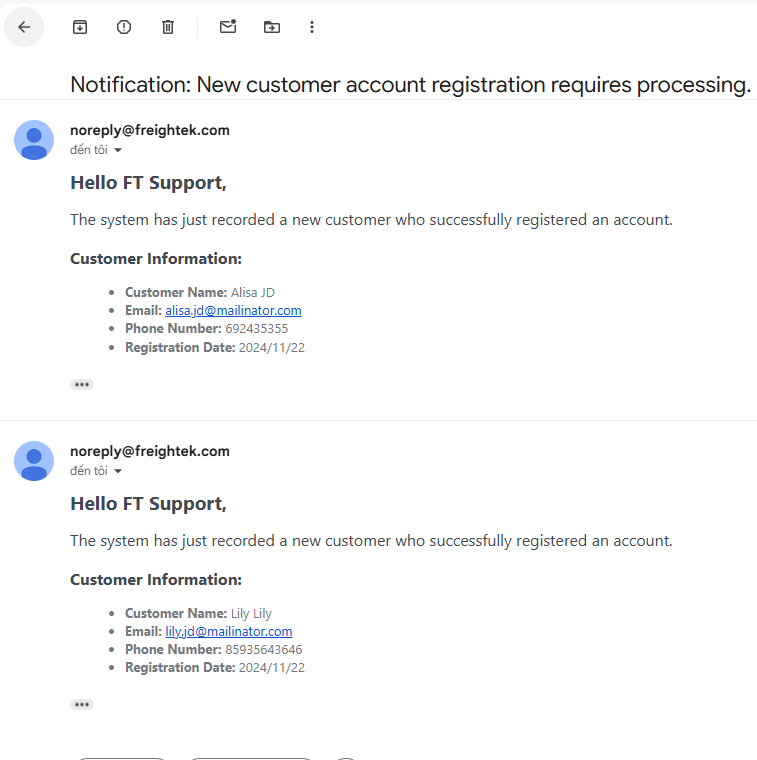
3. E-Log Team Verifies (Qualifies) the Customer & Assigns Account Manager
Step 1: Go to Customer → review customer information → click Sale Qualified.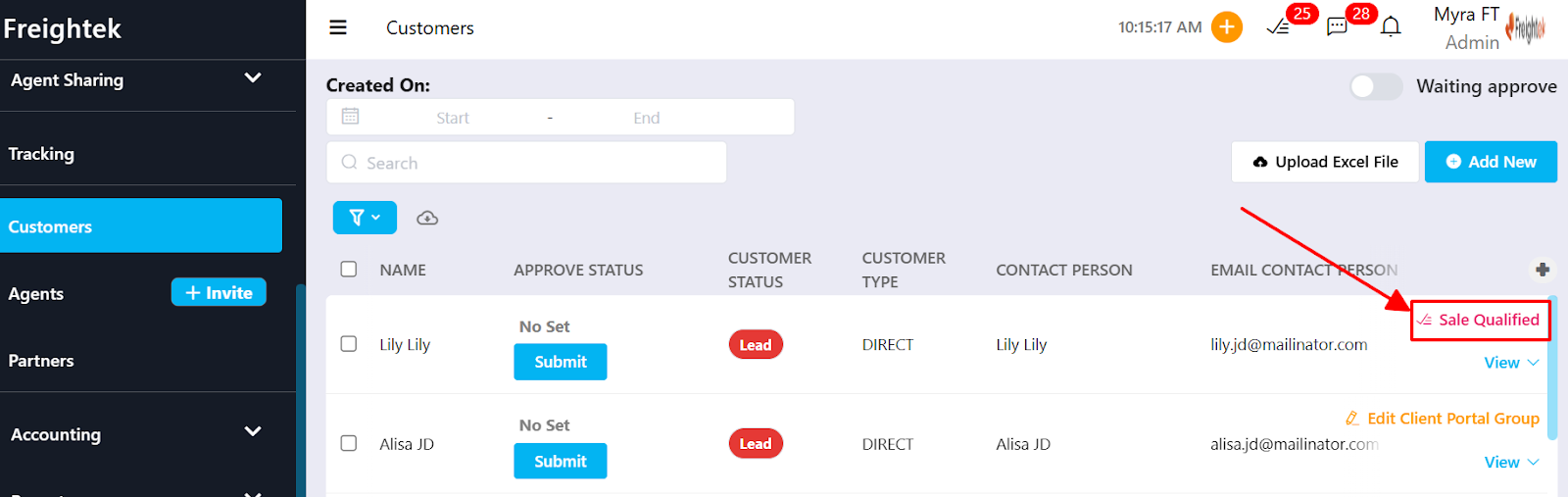
Step 2: Select the permission Group for this customer → click Save.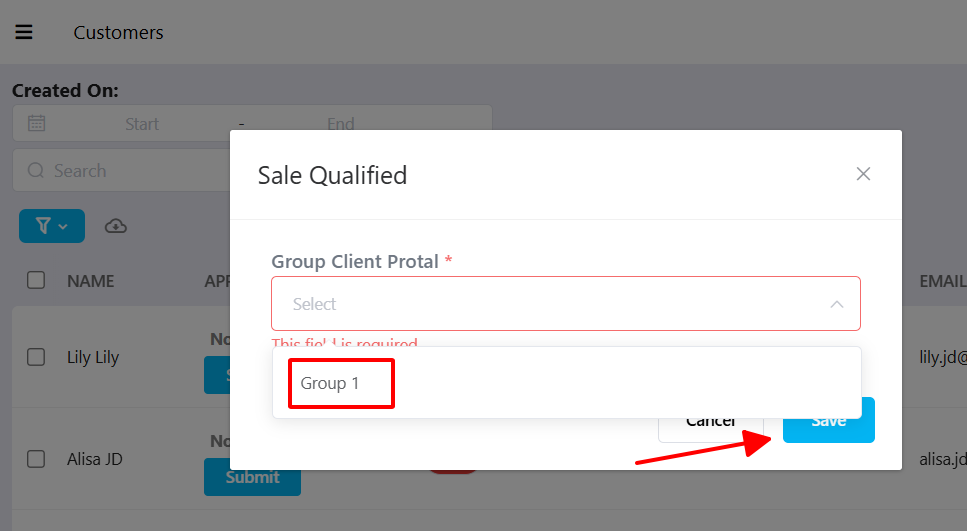
Step 3: Assign the Account Manager and Assigned Users.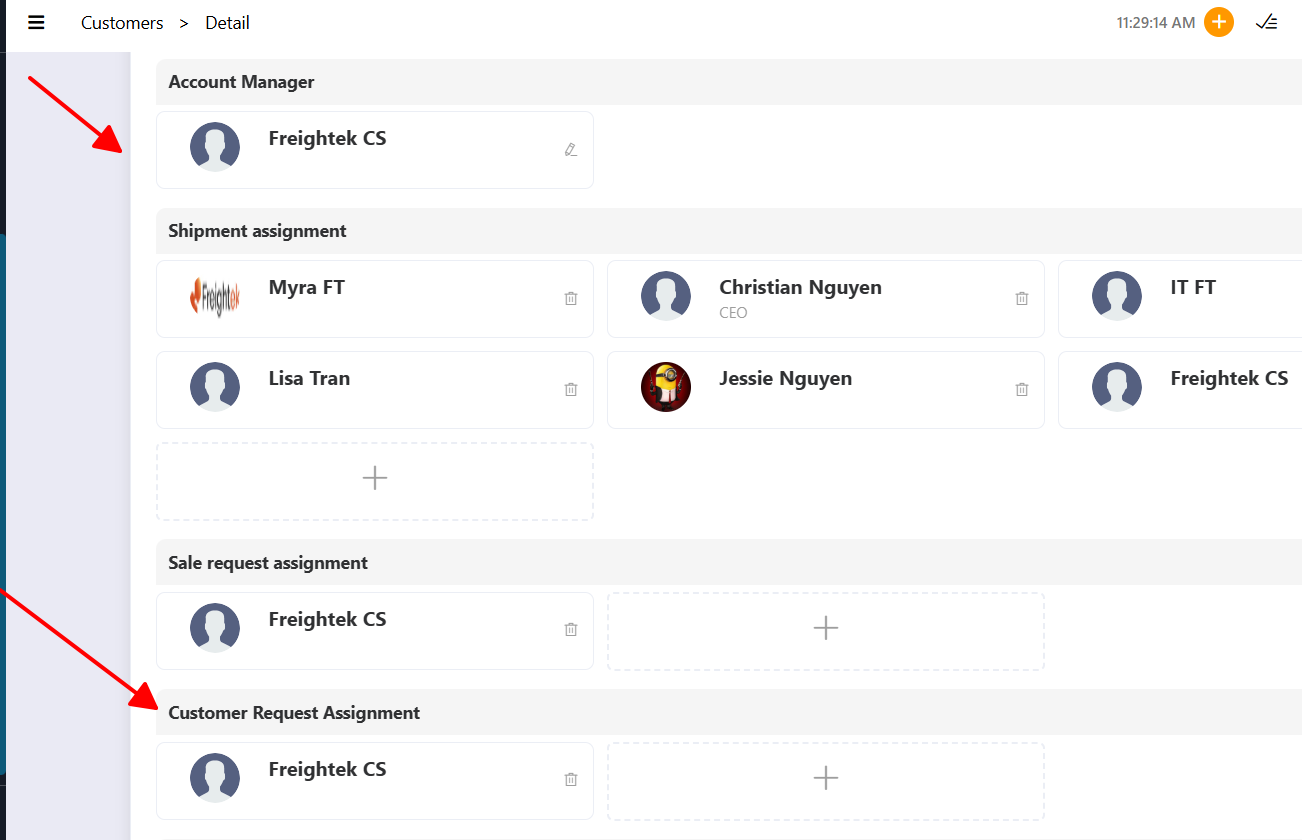
4. Setting Up Rate Search & Business Strategy
Default settings will apply the default pricing package.
Step 1: Verify that the Rate Search permission is enabled and open View Customer to configure the pricing strategy.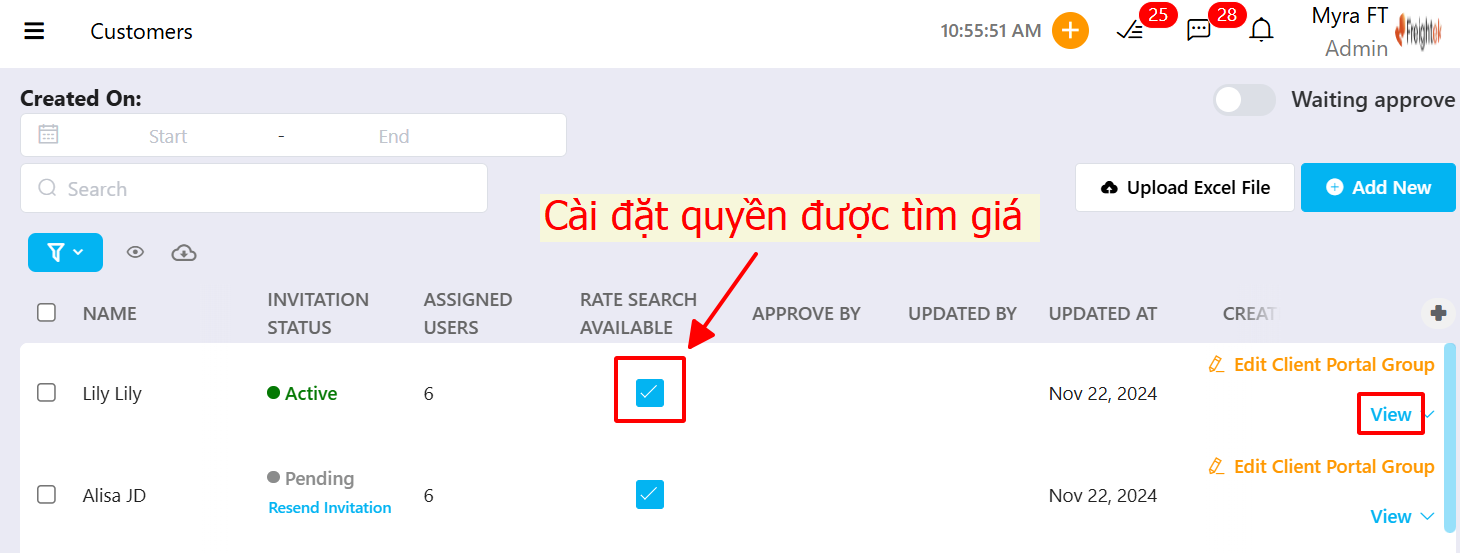
Step 2: Configure pricing strategies for each customer.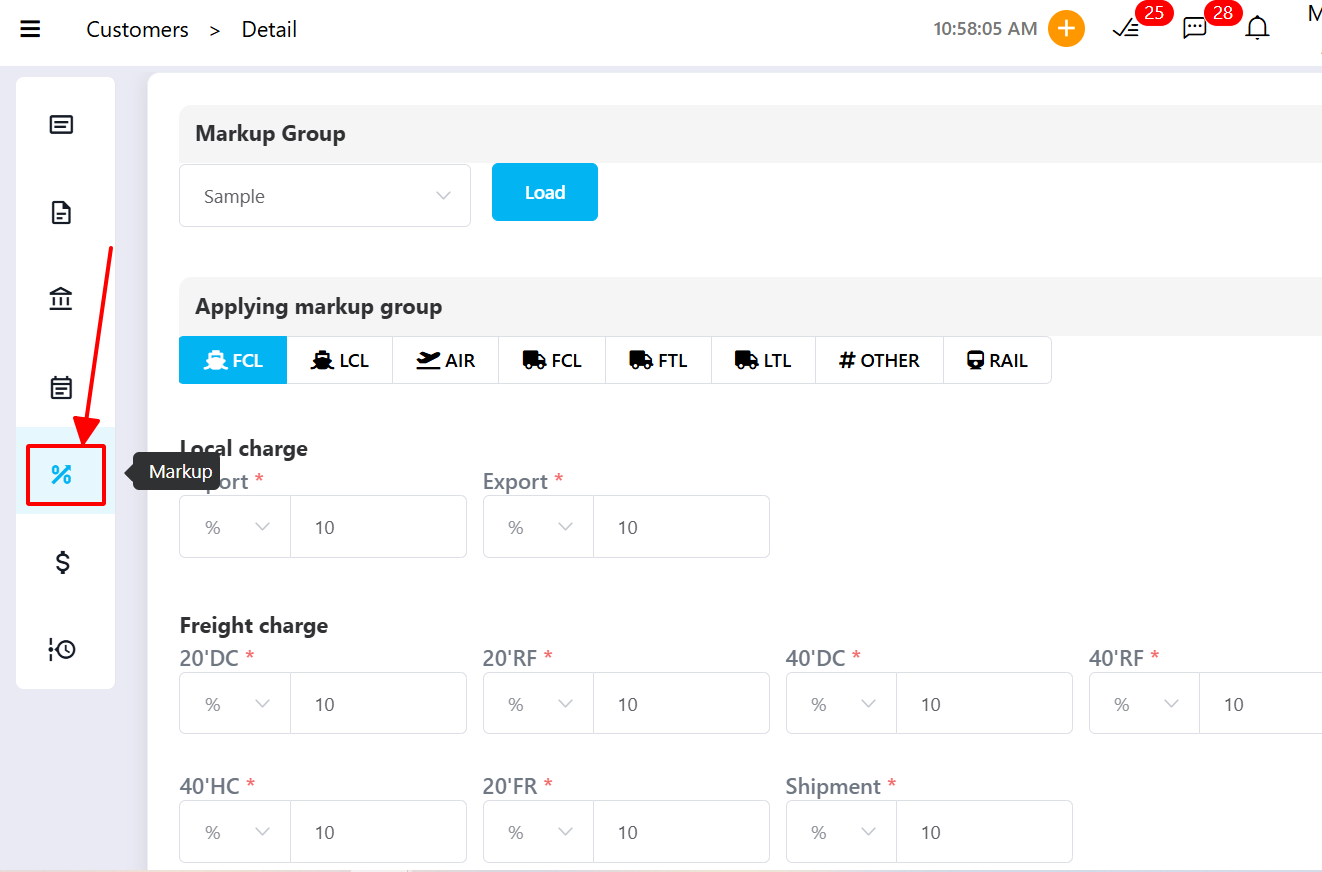
5. Handling Quote Requests
Step 1: Open Customer Request → view the request submitted by the customer.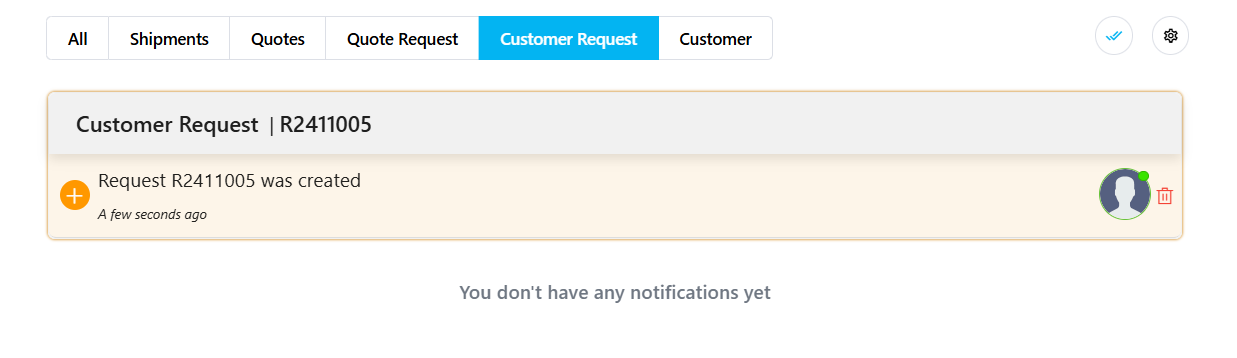
Step 2: Click Request Pricing to send a pricing request to the Pricing Team.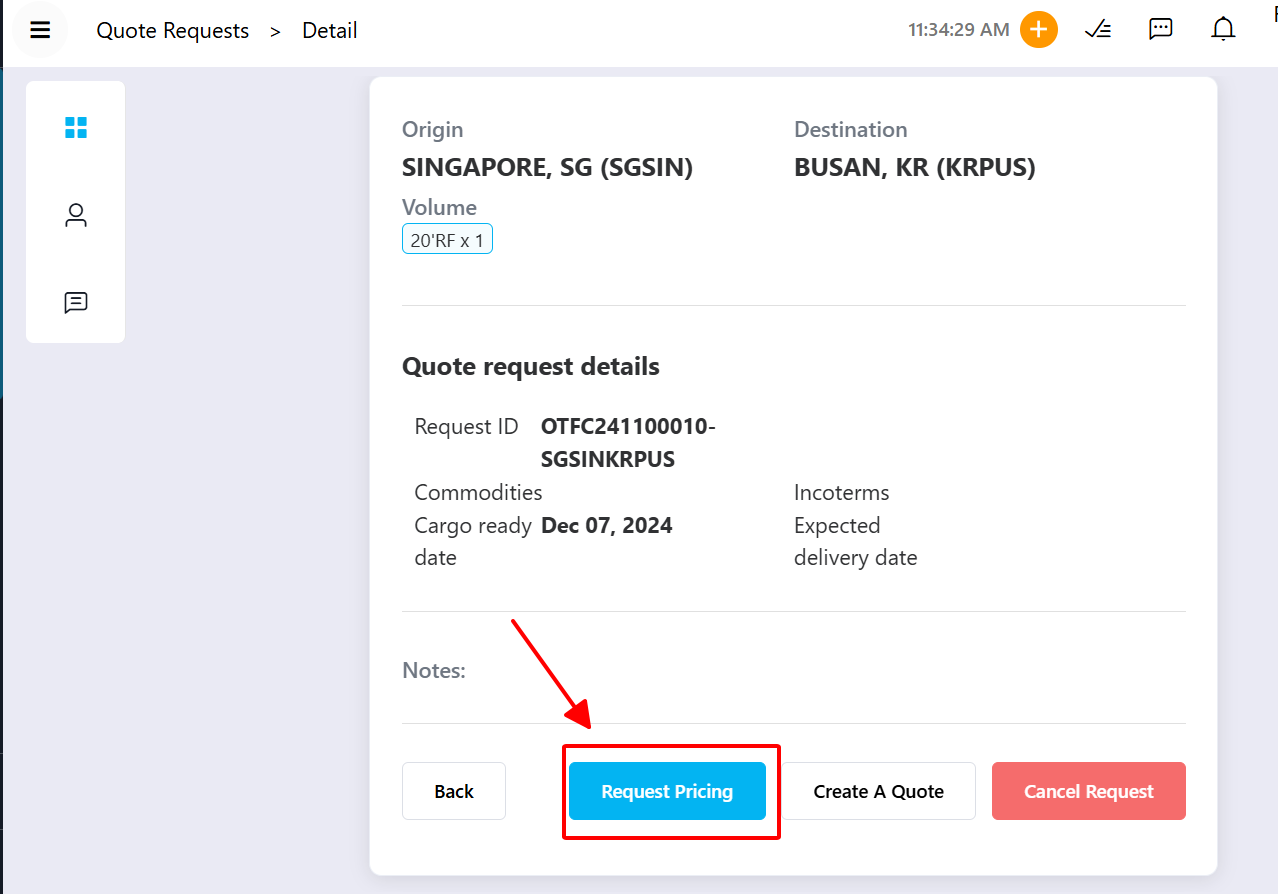
Step 3: Select the user(s) who will receive the request notification.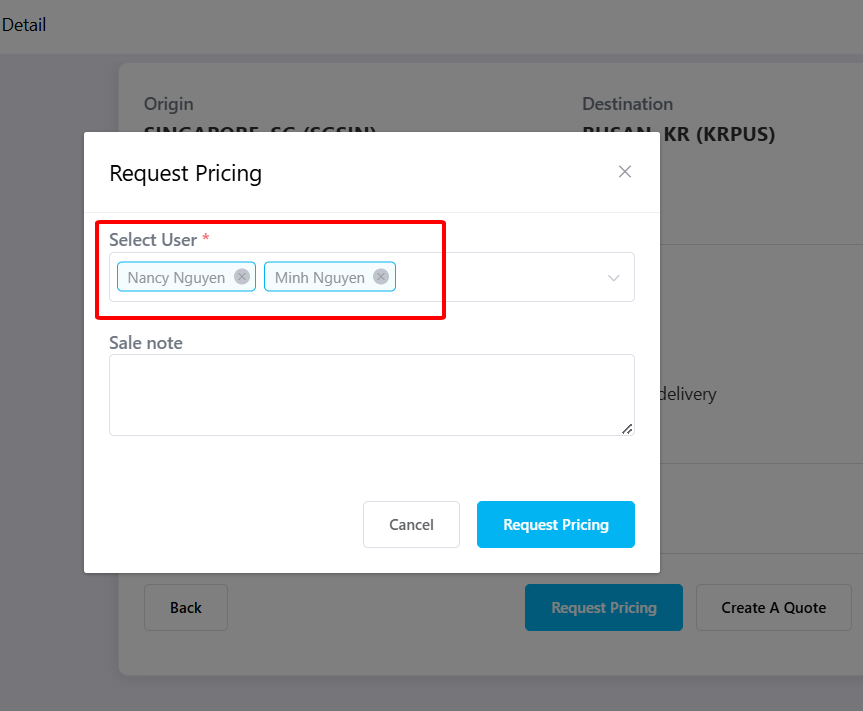
Step 4: Once the Pricing Team updates the rate → click Create a Quote to generate the quotation for the customer.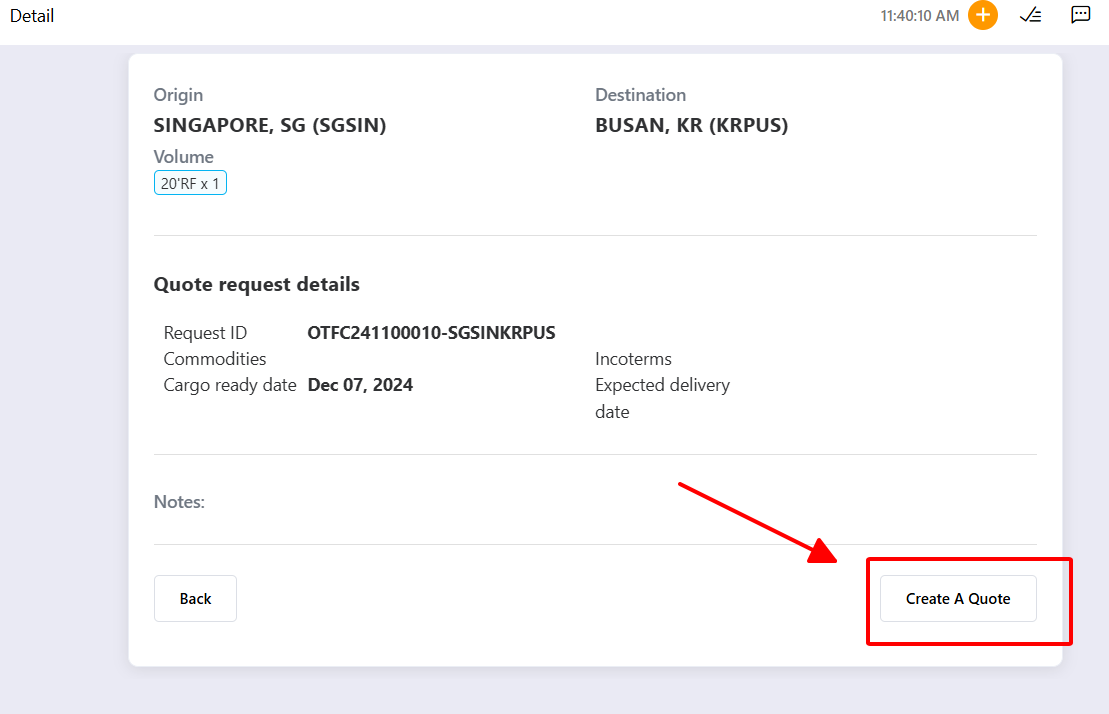
Step 5: Send the Quote to the customer.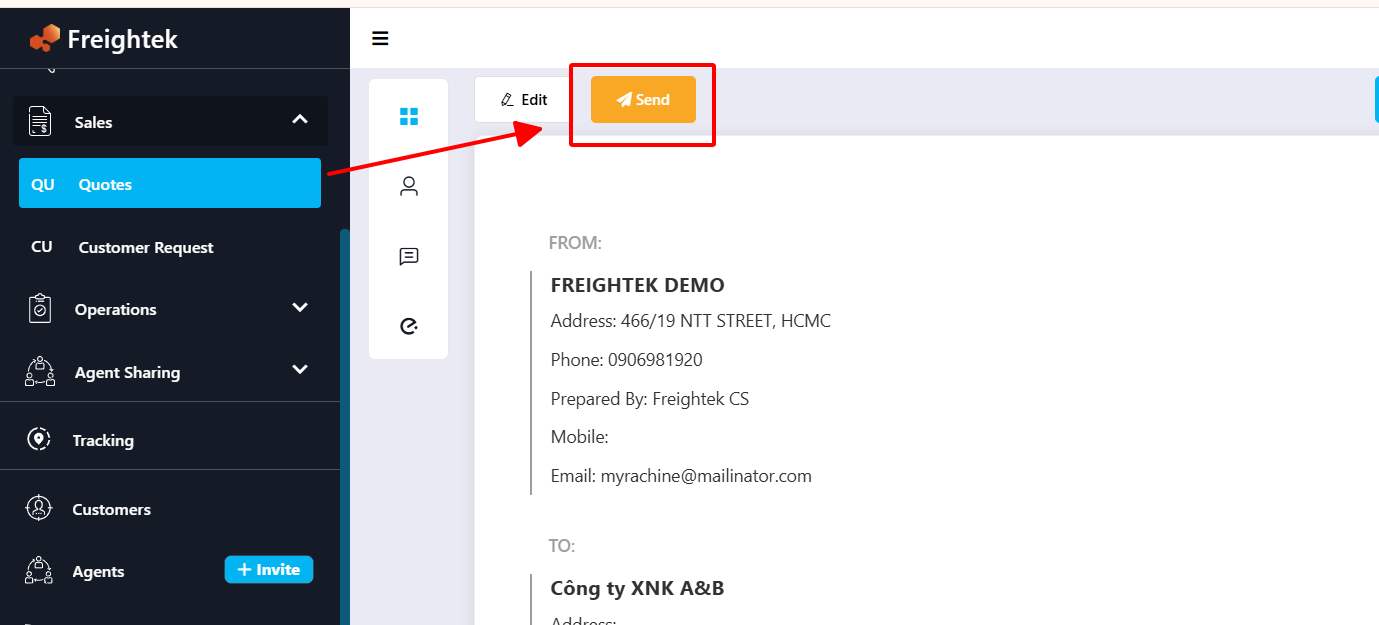
6. Receiving and Processing Orders
Step 1: Receive the notification for a new Booking.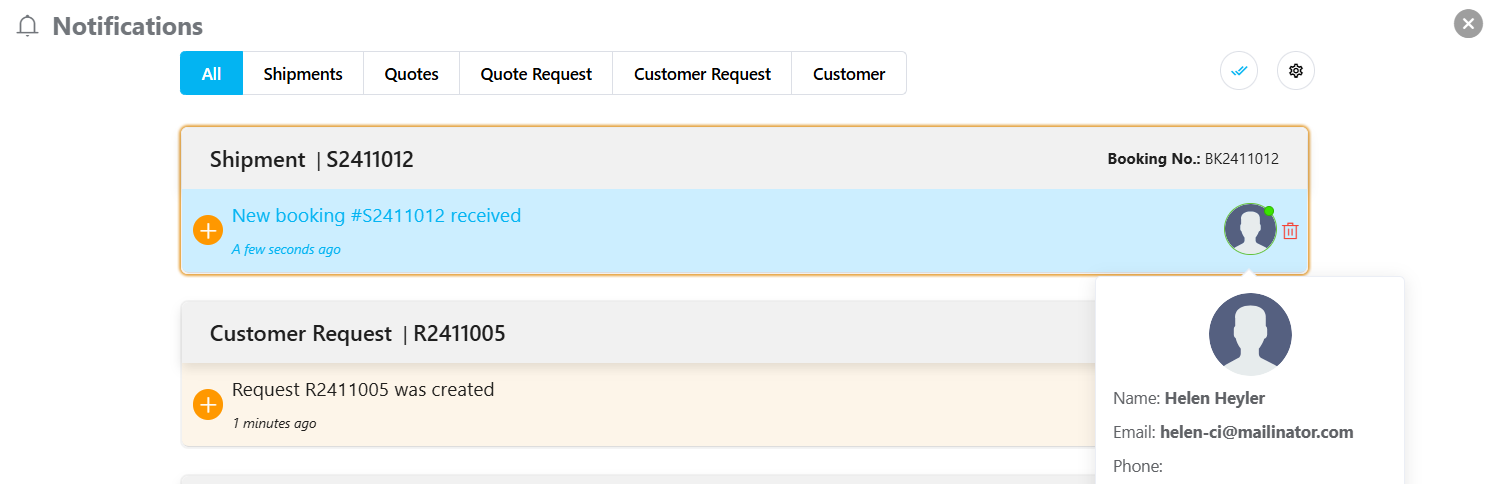
Step 2: Review the customer’s order details and update the shipment progress so the customer can track the order.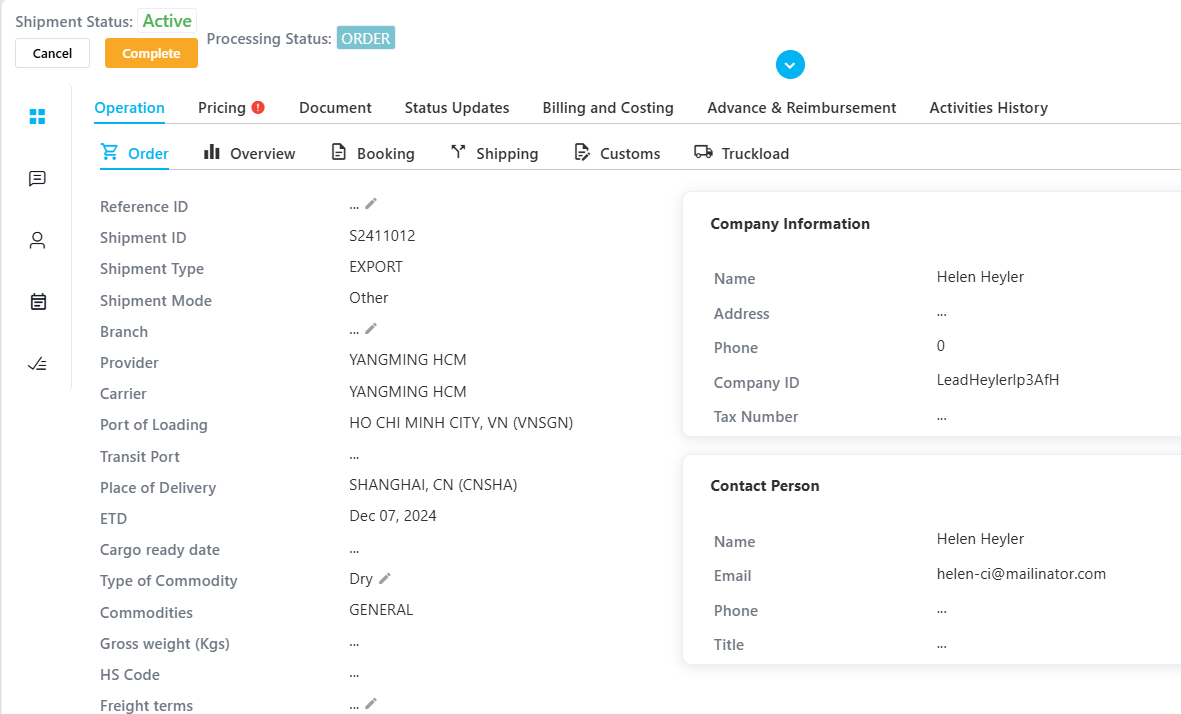
Was this article helpful?
That’s Great!
Thank you for your feedback
Sorry! We couldn't be helpful
Thank you for your feedback
Feedback sent
We appreciate your effort and will try to fix the article