Step 1: Locate the customer who needs tariff quotations for multiple routes and different providers → click View on that customer.
Step 2: Inside the customer information page, click the Markup Rates ($) icon.
Enter the filter criteria you want to use:
Transportation Mode: FCL, LCL, AIR, etc.
Provider
Origin
Destination
Currency
Commodity
Valid Until
Valid From
Port of Discharge
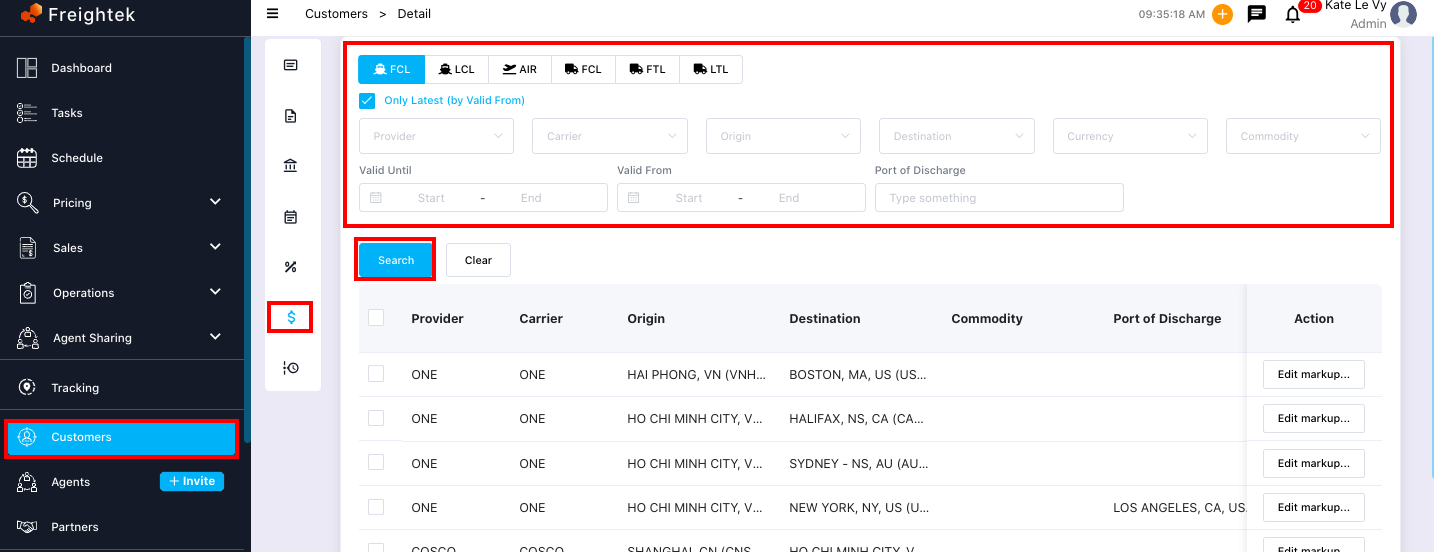
Step 3: After applying the filters, the system will display the matching rate list.
Select the rates you want to include in the tariff quotation → click Excel to export the file.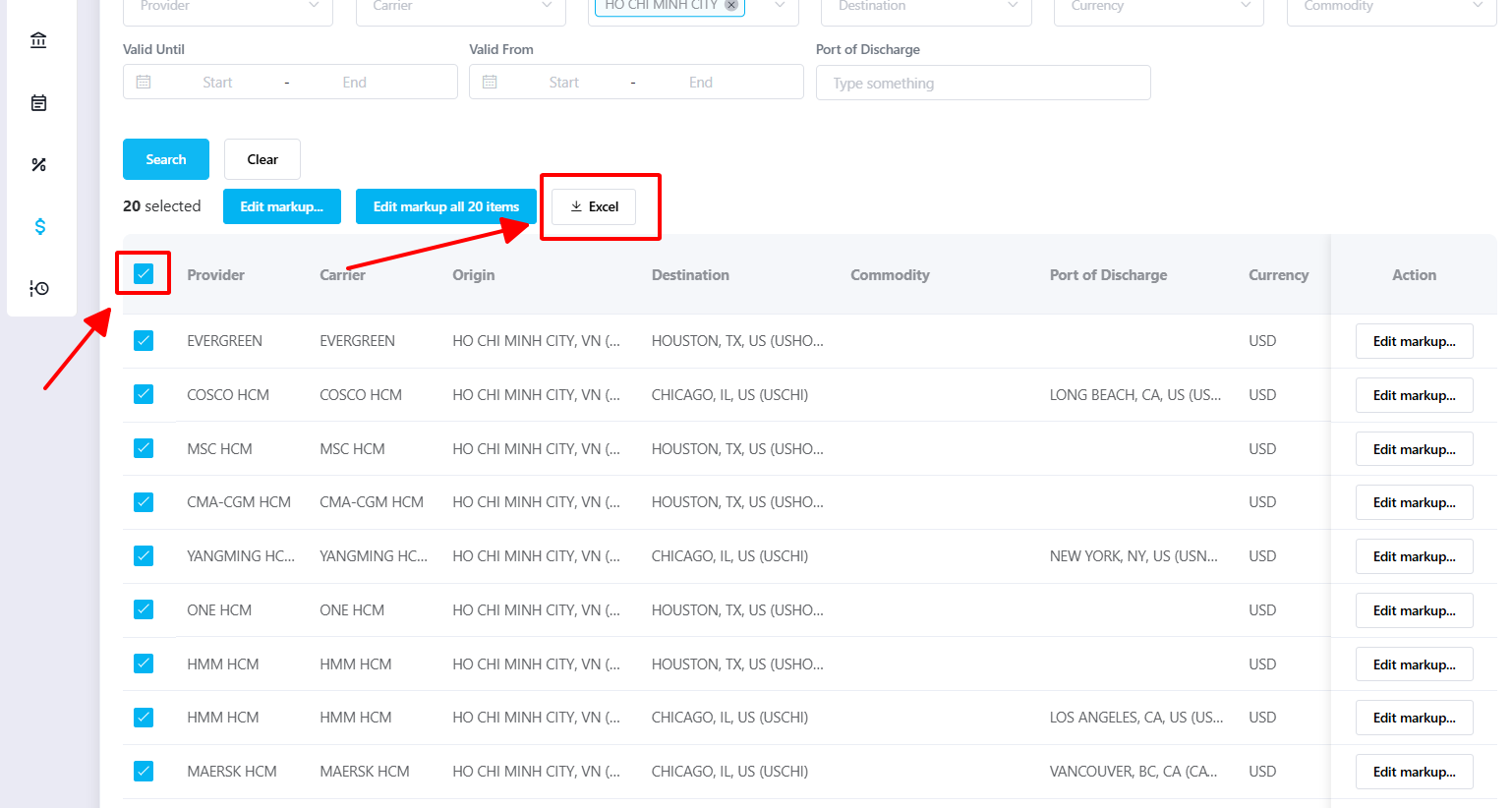
Step 4: A Note field will appear.
Enter your note → click Download to export the tariff quotation file containing multiple routes.
This exported tariff file reflects the selling rates according to the customer’s automatic markup strategy.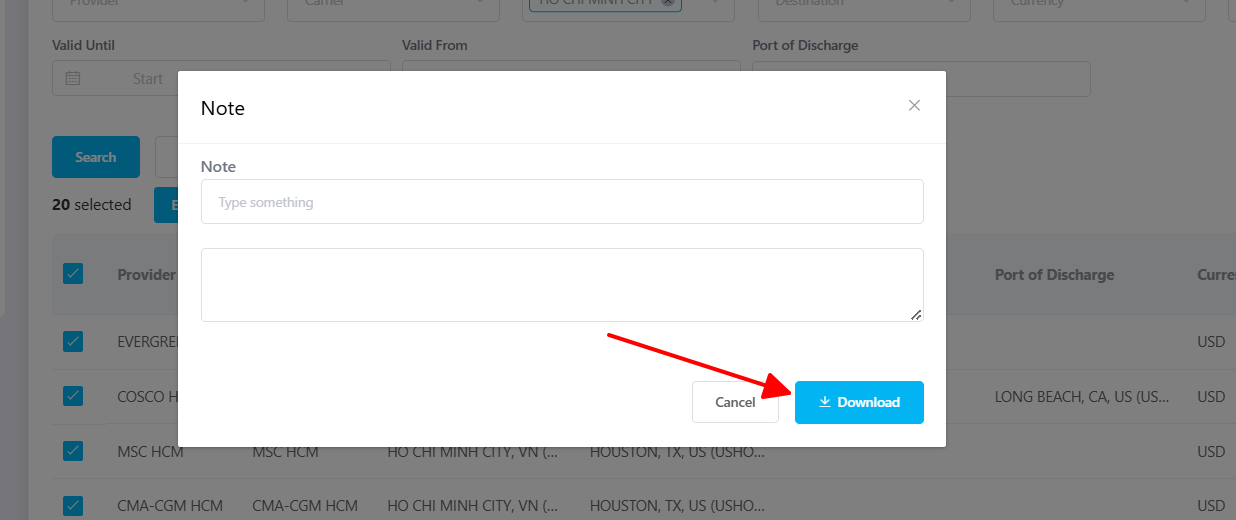
Was this article helpful?
That’s Great!
Thank you for your feedback
Sorry! We couldn't be helpful
Thank you for your feedback
Feedback sent
We appreciate your effort and will try to fix the article