Method 1: Manually entering each customer
Step 1: Go to CRM → Add New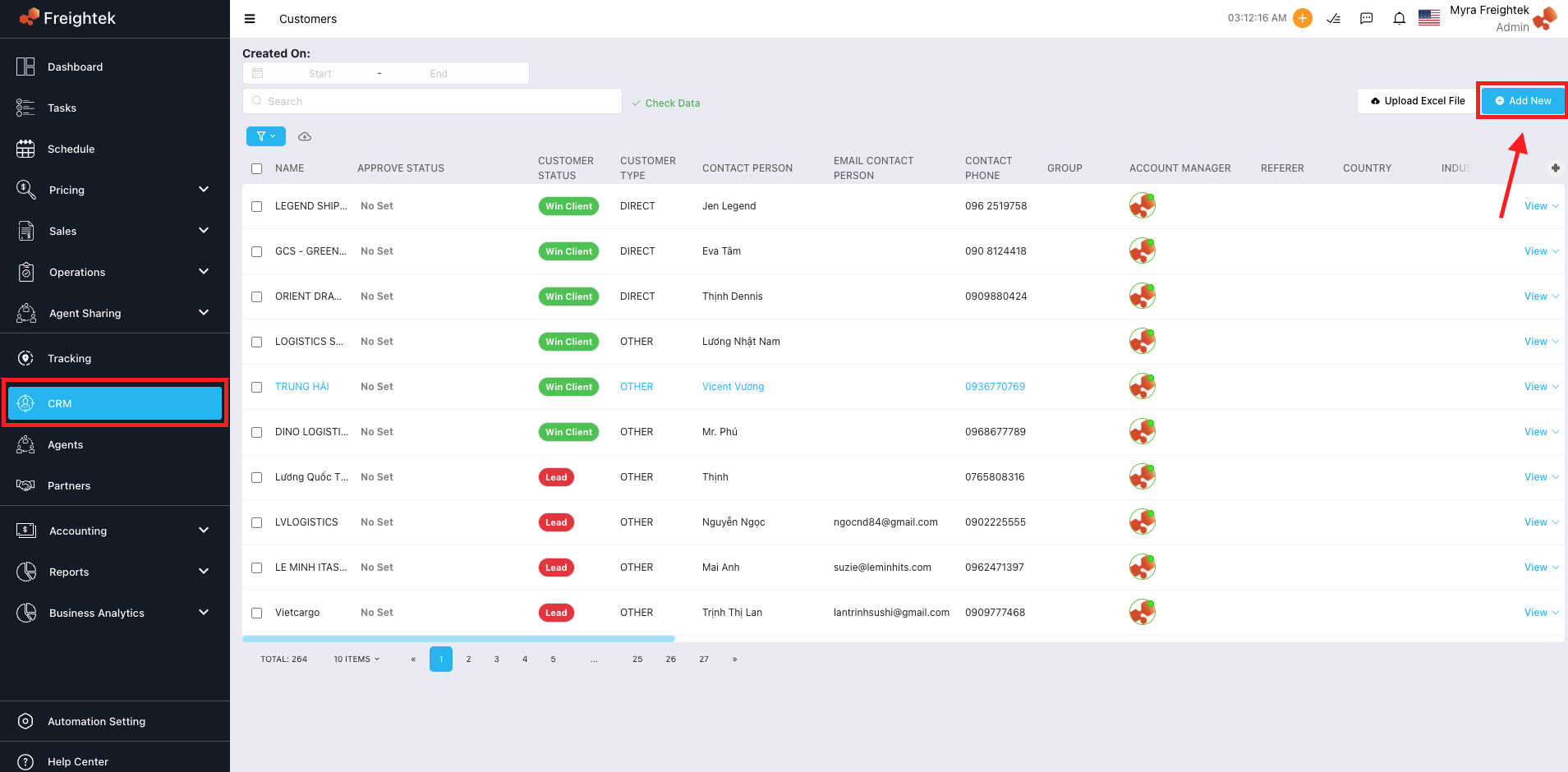
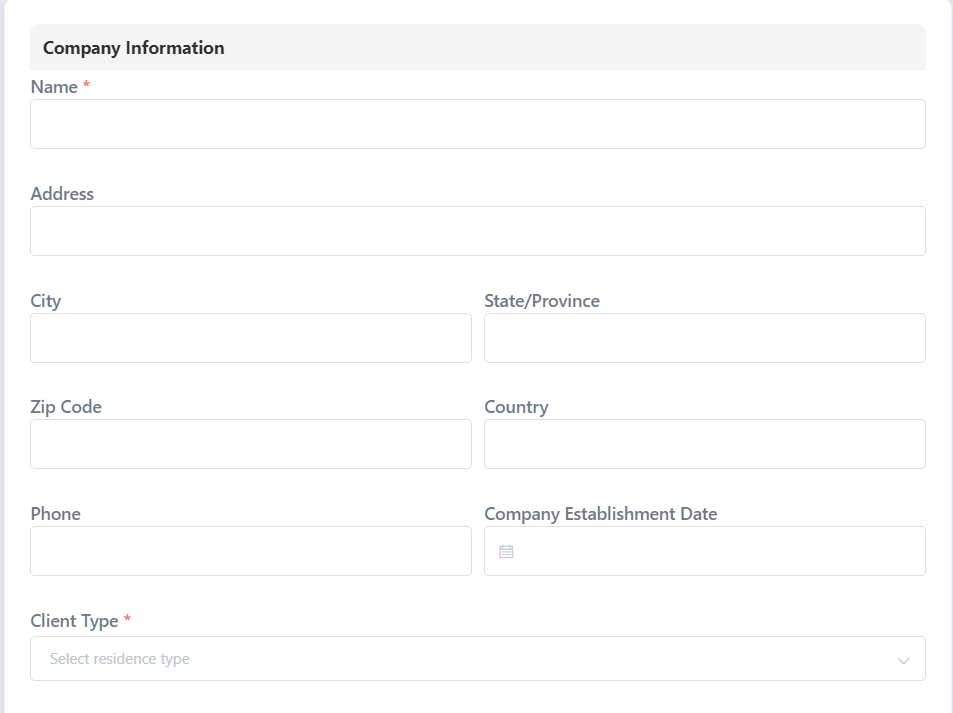
Step 2: Enter the customer’s Company Information, Invoicing Information, Type, Markup settings, Credit terms, Customer grouping, and any special requirements.
1. Company Information
 Type
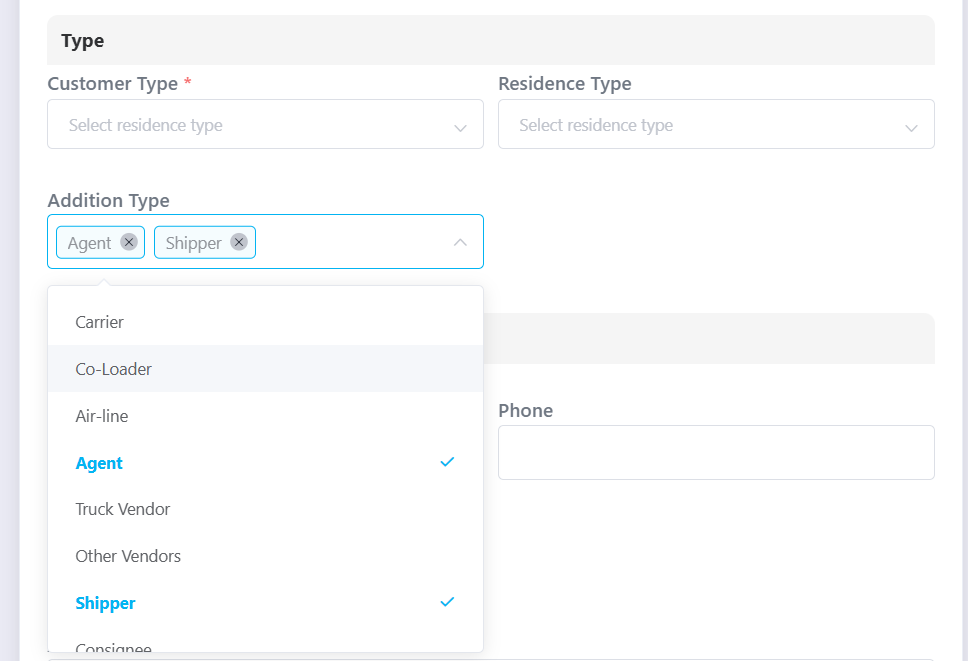
Type
Customer Type: direct, forwarder, agent, other
Residence Type: Domestic (local customer), Overseas (foreign customer), Other

Addition Type: customers may be assigned to multiple categories
2. Invoicing Information
For Vietnamese corporate customers, invoicing details must be entered accurately for correct tax invoice issuance.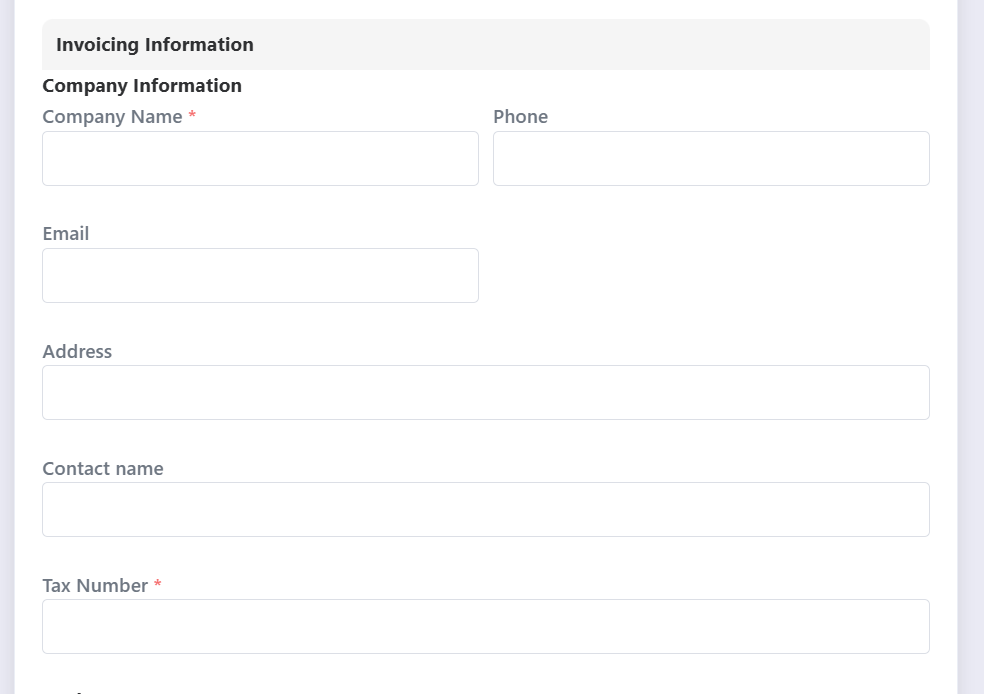
3. Contact Information & Contract Number
Enter all relevant contact details and contract references.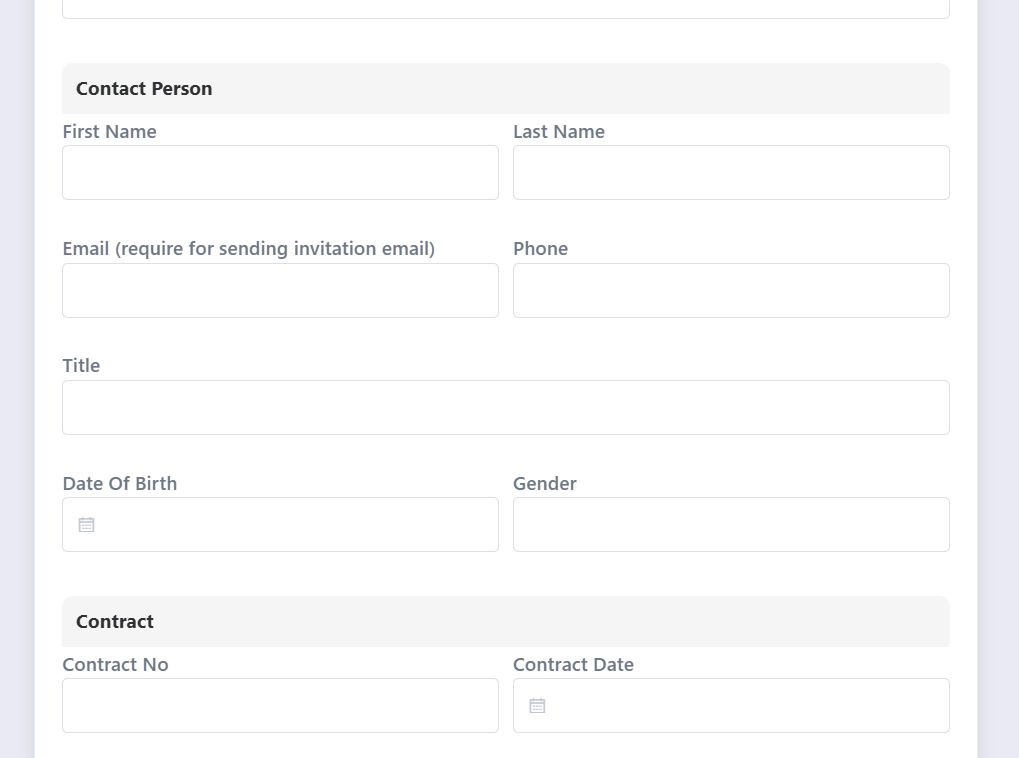
4. Pricing Level & Minimum Profit Settings
Pricing Level: Select according to the company’s markup strategy
Min Profit: The minimum acceptable profit margin
Example: If Min Profit = $100, then any quotation with a profit of $90 will trigger a red warning.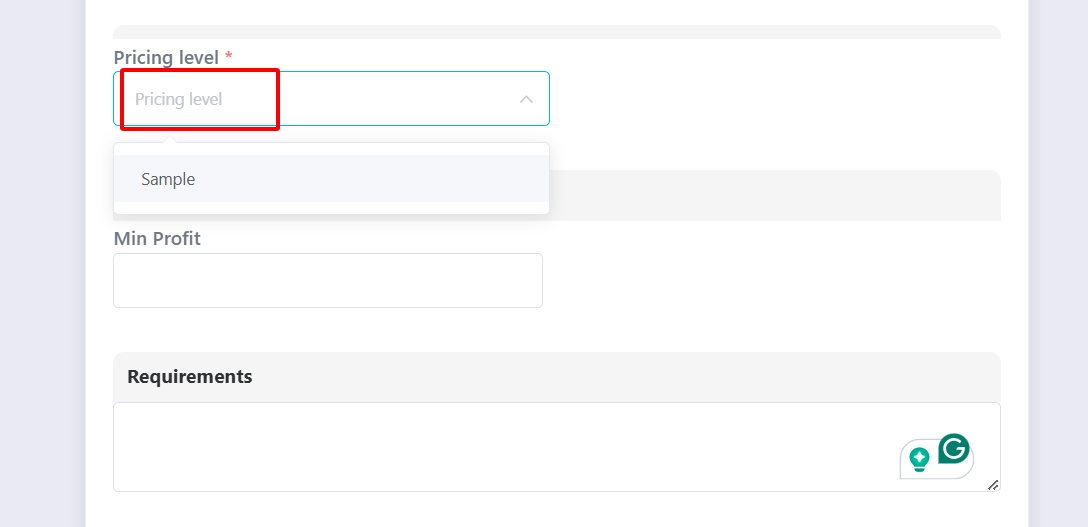
5. Credit Term Settings
Credit Limit: maximum allowable outstanding balance
Credit Period: number of credit days allowed
Credit terms can be configured separately for: Export, Import, Domestic, Other
Tick the applicable transaction type → enter the number of days.
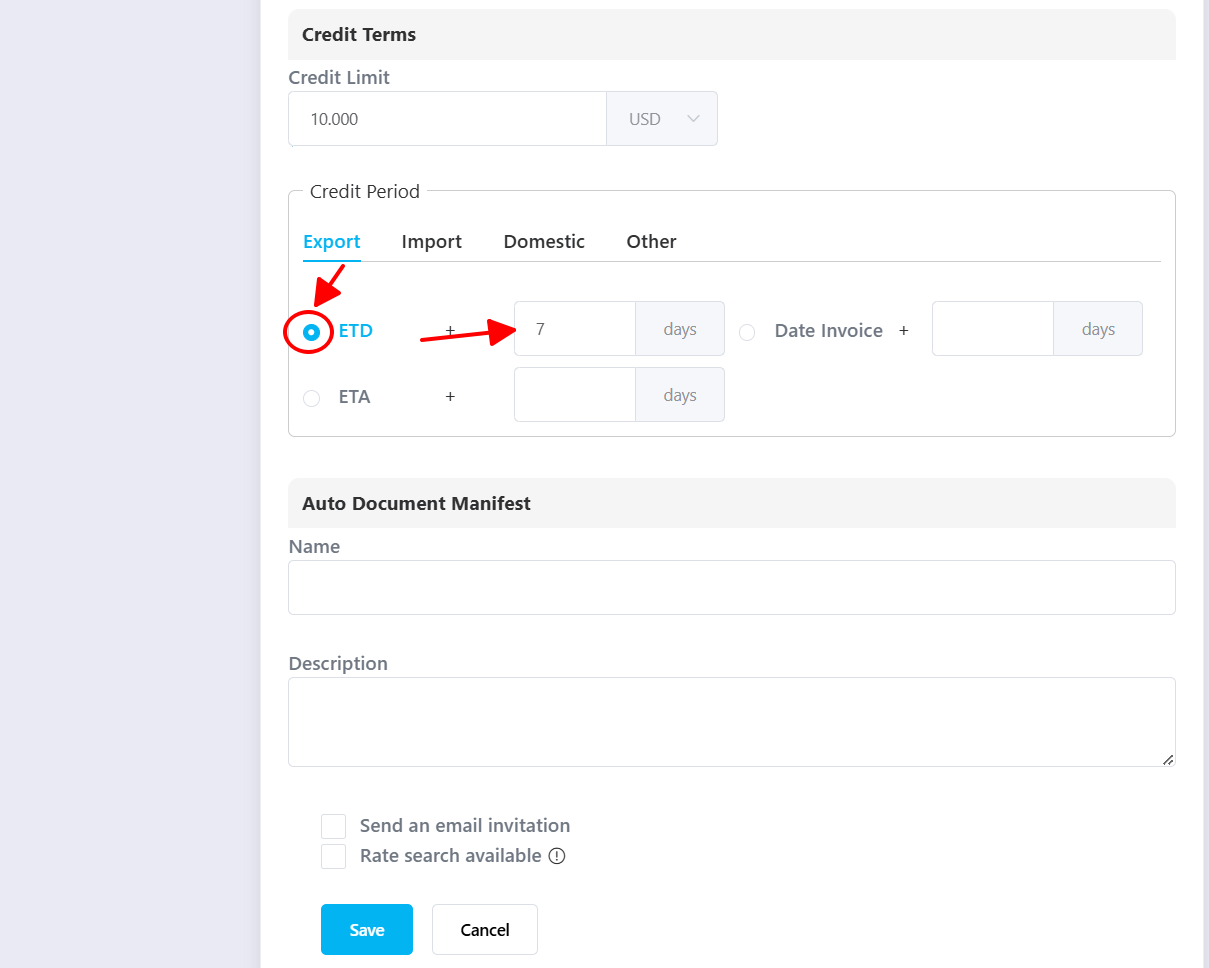
After completing all fields, click Save.
Method 2: Bulk import potential customers using Excel
Step 1: Go to CRM → Upload Excel File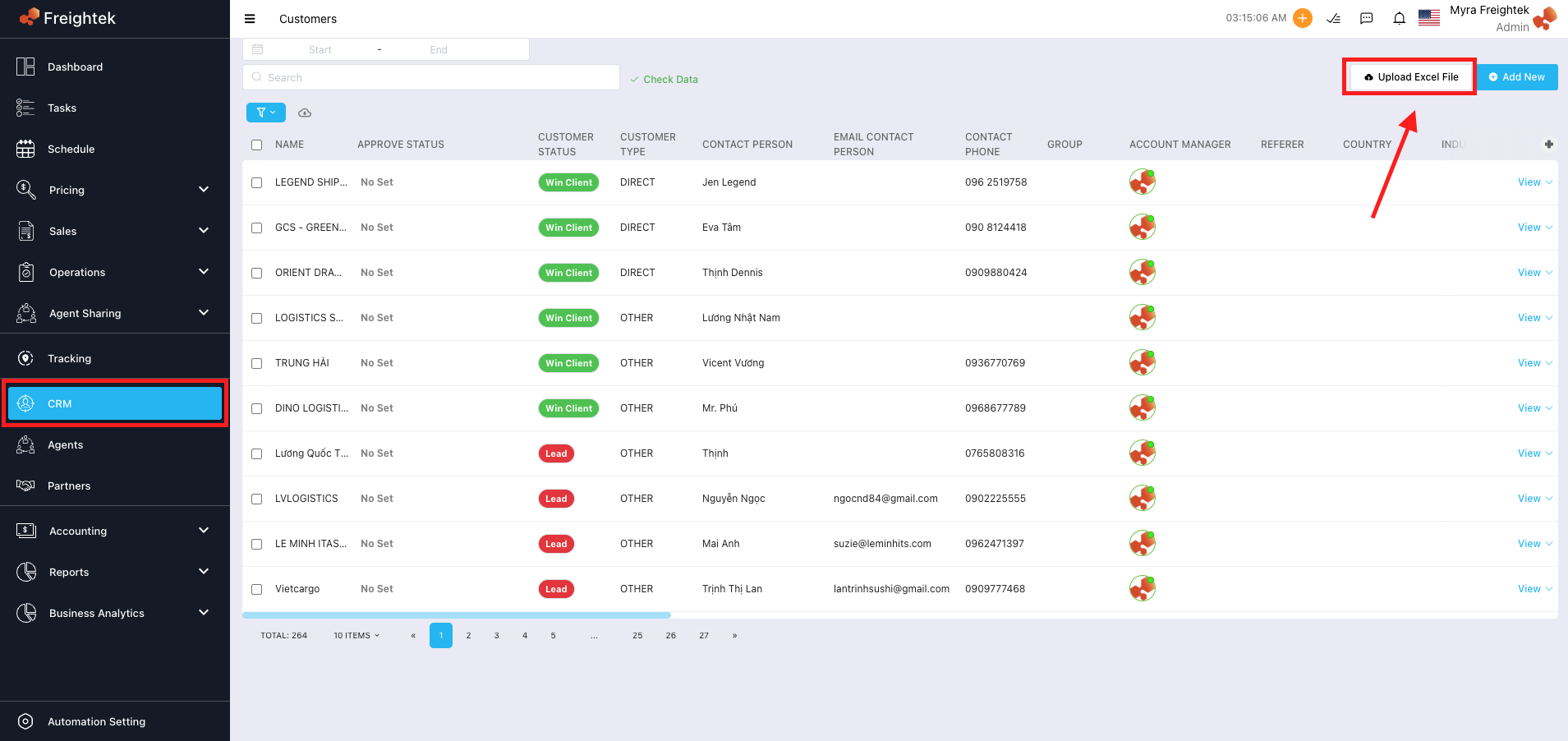
Step 2: Click Default Markup to choose the pricing strategy for all imported customers.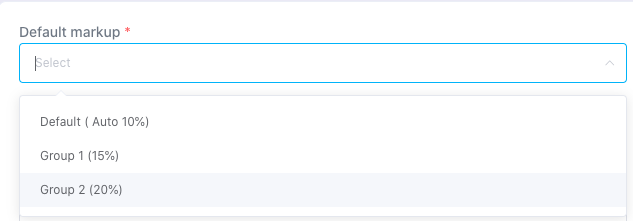
Step 3: Click Assigned Users to assign who manages this customer list and select Addition Type.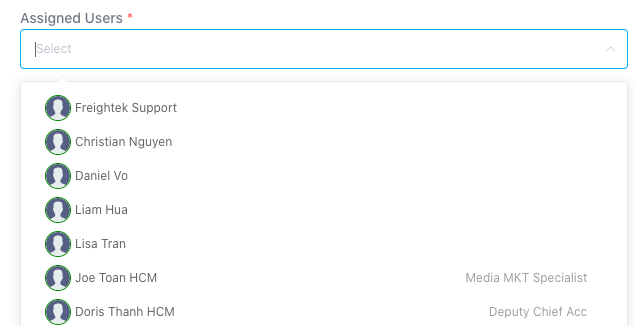
Step 4: Click Download Template to get the Excel file format.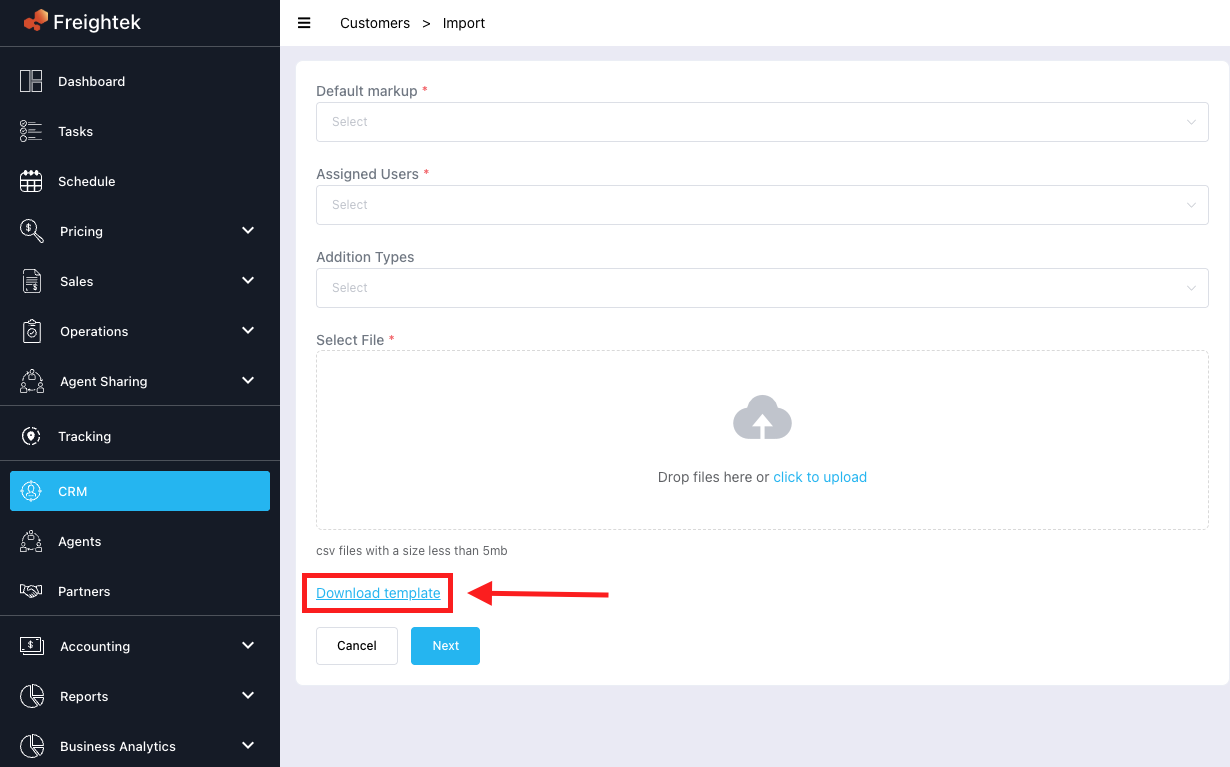
Step 5: Enter all customer data into the provided Excel template.
Step 6: Upload the Excel file by dragging it into the Select File area → click Next.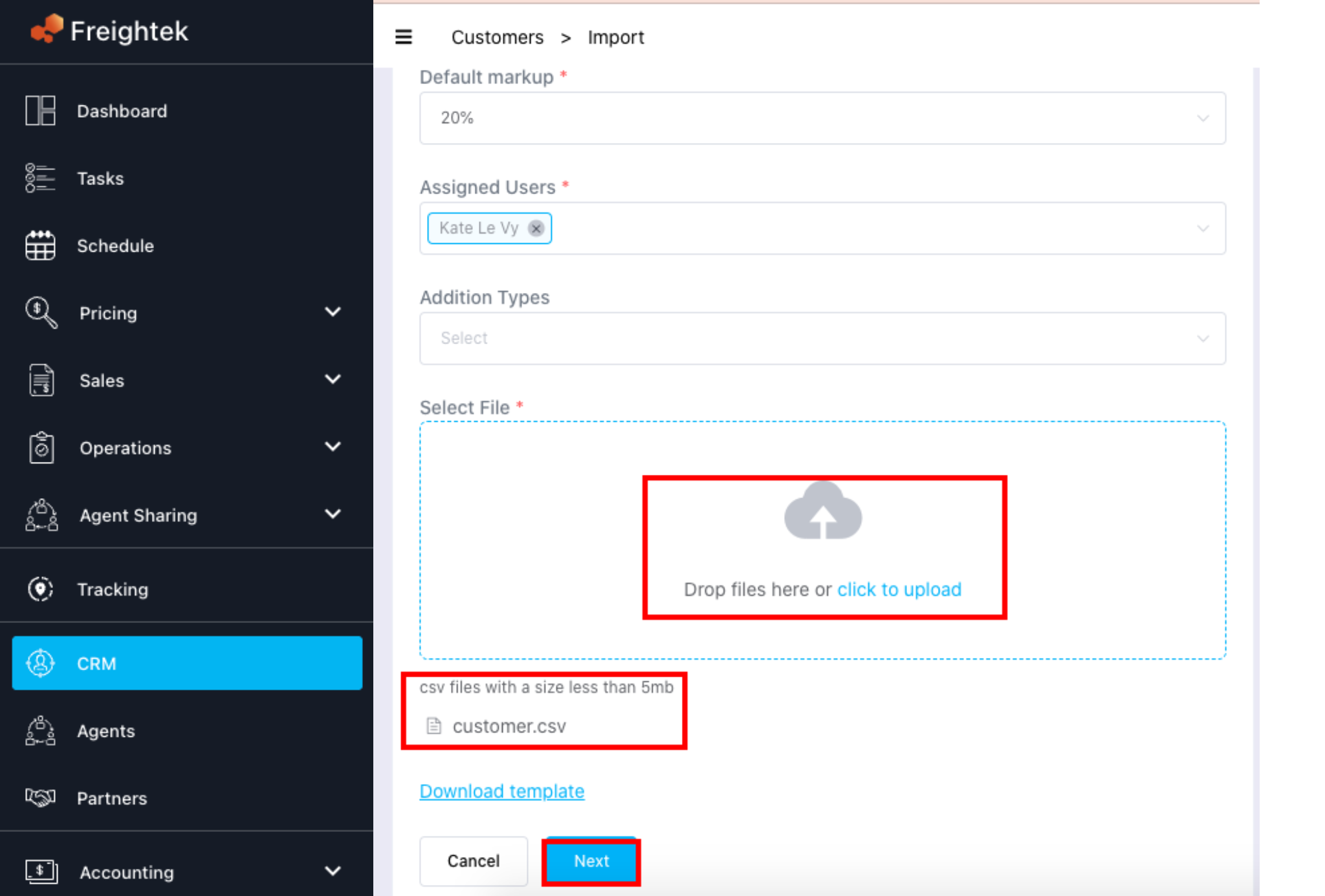
Step 7: Map each Excel column to the corresponding system field → click Import.
Example: Column Heading: Name → Tariff Item: Name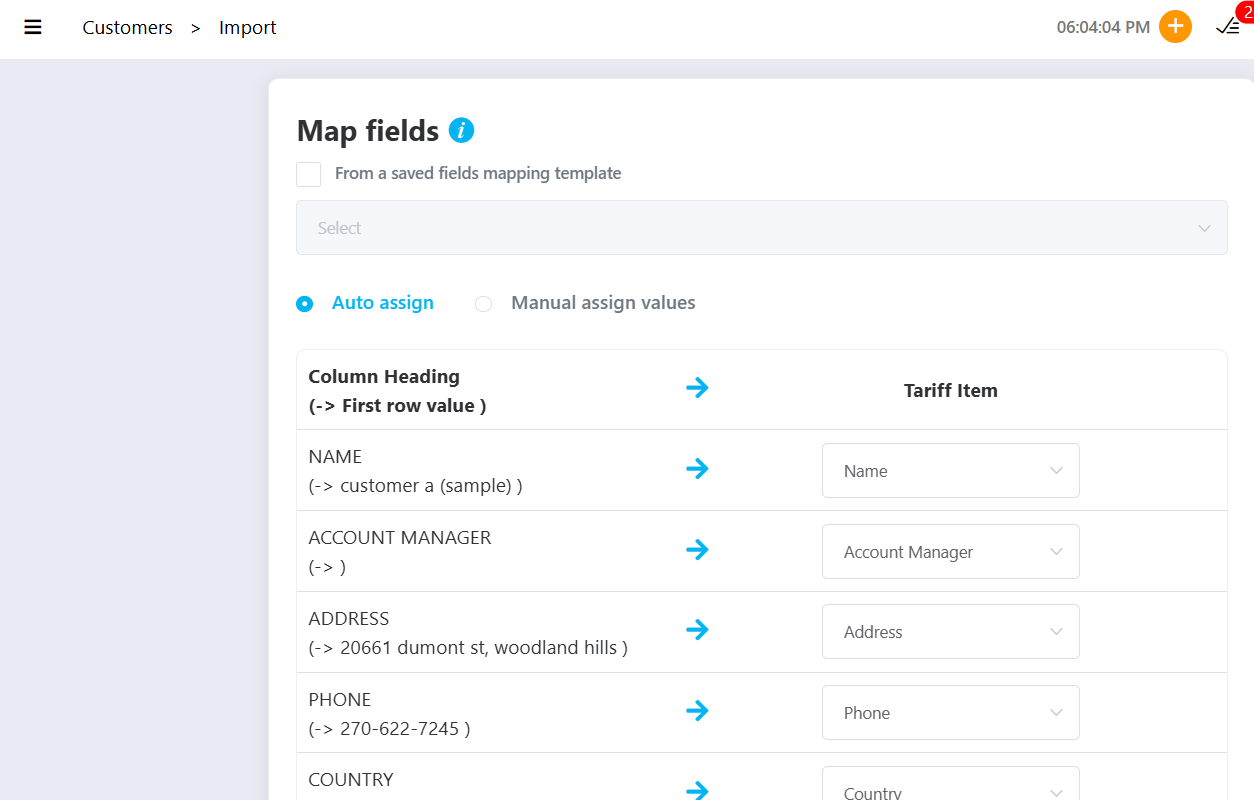
Step 8: Import is successful when progress reaches 100%, then click Finish.
If an error appears, the system will show the exact row and field with the issue → correct the Excel file → click Upload another file to re-import.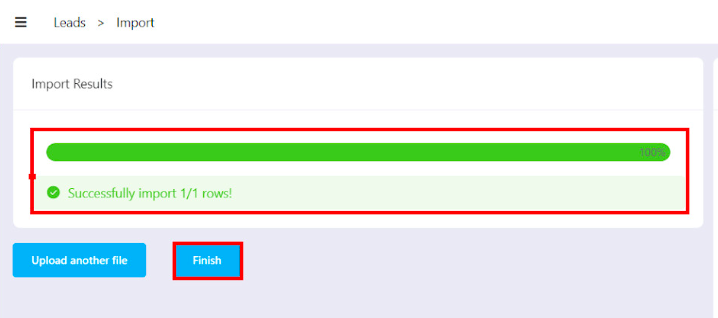
HOW TO CHECK WHETHER A CUSTOMER ALREADY EXISTS IN THE SYSTEM
Step 1: Go to CRM, enter the customer name or tax number.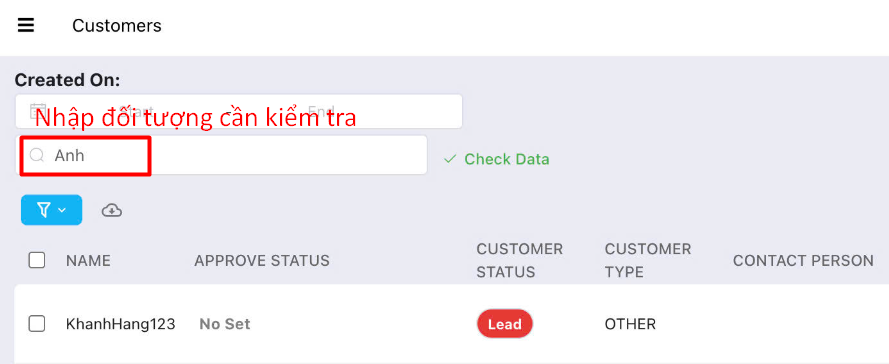
Step 2: Click Check Data.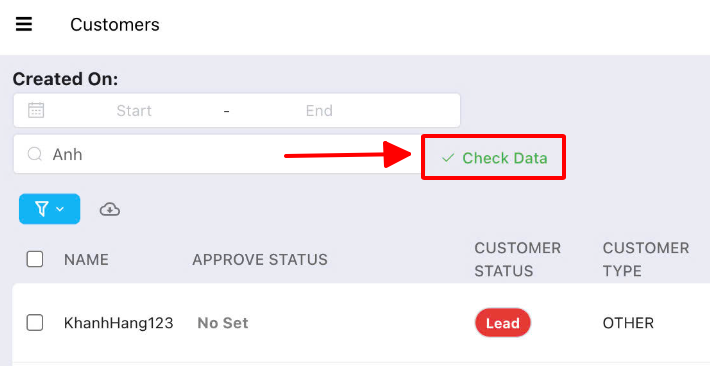
If the customer already exists → the system will display the result.
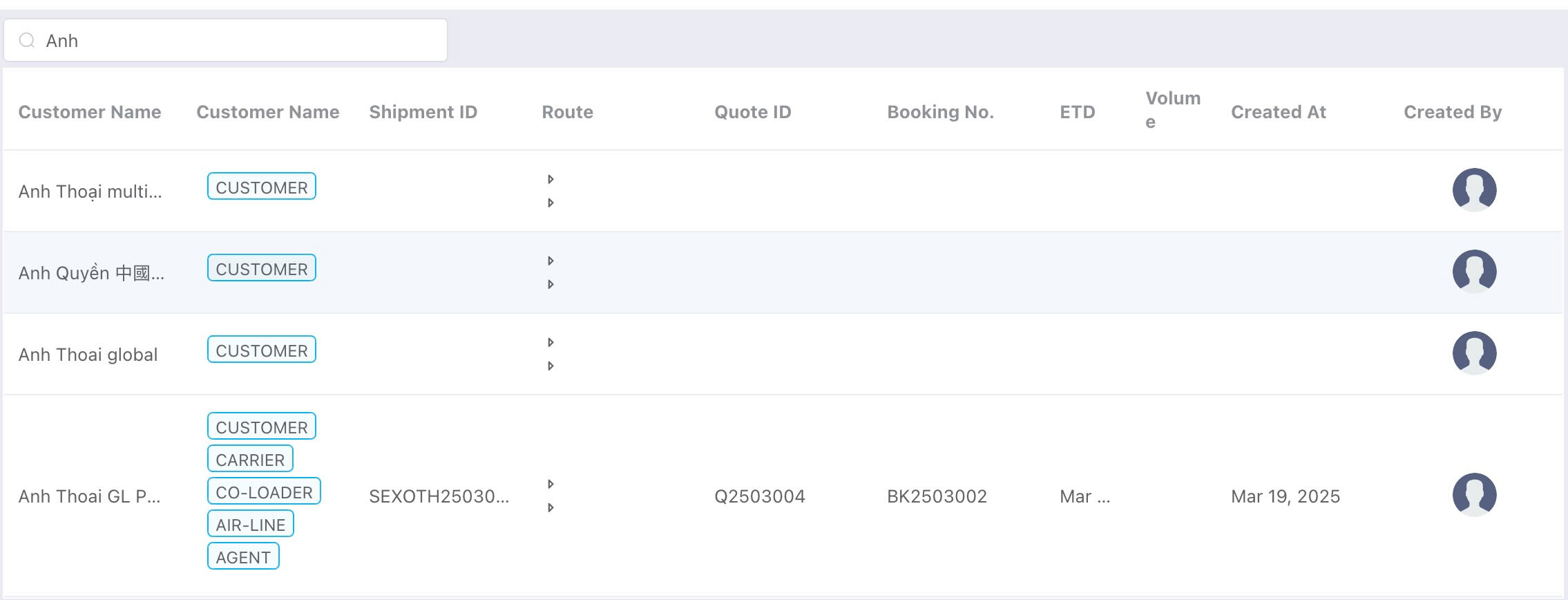 If the customer does not exist → the system will show No data.
HOW TO EDIT CUSTOMER INFORMATION
Step 1: Click View Customer for the customer you want to modify.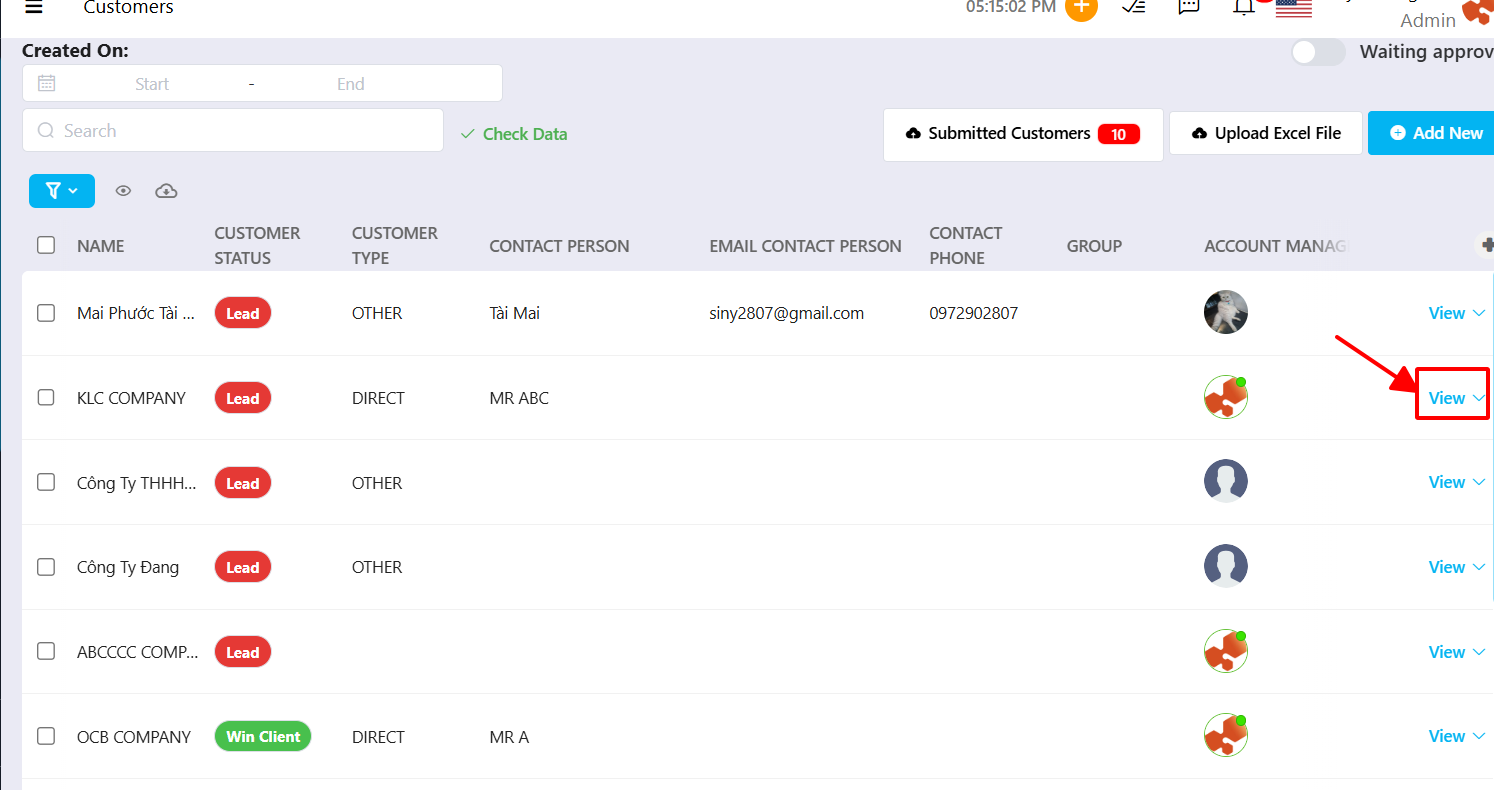
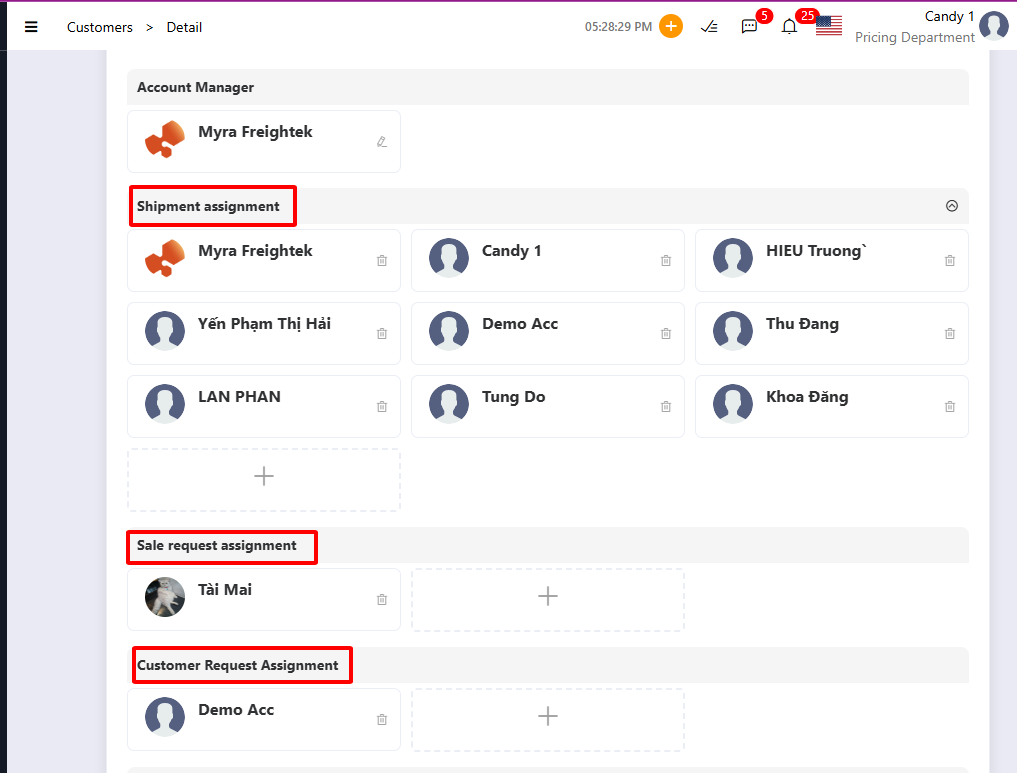
Step 2: Choose the section you want to edit:
Add or Assign Users (share customer access)
Shipment assignment: add users to manage Quotes/Shipments
Sale request assignment: add users to follow Sales pricing requests
Customer request assignment: add users to follow Customer Portal requests
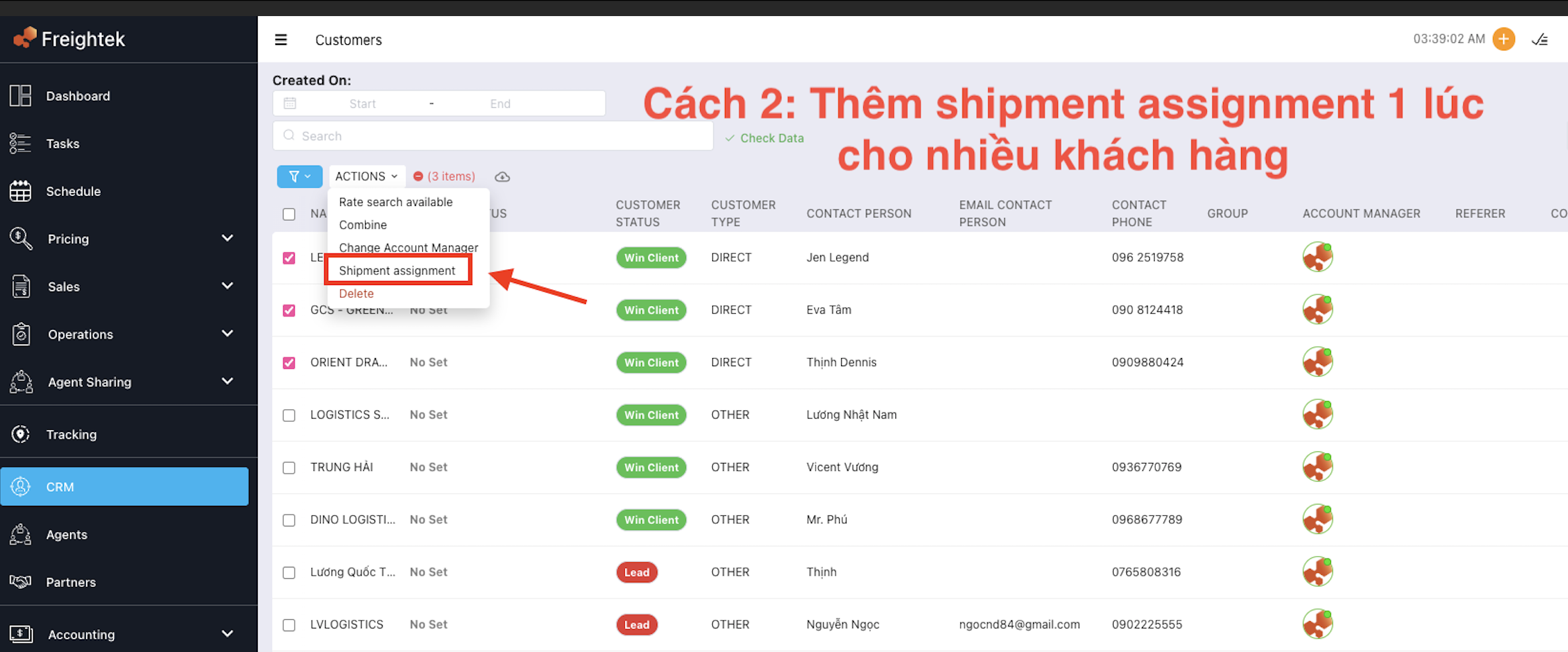 Change the Account Manager: The Account Manager is the main salesperson in charge of the customer. Other sales users can be added under Shipment Assignment when sharing the customer.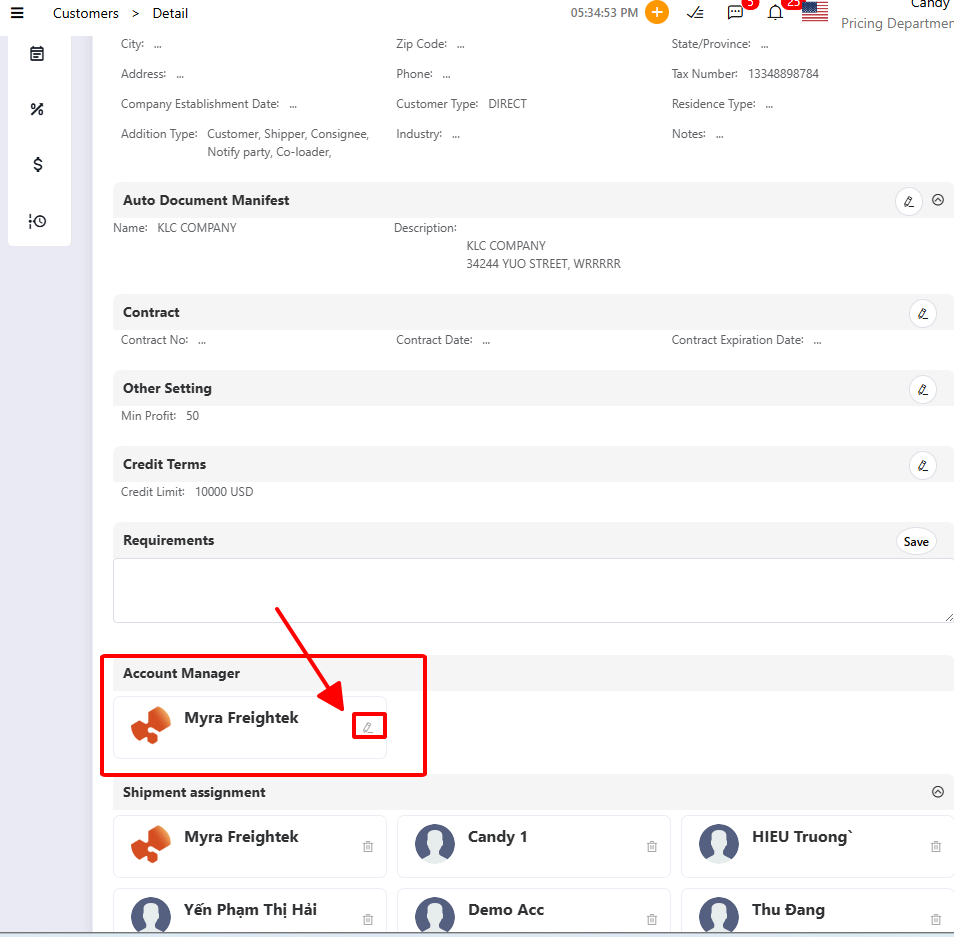
General Information: Select Edit General Information.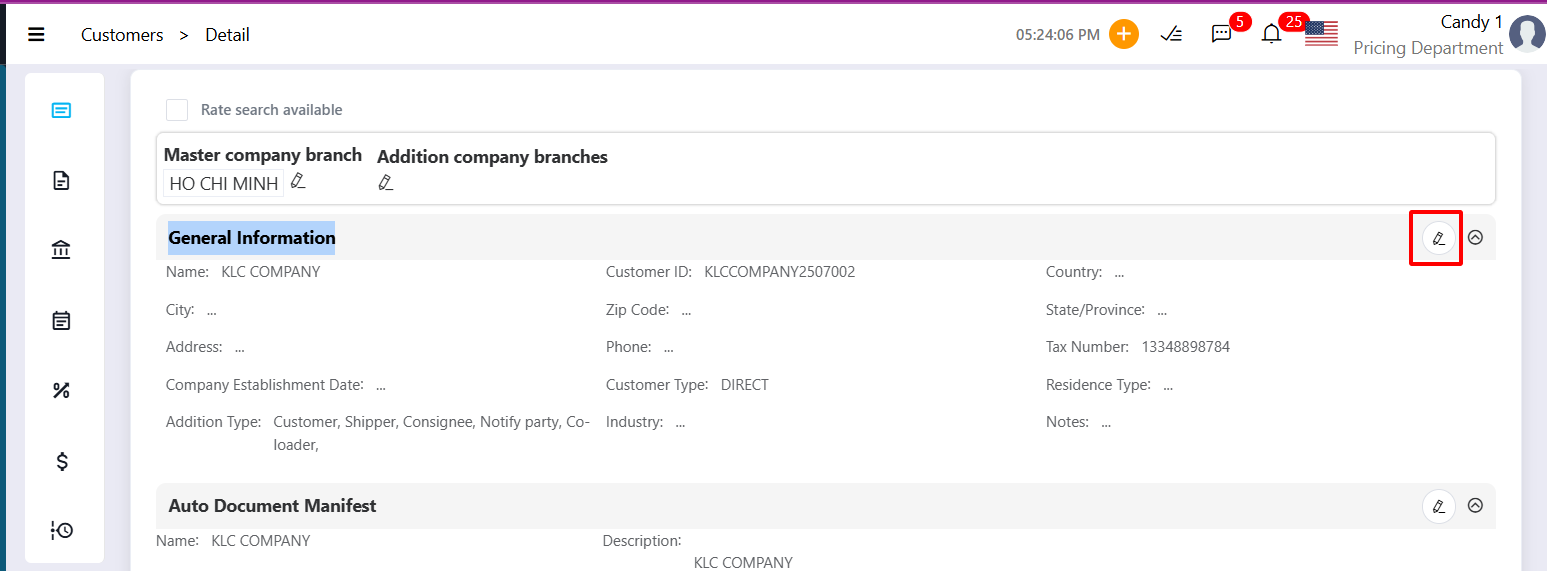
Invoicing Information: Select Edit Invoicing Information (applies to Debit/Credit Notes and Invoices).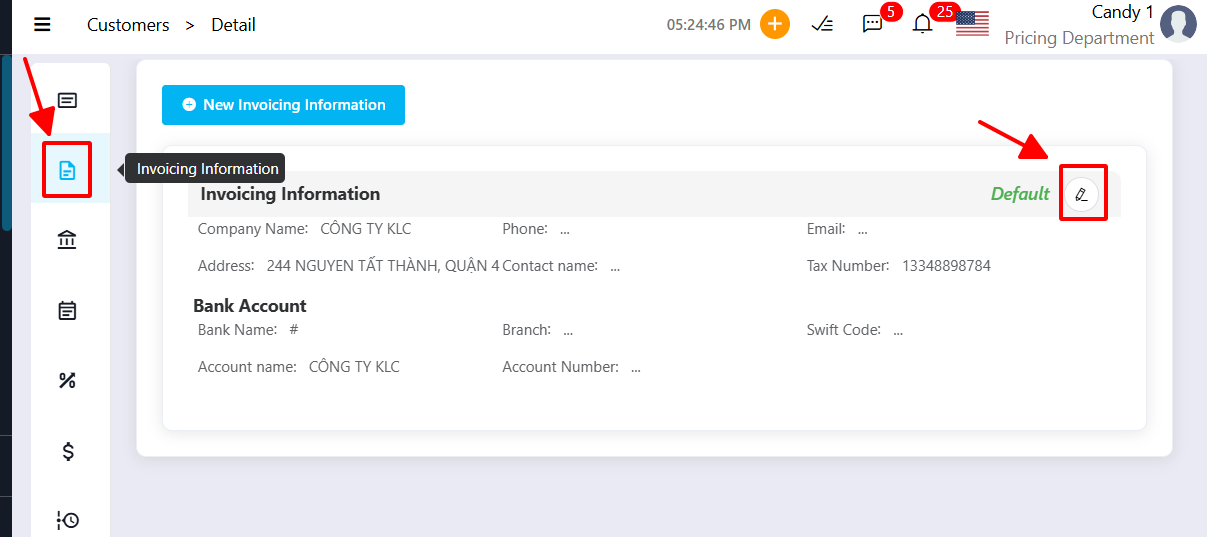
Was this article helpful?
That’s Great!
Thank you for your feedback
Sorry! We couldn't be helpful
Thank you for your feedback
Feedback sent
We appreciate your effort and will try to fix the article